
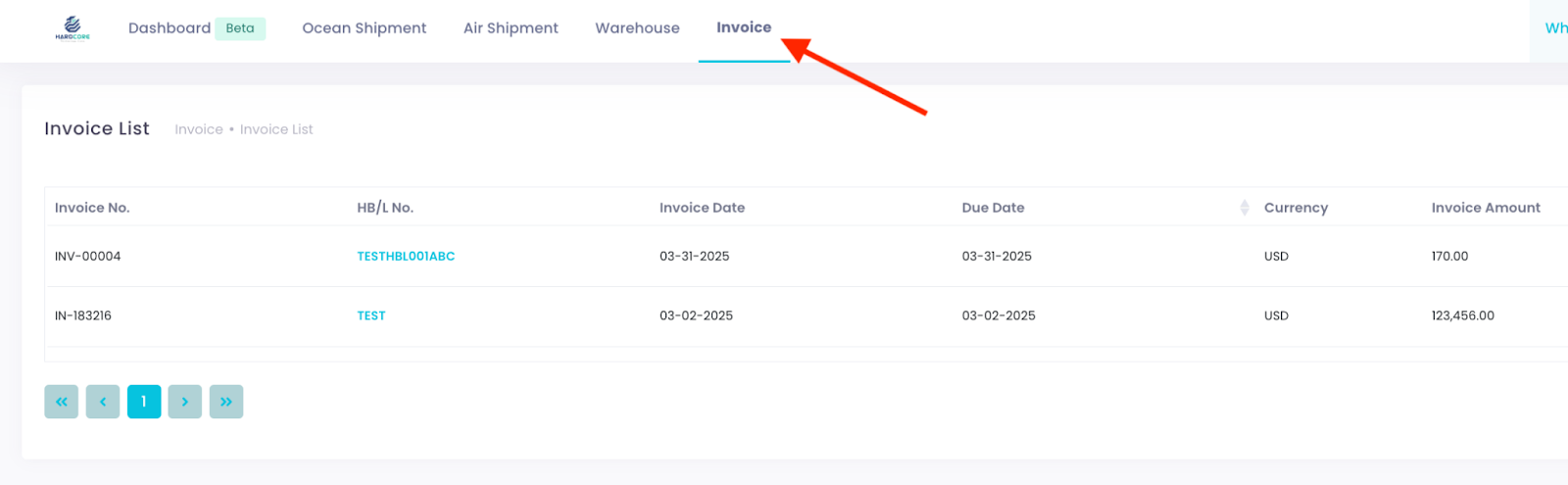
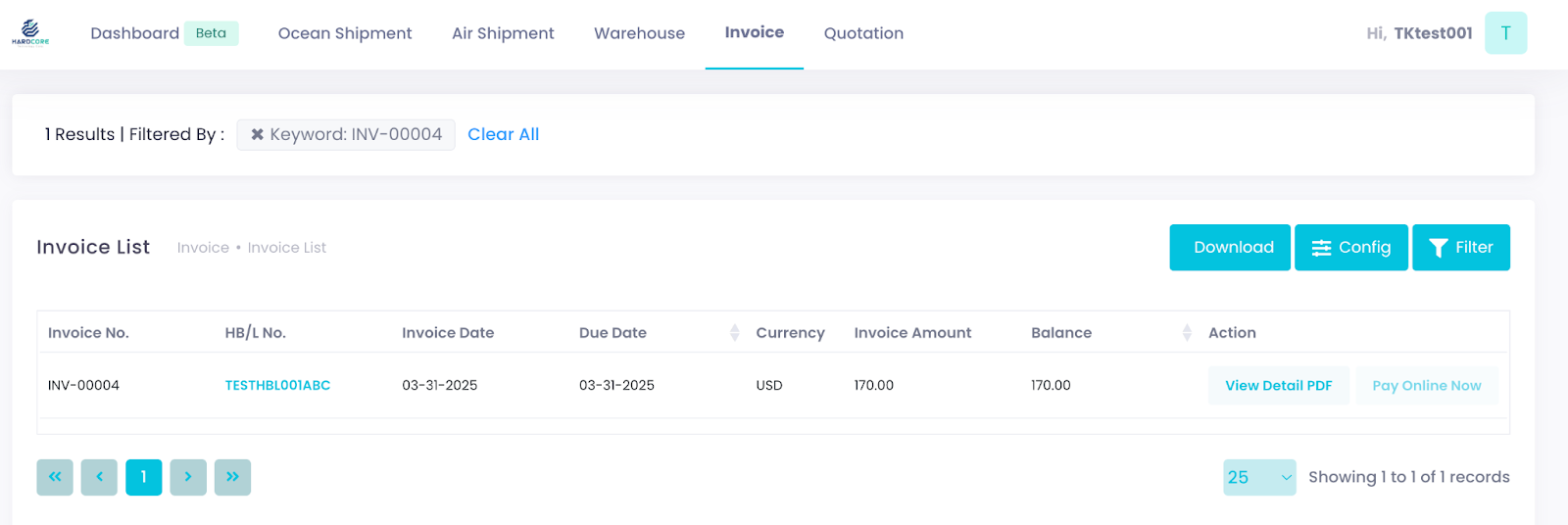
You can turn on the Invoice List in the Customer Portal to see important details like Currency, Invoice Amount, and Balance. This information is also visible to Tracking users, helping teams stay informed and work better together.
As an additional piece of suggestion, if you're interested in making payments directly through the portal, consider adding Koverly, a powerful payment solution. To learn more, just reach out to your Customer Success Manager—they’ll be happy to help you understand how Koverly can streamline your payment process.
The Invoice List offers two publishing options: manual-publish and auto-publish. This article explains how the system handles each option.
Note: In this article, "Invoice List" refers to the Customer Portal - Invoice List, not the GoFreight System’s Invoice/Cost List, to avoid confusion.
What to Expect from the "Publish" Behavior?
Manually Publishing an Invoice
To publish an AR invoice to the Customer Portal, follow these steps:
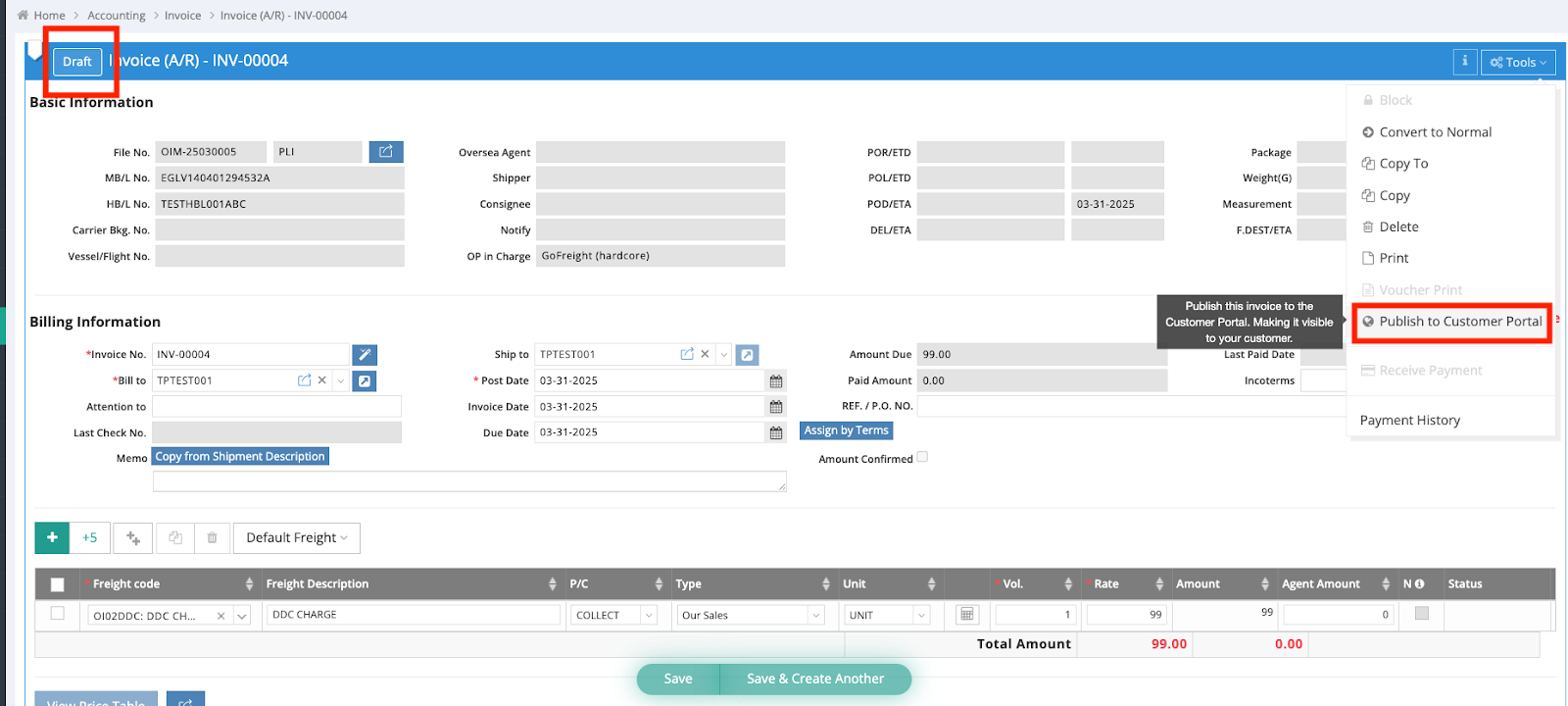
- Open an AR invoice and navigate to Tools > Publish to Customer Portal.
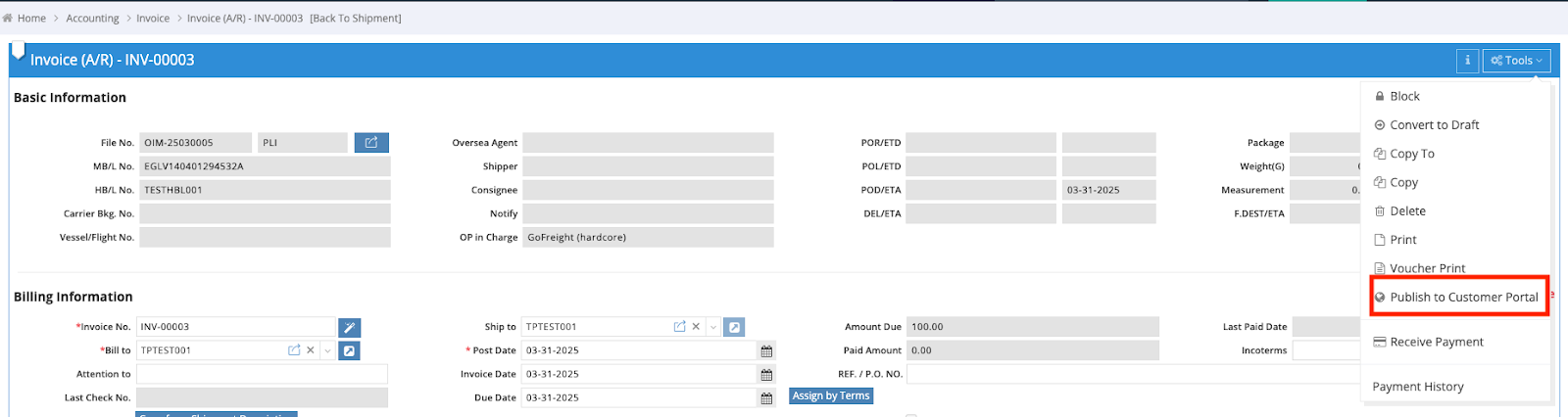
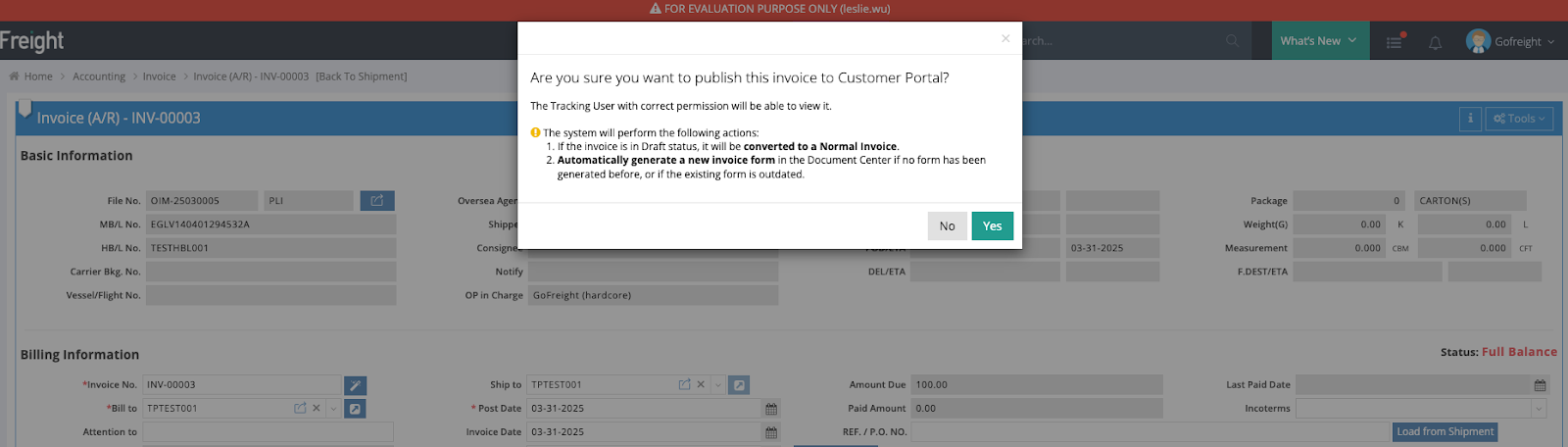
- The system will prompt you to confirm publishing. Click "Yes" to proceed. Once published, tracking users with the correct permissions can view the invoice copy.
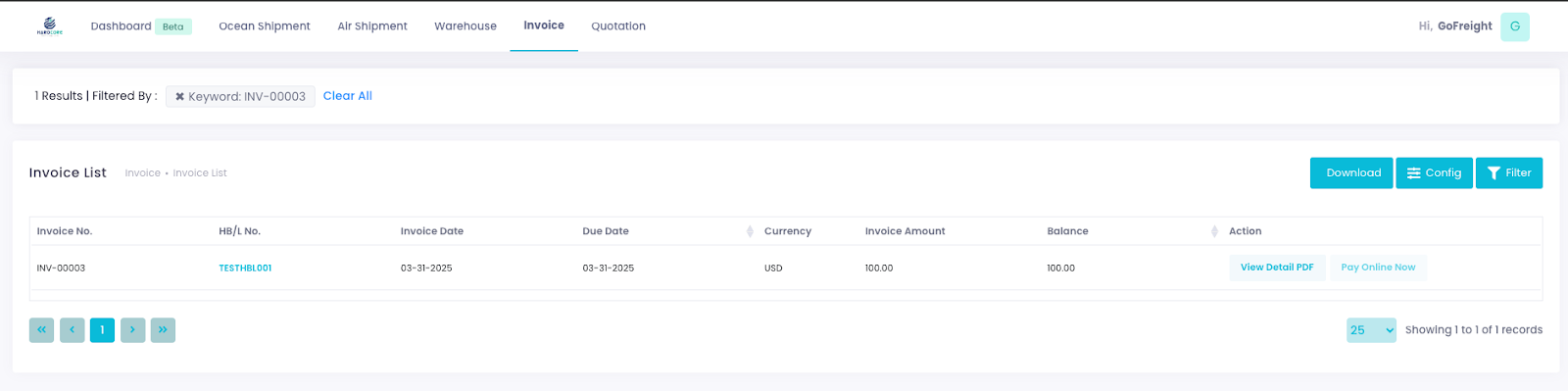
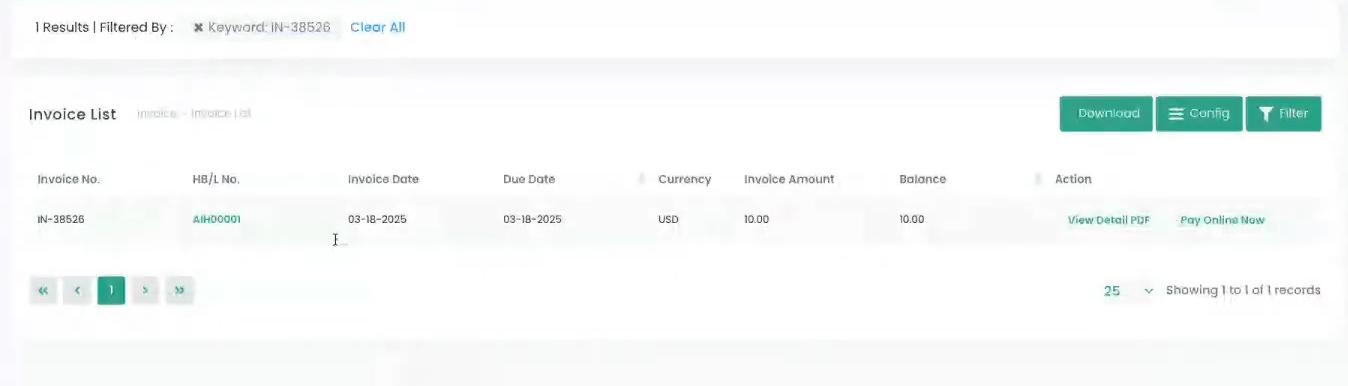
- To verify, go to Customer Portal > Invoice List—the invoice will be synced and visible there.
Auto-Publishing an Invoice
How Auto-Publish Works
You can Auto-Publish invoices by printing the invoice as a PDF or emailing it to your customer.
Note: The Auto-Publish function is disabled by default. To enable it, please contact GoFreight Support at support@gofreight.com .
Steps to Auto-Publish an AR Invoice
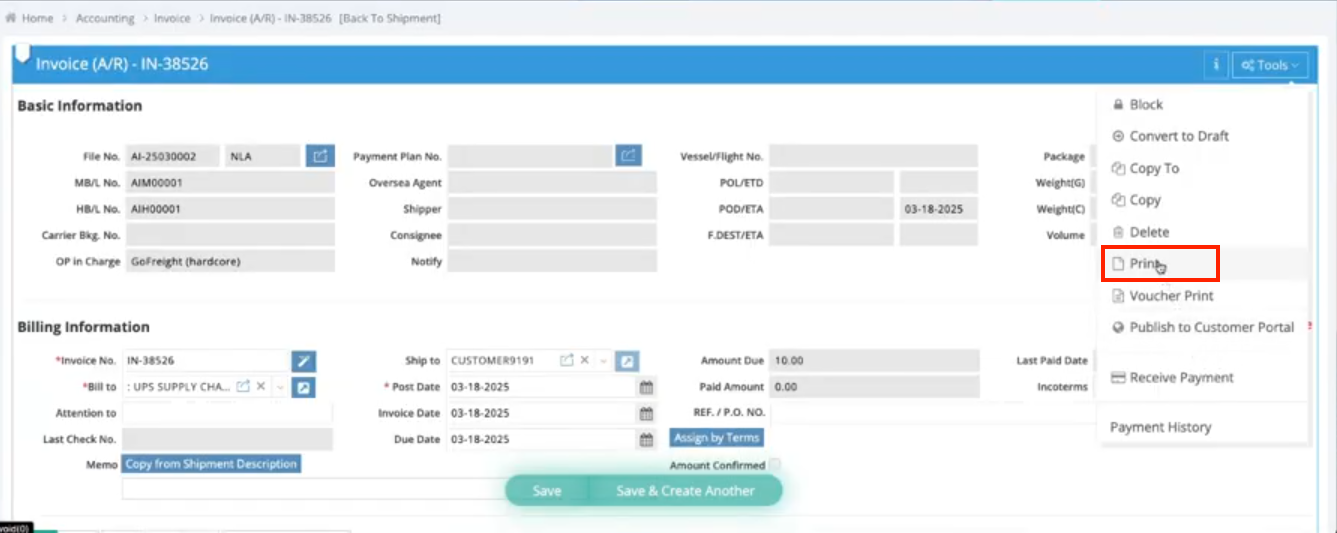
- Open an AR Invoice and go to Tools > Print.
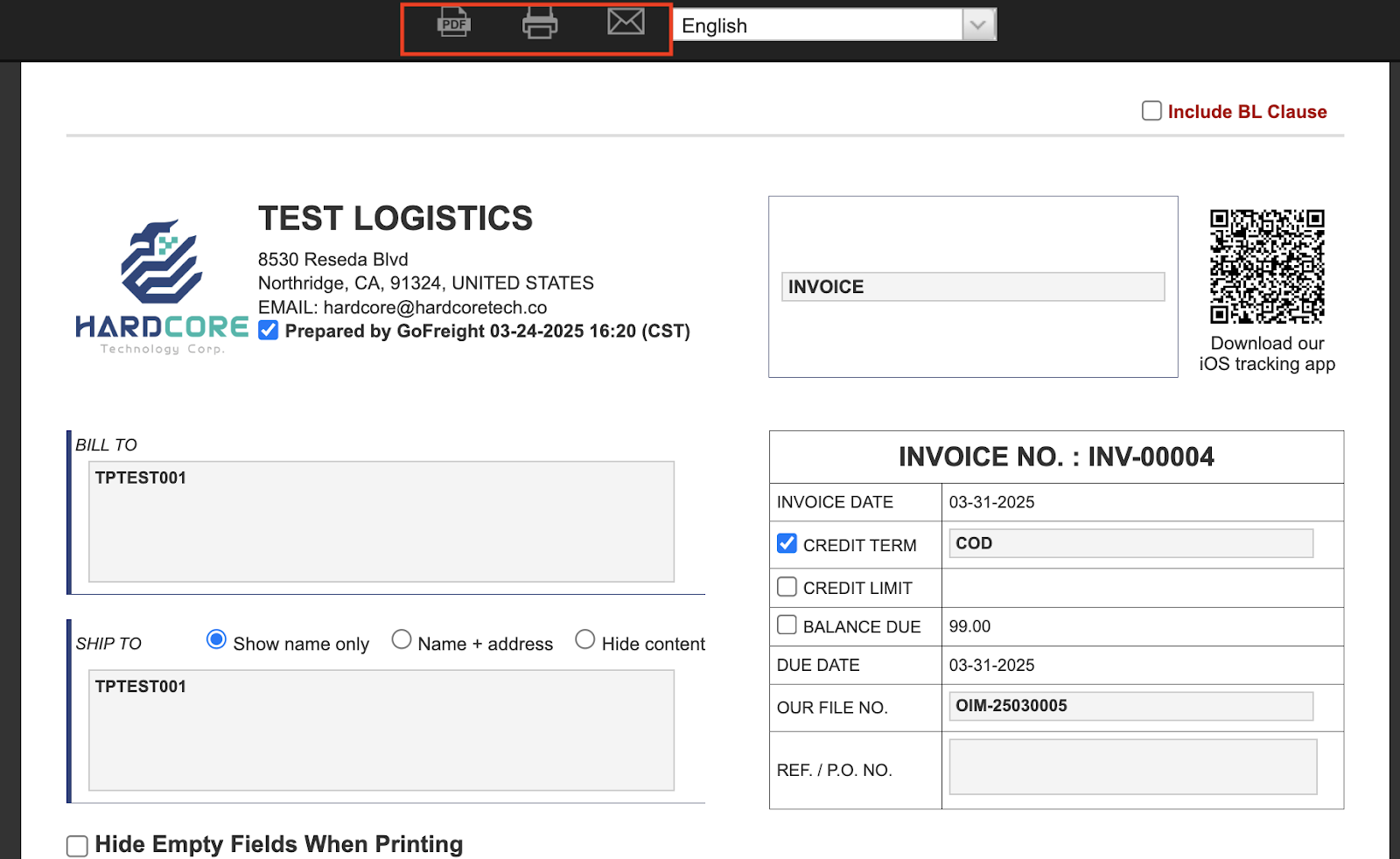
- On the preview page, select either Download PDF or Email (this will also save the invoice in the Doc Center).
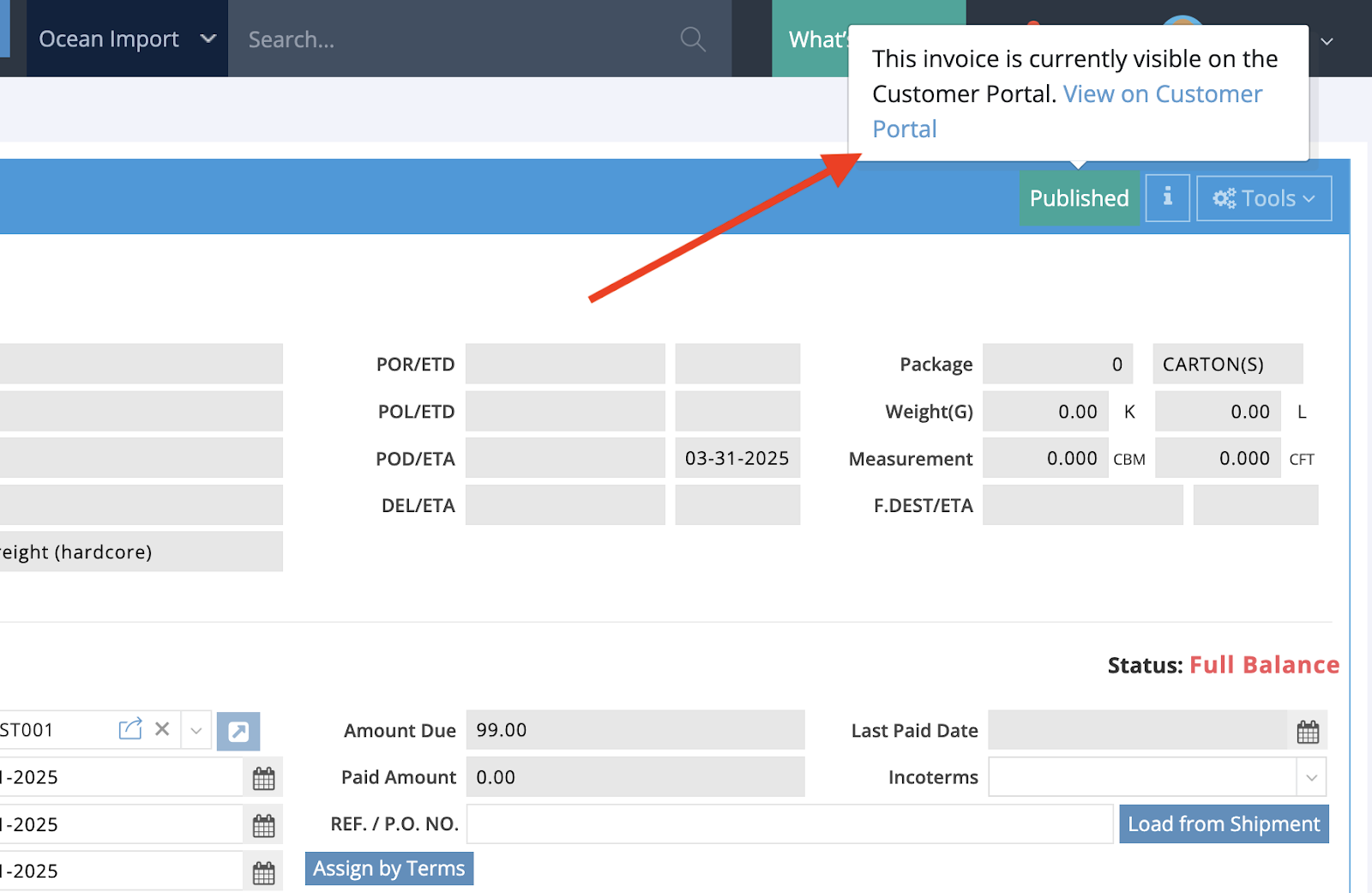
- The invoice will be auto-synced and published to the Invoice List.
- Click "View on Customer Portal" to open the Customer Portal.
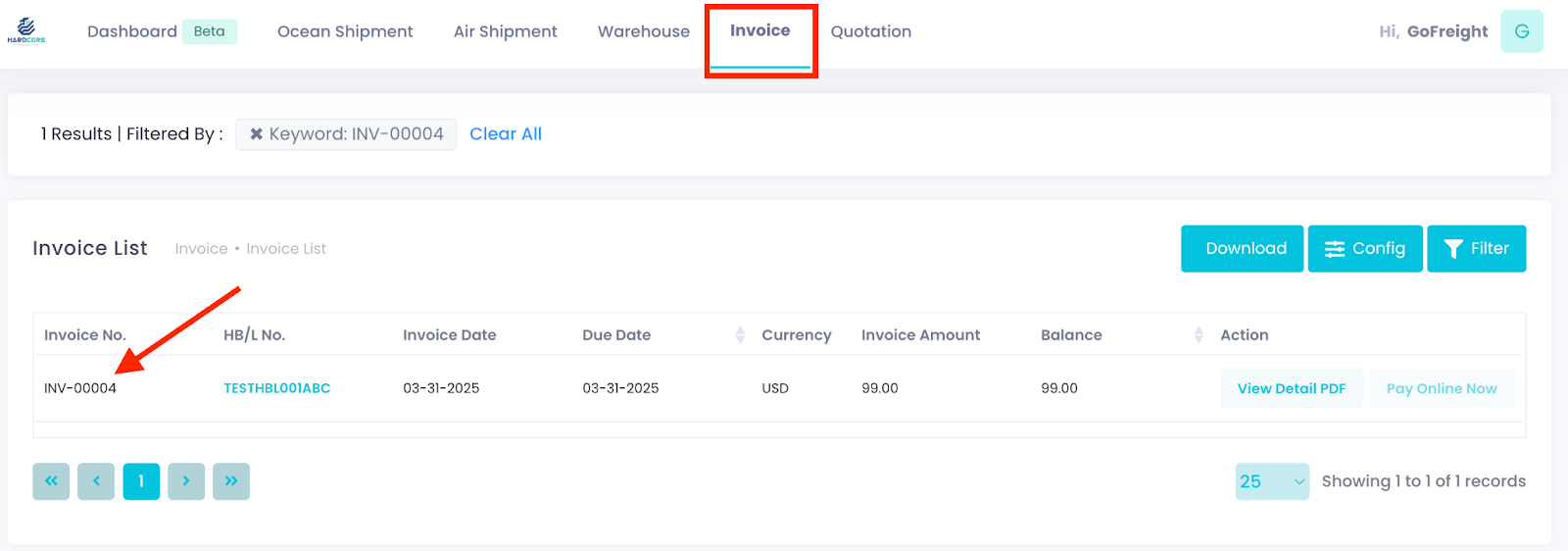
- You will see the invoice auto-synced and displayed in the Invoice List.
Unpublishing an Invoice
If you need to hide an invoice from tracking users, follow these steps:
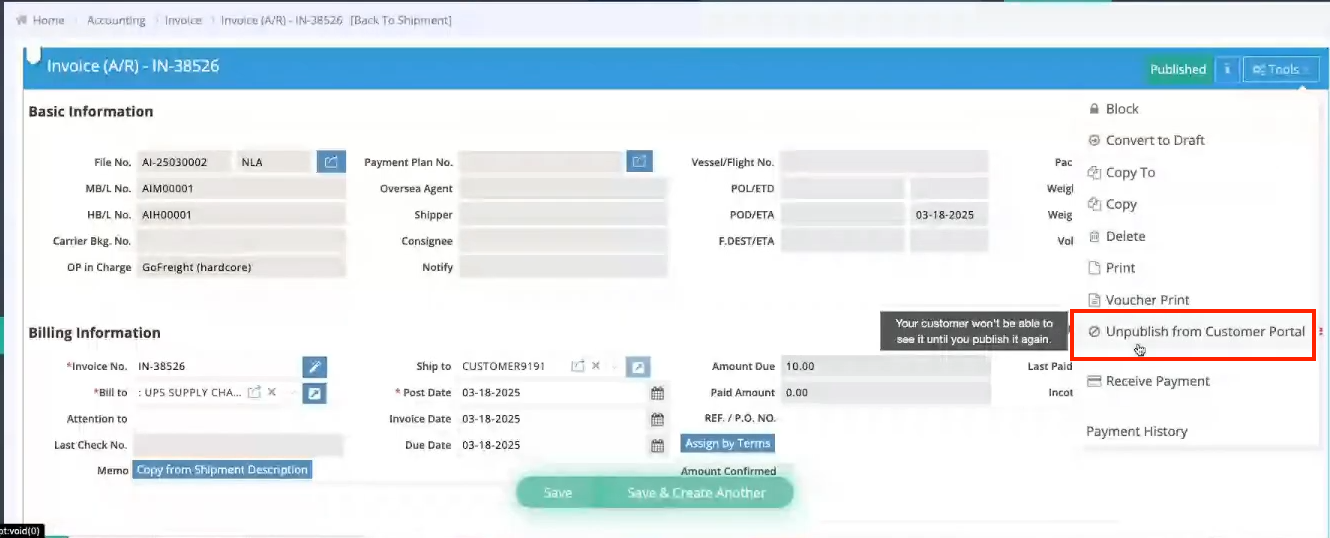
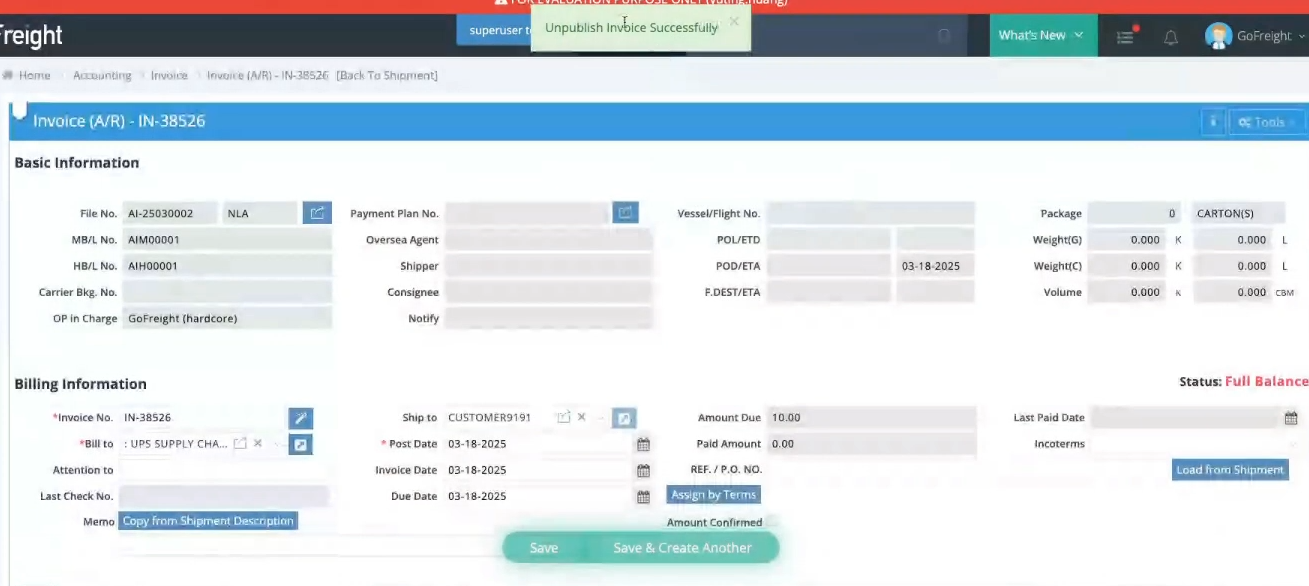
- Go to AR Invoice > Tools > Unpublish from Customer Portal. This will make the invoice invisible to tracking users until it is published again.
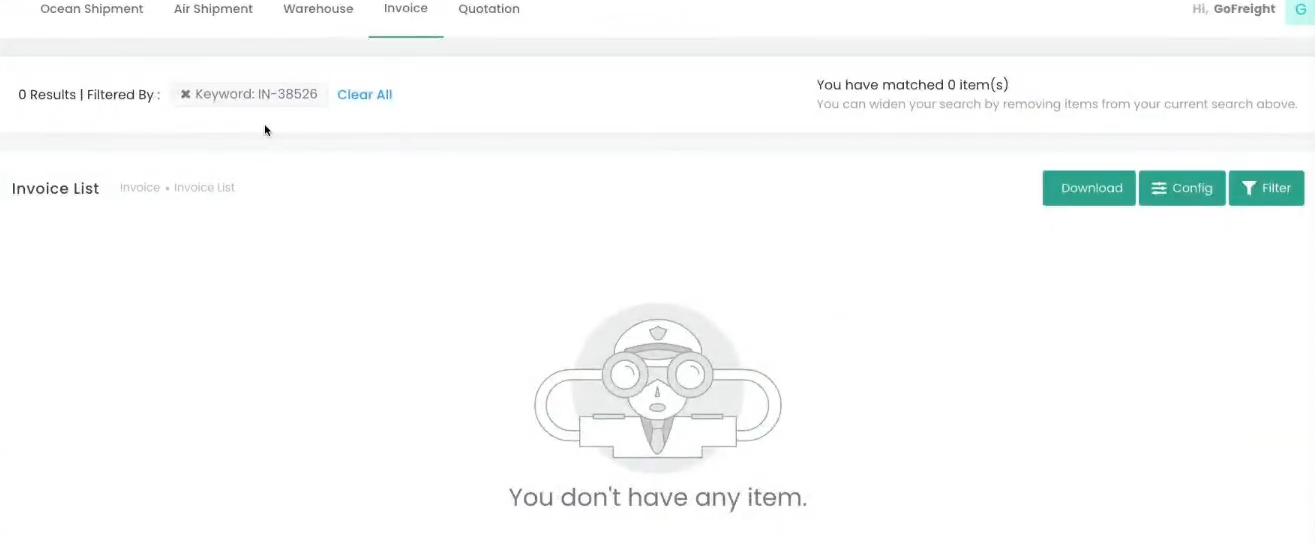
- Refresh the Invoice List—the invoice will no longer be visible to tracking users.
- Return to the invoice view in the GoFreight System and refresh the page. You will notice that the "Published" icon has disappeared.
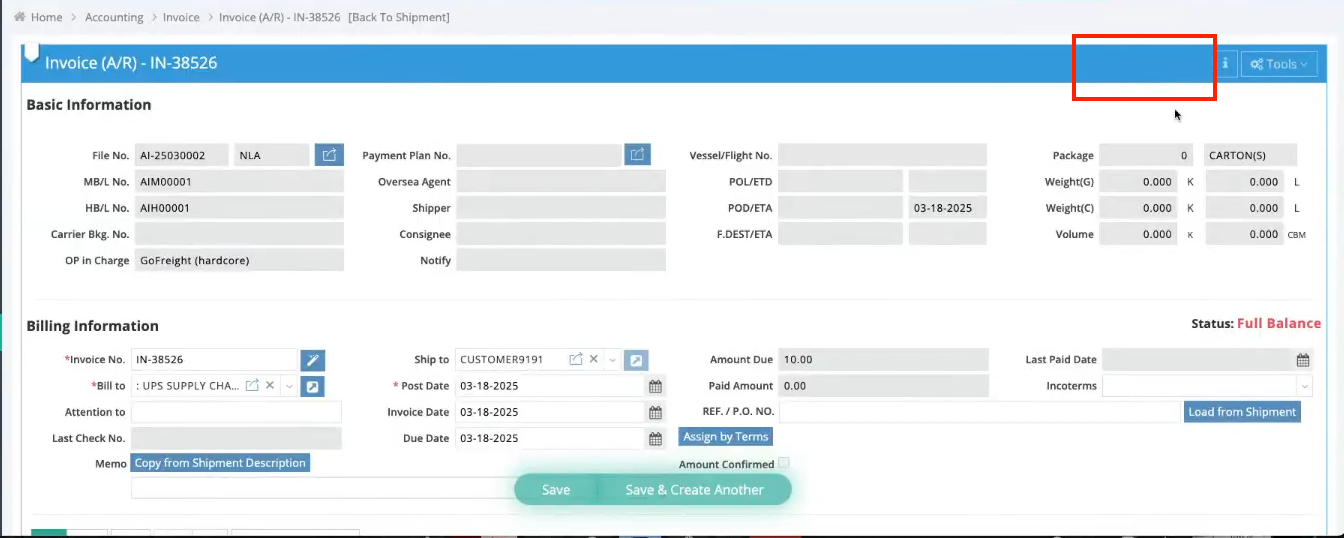
Publishing a Draft Invoice
- Open a Draft Invoice and go to Tools > Publish to Customer Portal.
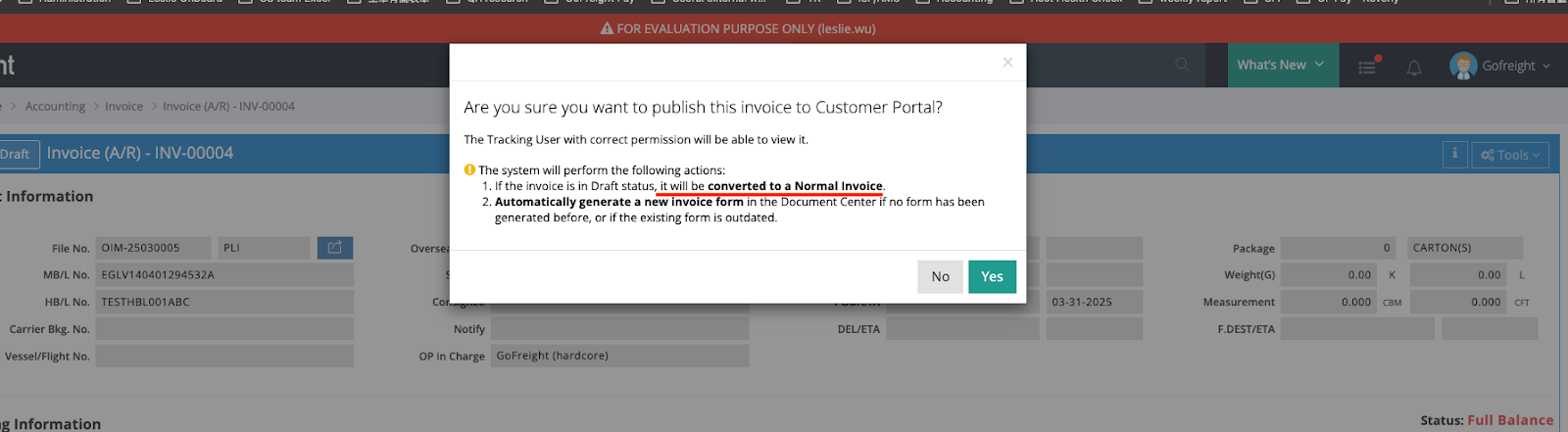
- A warning message will appear, notifying you that the invoice will be converted from Draft to Normal and published to the Customer Portal, making it visible to tracking users.
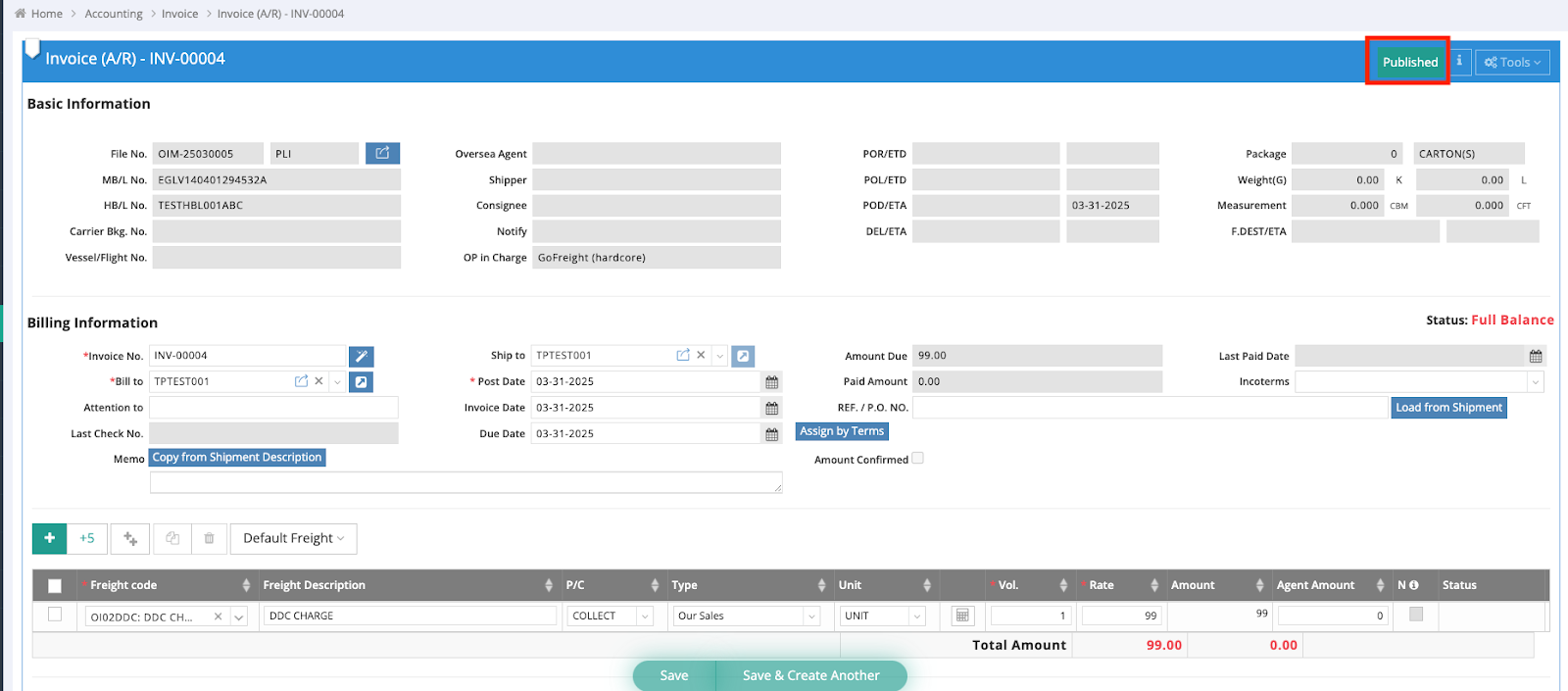
- Click "Yes" to proceed. The invoice status will change to Published, and it will be synced to the Customer Portal.

Important Notes:
- Converting a Normal Invoice back to Draft will automatically unpublish it, removing it from the Invoice List.
- If Auto Sync is enabled, printing the invoice as a PDF or sending it via Email will:
Revising Invoice Information
When you update an invoice field, the system will warn you that the published invoice is not up-to-date.
Example Scenario: Updating an Invoice Amount
- Suppose an invoice has already been published.
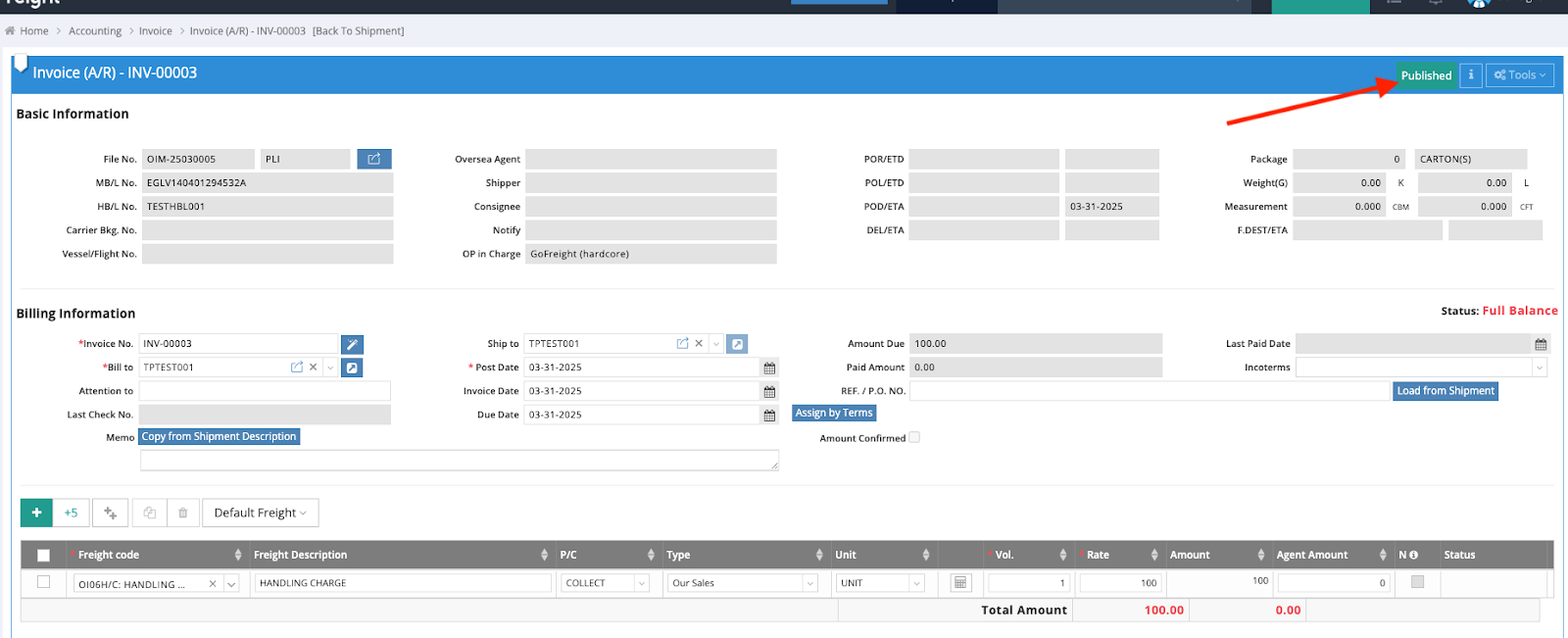
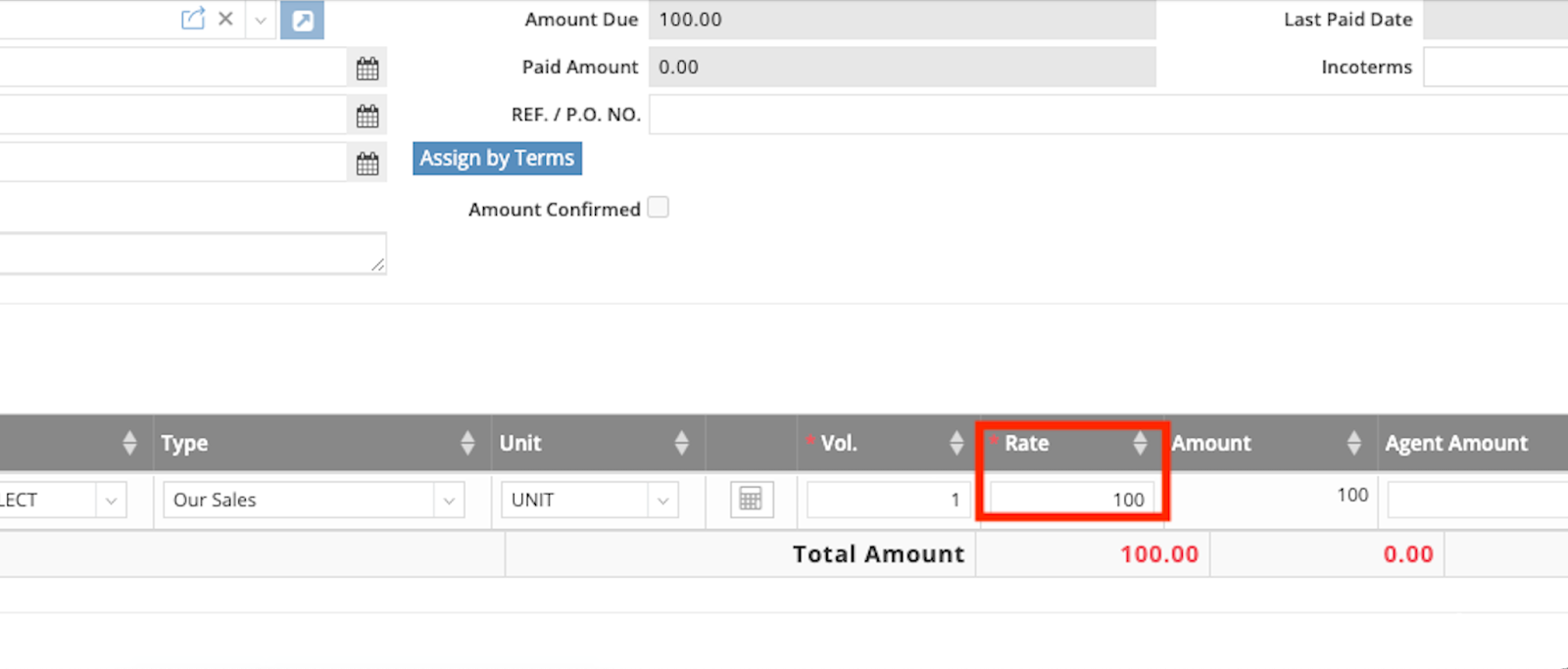
- Revise the invoice amount from 100 to 200 and click Save.
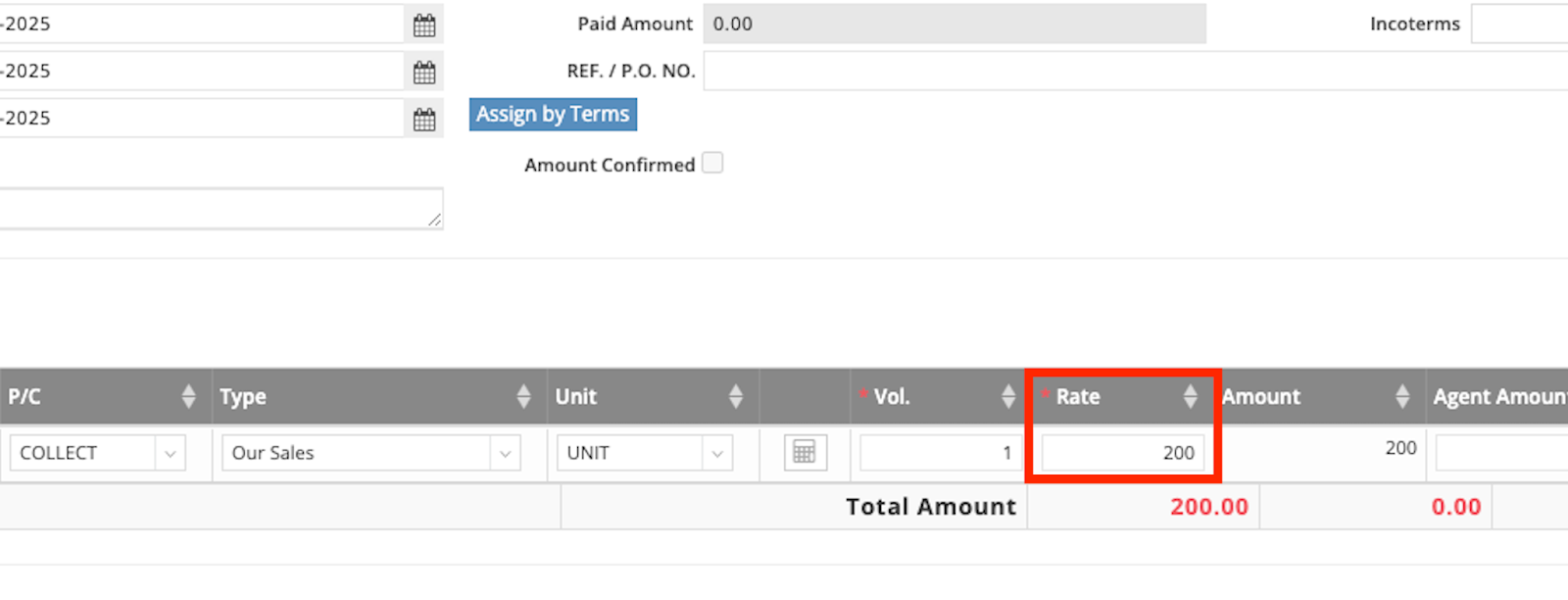
3. The system will now display "⚠️Published" instead of "Published", indicating
that the invoice on the Customer Portal is outdated.
System Warning Message
“Do you want to generate an invoice form and update the Customer Portal?
Saving your changes will not automatically update the invoice information on the Customer Portal. To sync the latest information, you need to generate a document after saving (Download, Print, or Email).”
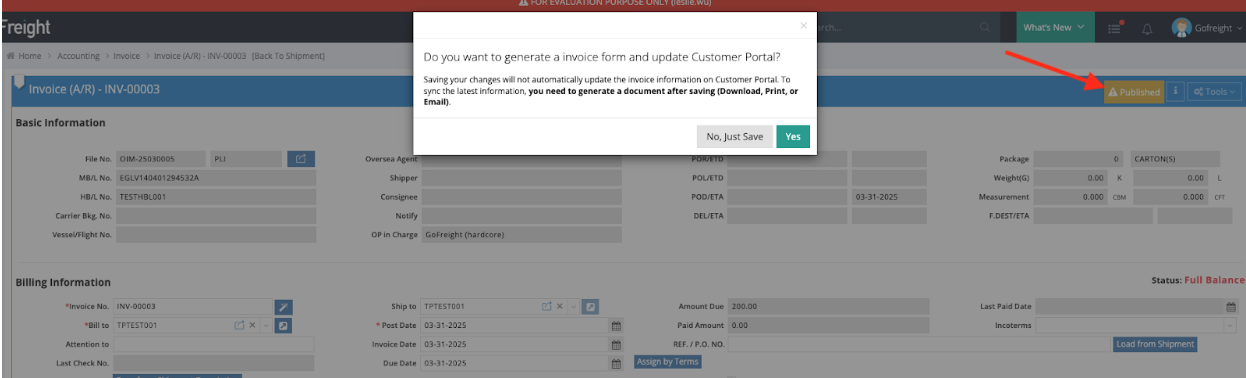
4. Choose “Yes” to save & the invoice will be saved & synced to the Customer Portal.
5. The "⚠️Published" warning disappears, and the "Published" icon reappears.
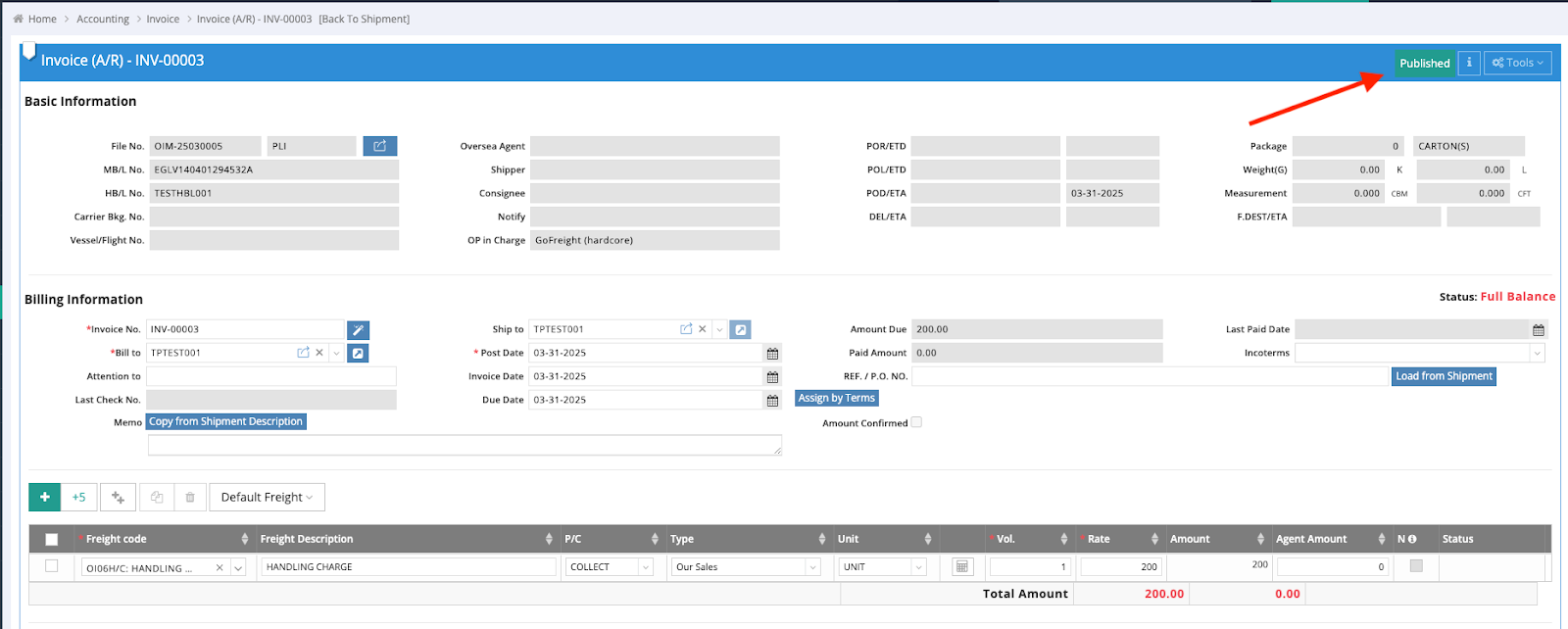
6. The invoice amount on the Customer Portal updates to 200.

However, if you choose "No, just Save", a yellow banner will appear, warning that the invoice is not synced to the Customer Portal. To sync it later, you must first unpublish the invoice and then publish it again.
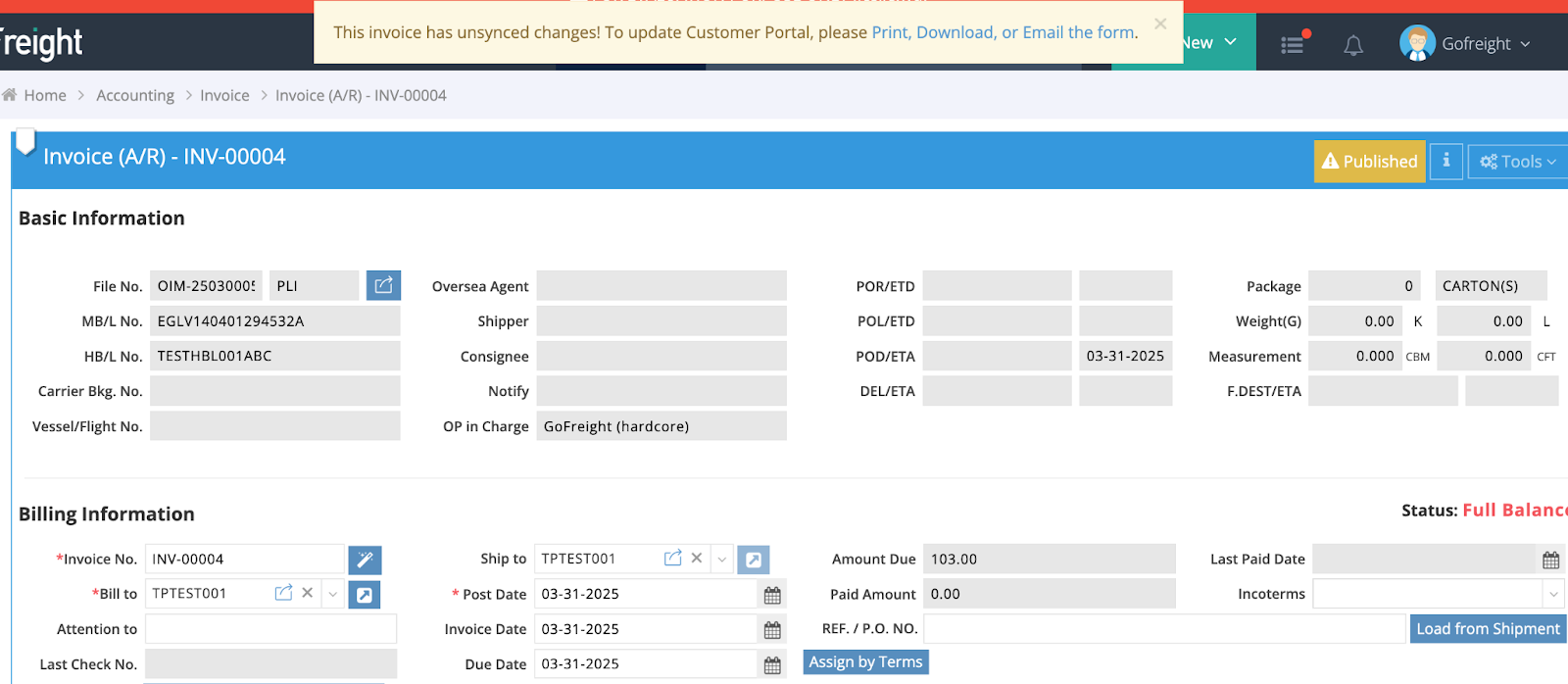
Note: If Auto Publish is enabled, printing the invoice as a PDF or emailing it will automatically sync the updated invoice to the Customer Portal. Meanwhile, the Customer Portal - HBL Shipment Document Info section will also be updated.
Fields That Trigger the Yellow Banner Warning
The warning appears when any of the following fields are revised:
Invoice AmountInvoice No.Invoice DateDue DateCurrencyFreight Charge ItemCurrency Rate (via "User Defined" only)Enabling Invoice List Access for Tracking Users
This guide outlines the steps required to enable a tracking user to view invoices.
1. Access User Settings
- Navigate to Home > Settings > Tracking User Management.
- Select the desired tracking user (e.g., TKtest001).

2. Verify User Role and Organization
- Go to the Basic Information section.
- Ensure the System Role is set to Customer.
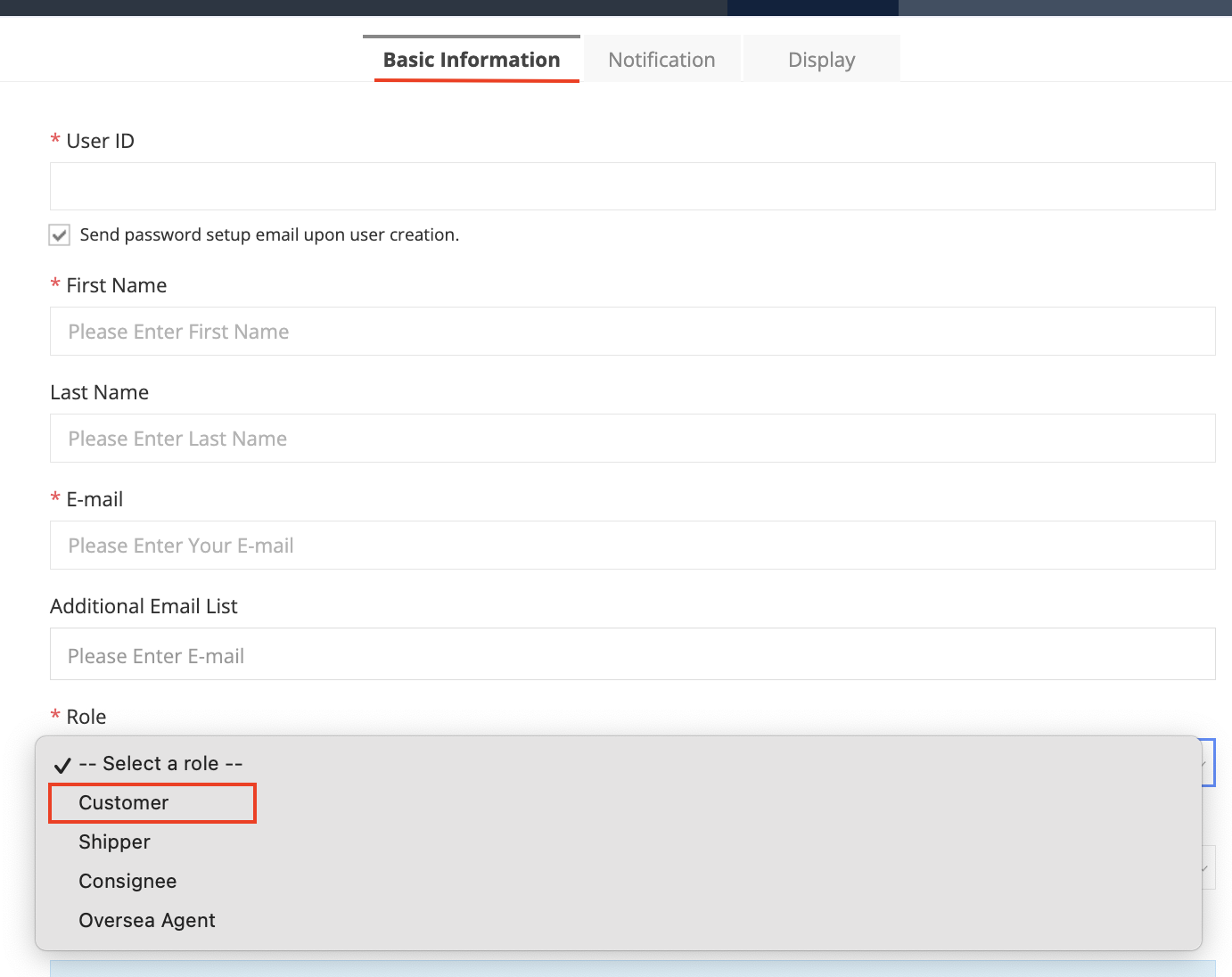
- In the Company/Organization field, enter the tracking user’s company (e.g., TPTEST001).
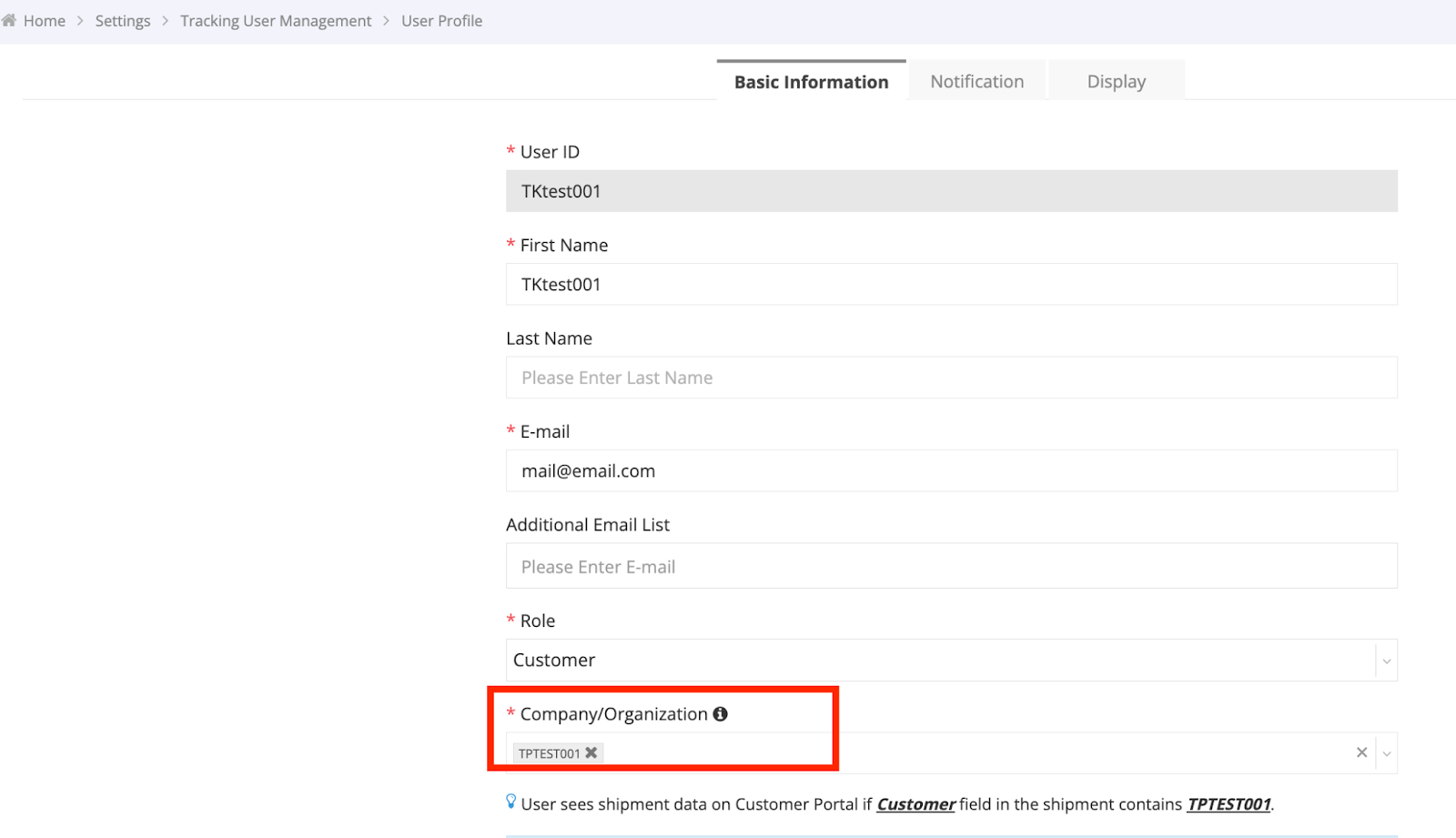
3. Enable Invoice Viewing
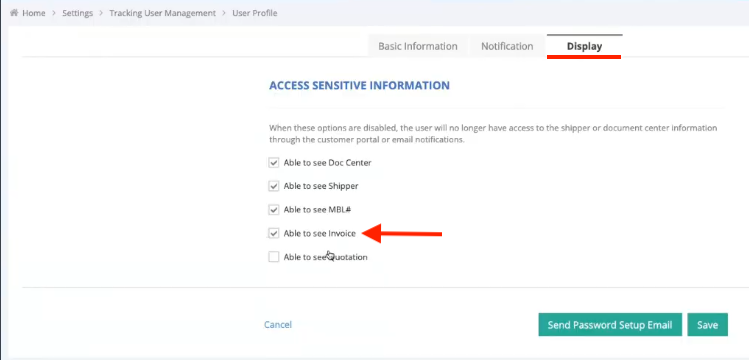
- Navigate to the Display tab.
- Check the box for "Able to see Invoice".
4. Link Invoices to the Tracking User
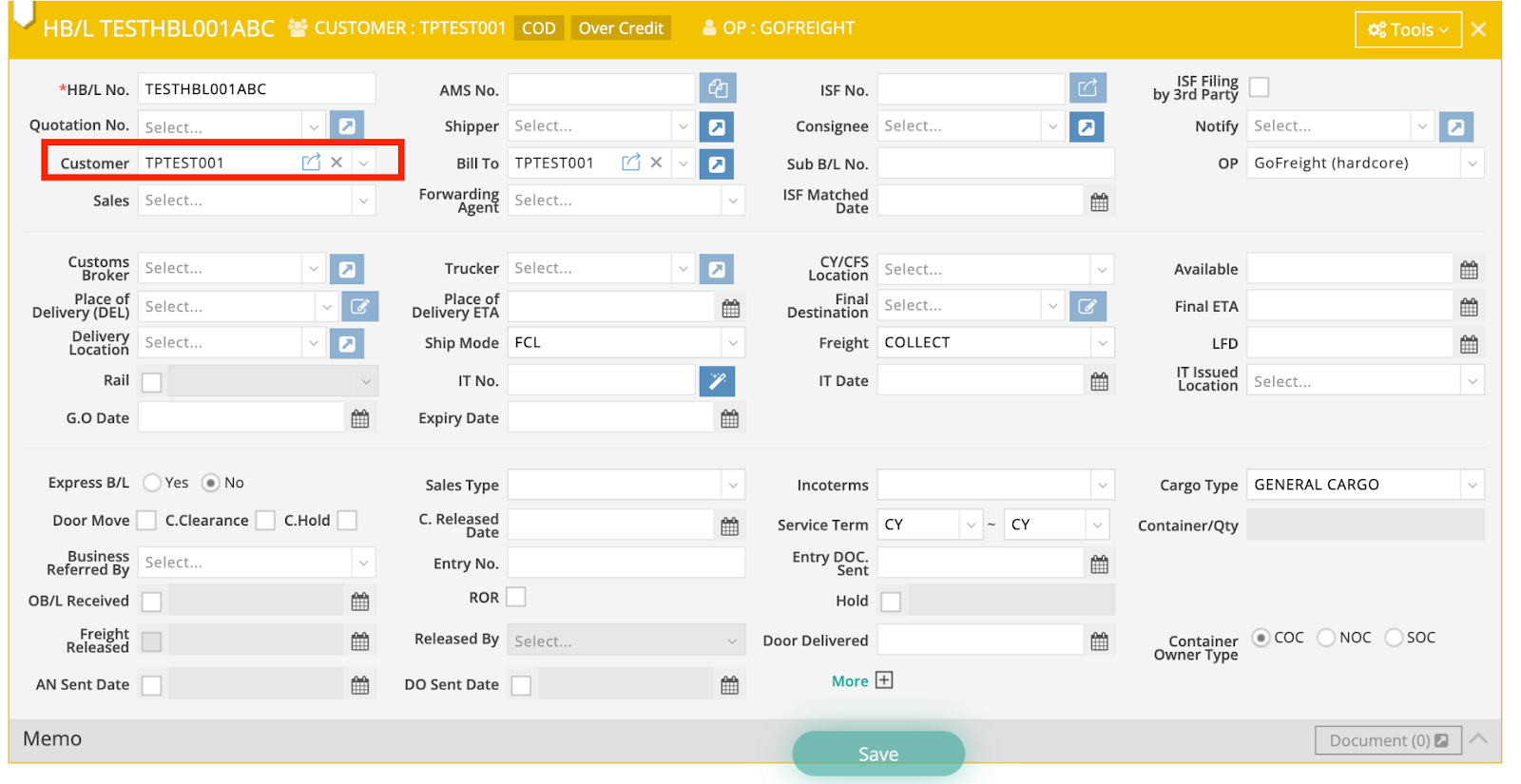
- Create a Shipment and ensure the HBL Customer field is set to the organization (e.g., TPTEST001).
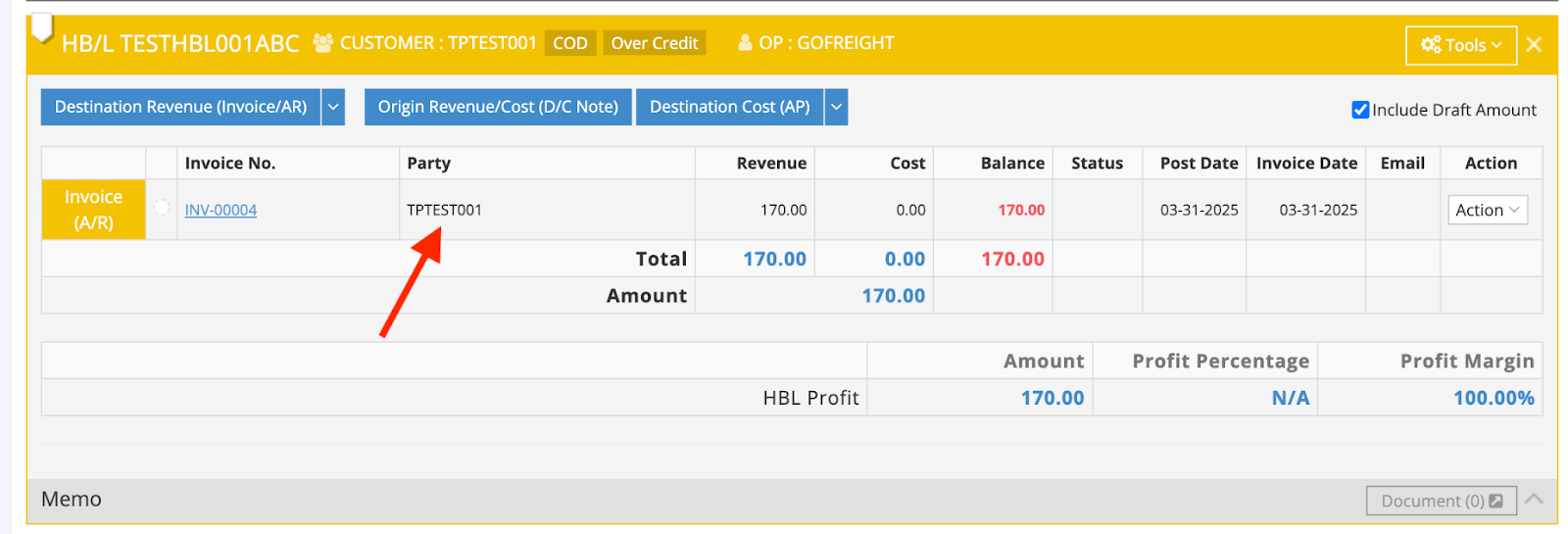
- Under the same shipment’s HBL, create an AR (Accounts Receivable) and issue it to the same Trade Partner (e.g., TPTEST001).
- Once the invoice is published, it will sync to the Customer Portal, allowing the tracking user (e.g., TKtest001) to view it.
Additional Notes
- When creating a new tracking user with the Customer role, the "Able to see Invoice" option is enabled by default.
Invoice List - FAQs
Saving & Publishing Invoices
- Question: With the “Auto-Publish” feature enabled, if I save an invoice as a draft, will it automatically appear in the Invoice List?
Answer: No. Even with Auto Sync enabled, you must first convert the invoice from Draft to Normal. Then, when you Print PDF or Email the invoice in preview mode, it will automatically be published to the Invoice List. - Question: What happens if I change a published invoice back to Draft?
Answer: The invoice will become unpublished and will no longer appear in the Invoice List.
Invoice Visibility & Restrictions
Question: Are all invoices included in the Invoice List?
Answer: No. Only AR invoices under Ocean or Air HBL will be listed. The following types are not supported at this time:
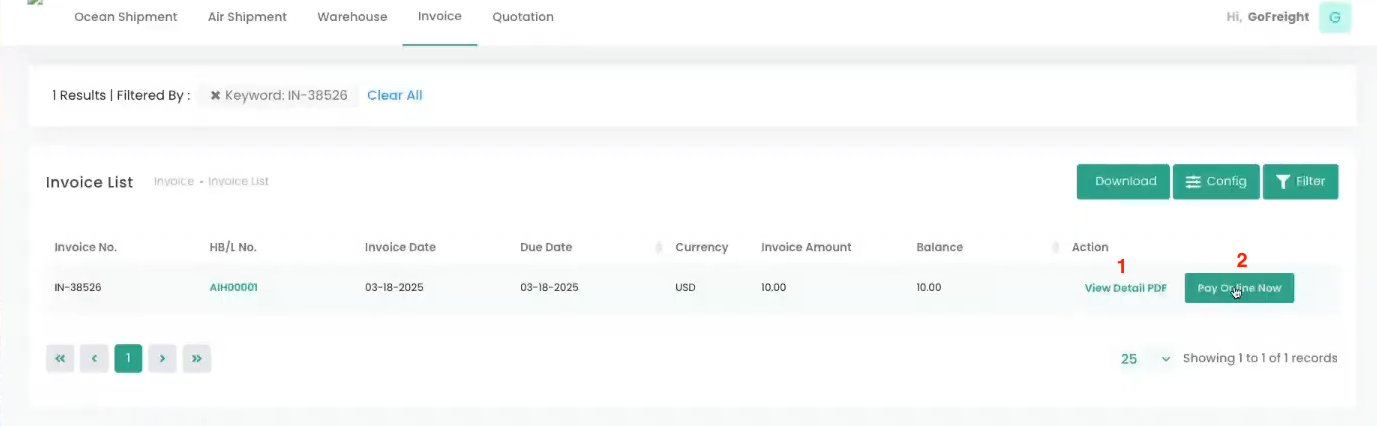
Invoice List Features for Tracking Users
Question: What features can tracking users access in the Invoice List?
Answer:
Note: If the user is not a Koverly user, they will see a tooltip “Show Your Interest Here”, linking to Koverly’s introduction page.
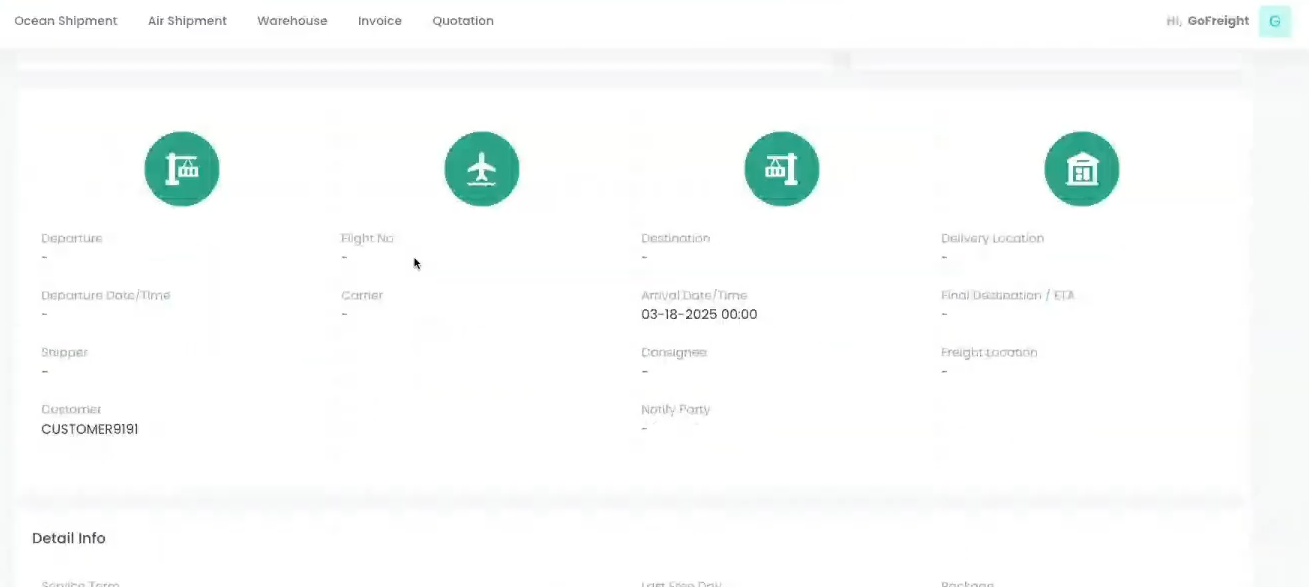
HBL & Invoice Number Display
- Question: Why can't I see the Quotation No. & Invoice No. directly from the HBL page?
Answer: This feature is currently under development—stay tuned!
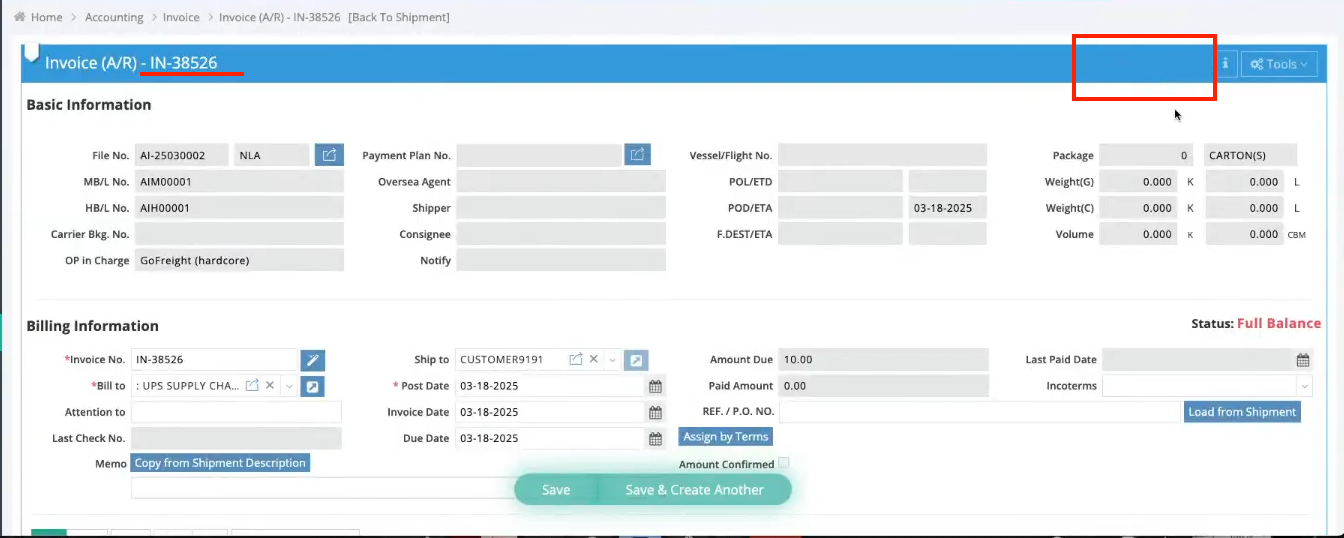
2. Question: I unpublished an invoice, and the "published icon" disappeared. Why does the invoice still appear under Document Info in the HBL?
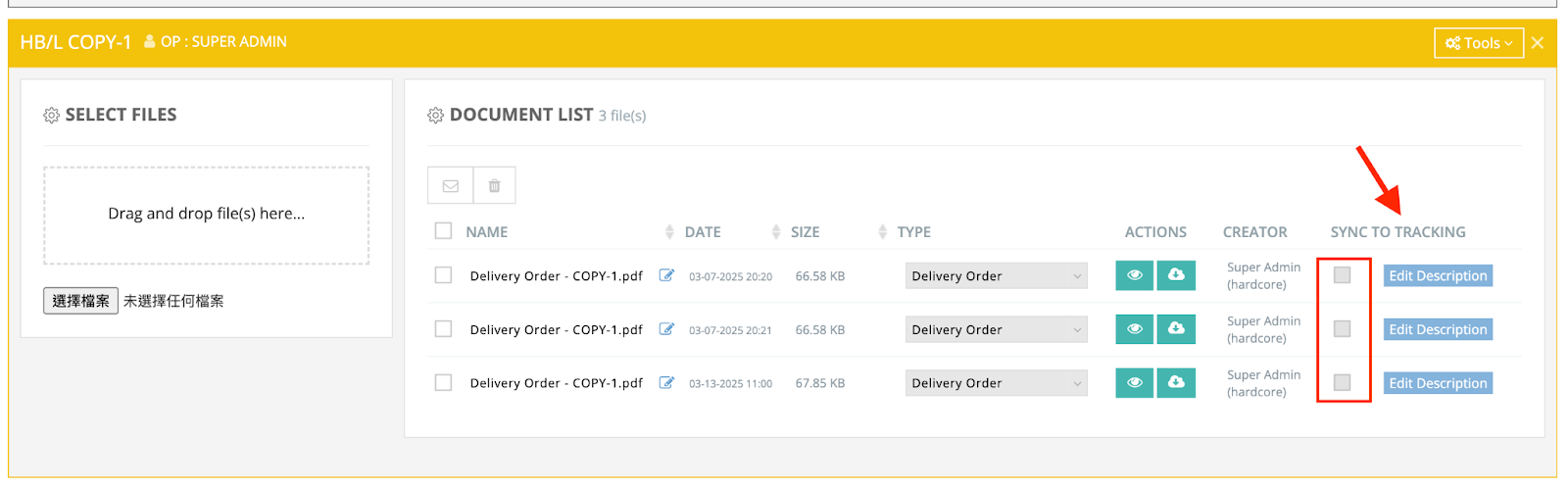
Answer: The Customer Portal’s Document Info syncs with GoFreight’s Doc Center. As long as the invoice exists in the Doc Center, it will still be visible in the Document Section of the Customer Portal, unless you delete the invoice or manually untick "Sync To Tracking".
GoFreight Invoice View:
GoFreight Doc Center:
Customer Portal HBL view:

Permissions & Role Management
- Question: Which GoFreight system roles have access to the Publish/Unpublish features?
Answer: By default, the following roles can publish/unpublish invoices:
If you need to adjust these permissions, contact support@gofreight.com .
2. Question: Can I limit access to the Customer Portal's Invoice List for specific GoFreight users?
Answer: Yes! Contact support@gofreight.com with your request.
3. Question: Can I restrict the Publish/Unpublish feature to specific users?
Answer: Yes! Contact support@gofreight.com with your request.
Foreign Currency Handling
- Question: If an invoice is in a foreign currency, will it be displayed on the Customer Portal?
Answer: Yes! Foreign currency invoices (e.g., CAD) will be shown on the Customer Portal.
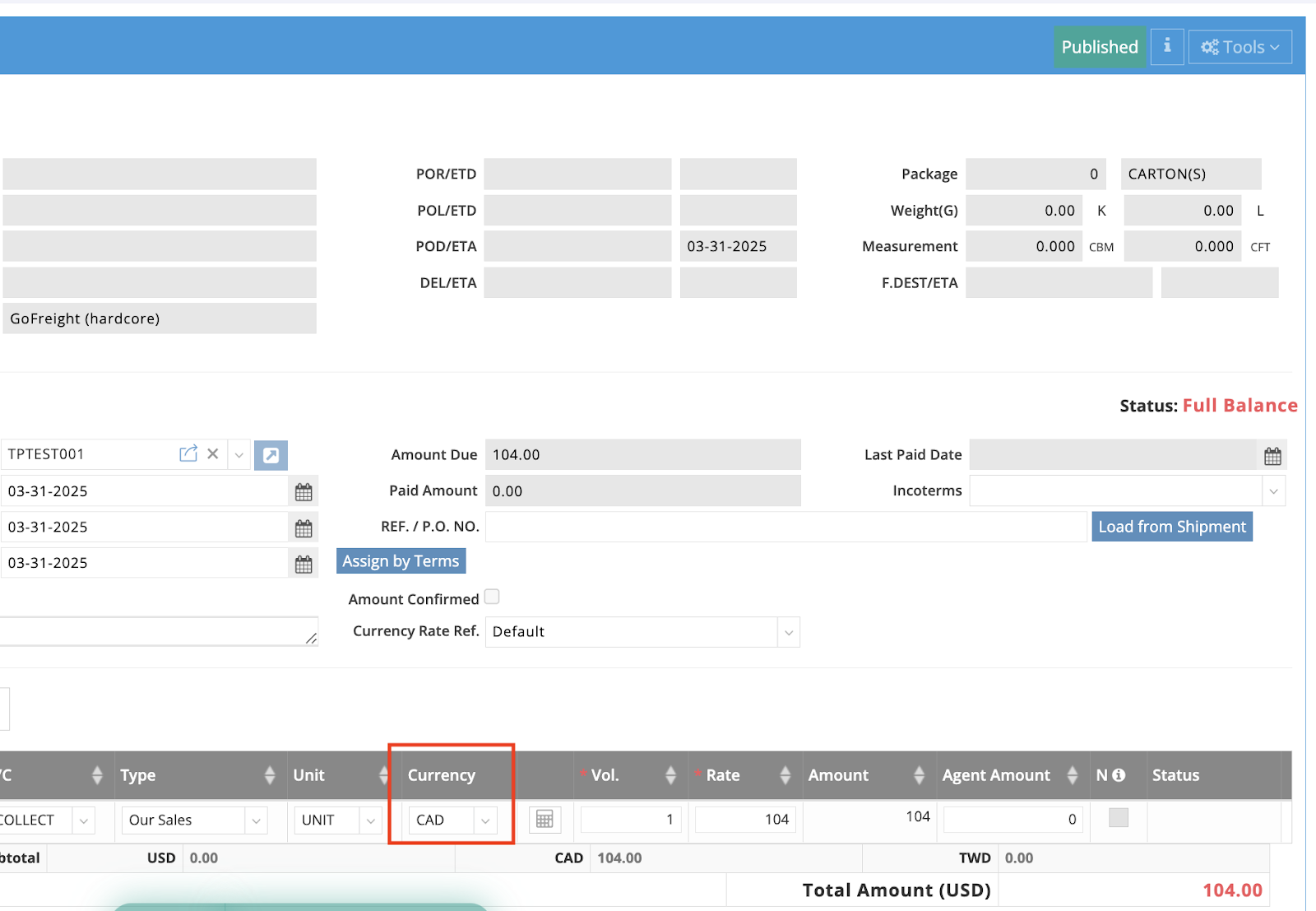

2. Question: What if an invoice includes multiple currencies (e.g., USD as the main currency & CAD as the foreign currency)?
Answer: The foreign currency amount (e.g., CAD) will be converted to USD and added to the total. The Invoice List will display the final total in USD.
