
1. About the Yellow Lock Icon
The yellow lock icon in the system indicates that the data has undergone related accounting actions and cannot be deleted arbitrarily. See the examples below:
1) Shipment List (e.g., MBL List/HBL List/MAWB List): If the Status column displays a yellow lock, it means that AR, AP, or DC has been created for that shipment. To delete the shipment, you must first delete all AR/AP/DC entries related to it.
2) Invoice/Cost List: A yellow lock in the Status column indicates that a payment has been made for that item. Once a Make/Receive Payment action has been performed, the system will automatically display the yellow lock as an indicator that a payment has been recorded. To delete the invoice, the associated payment must first be deleted.

3) Payment Received/Made List: If the Status column shows a yellow lock, it signifies that a Deposit or Clear action has been performed. To delete the payment, the Deposit/Clear action for that payment must be canceled first.

2. About the Black Lock Icon
1) The black lock icon in various lists indicates whether a shipment, invoice, or payment is blocked. If the checkbox below the black lock is checked, it means the item is blocked.

If unchecked, the item is unblocked.


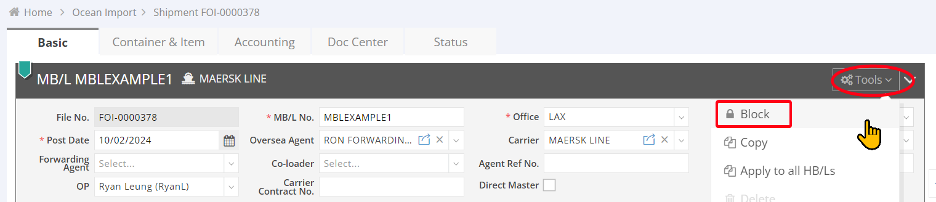
2) Users with appropriate permissions can lock (block) or unlock (unblock) a shipment, invoice, or payment by checking or unchecking the box below the black lock icon. Alternatively, this action can be performed from the Tools > Block/Unblock menu within the specific shipment, invoice, or payment page. (When locking/unlocking is done through the Tools menu, the checkbox below the black lock icon will automatically reflect the change.)

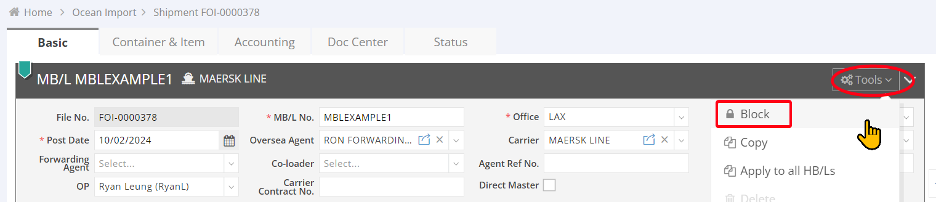


3) If you check the box under the black lock icon in the MBL List or select Block under Tools on the MBL page, that MBL and all its associated HBLs will be locked.

At the same time, all related AR/AP/DC entries will also be locked. The status column for those charges will display a red circle lock icon, as shown below:
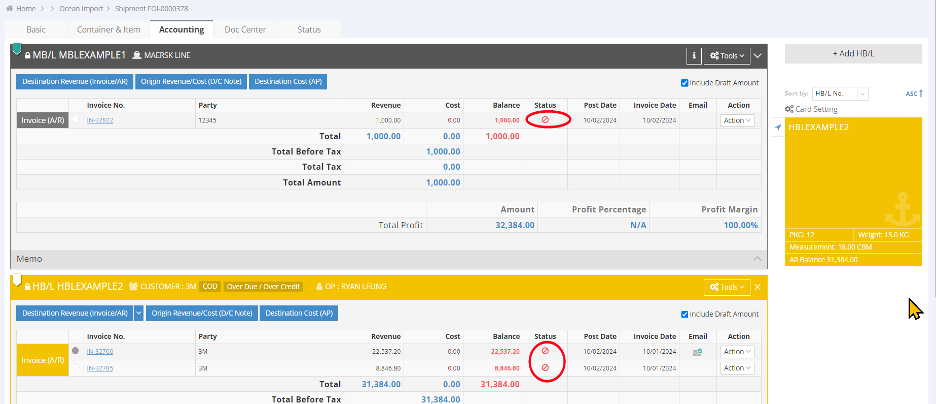
When you unlock the MBL, all associated HBLs and AR/AP/DC entries will also be unlocked.
4) Please note that if you lock an item from the HBL List or by clicking Block under Tools on the HBL page, only that specific HBL will be locked. Other HBLs will remain unlocked unless locked individually.
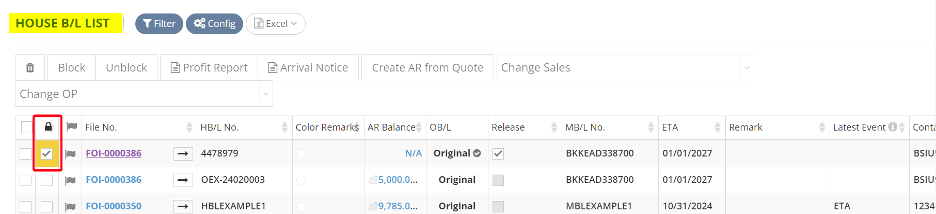

5) The MBL List/HBL List supports batch block/unblock. You can select multiple shipments or use the select-all checkbox (to the left of the black lock icon), then click “Block” or “Unblock” at the top to perform batch locking or unlocking.

6) Regarding Year-end Closing or Accounting Block: Once a Year-end Closing or Accounting Block is performed, all shipments, invoices, and payments within that year (or the selected date range) will be locked. This means the black lock checkbox in the Shipment List, Invoice Cost List, and Payment List will be checked, preventing any edits to those records.