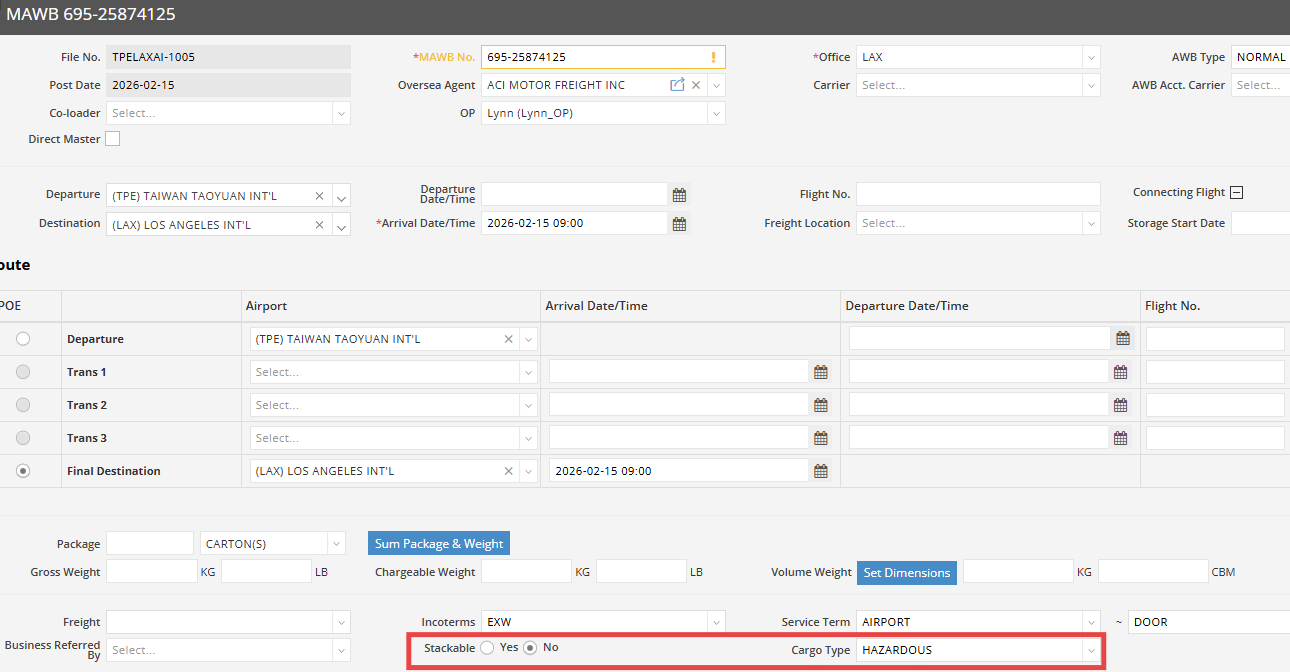
GoFreight supports identifying cargo as Hazardous / Dangerous Goods (HAZ/ DG) and defining whether it is stackable for Air shipments.
These settings can be configured at the quotation stage and will automatically carry over when creating a shipment.
The following steps demonstrate the full workflow using an Air Import example, from quotation creation to shipment generation.
Step-by-Step Guide
Creating a Quotation
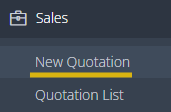
Step 1: Navigate to Sales > New Quotation.
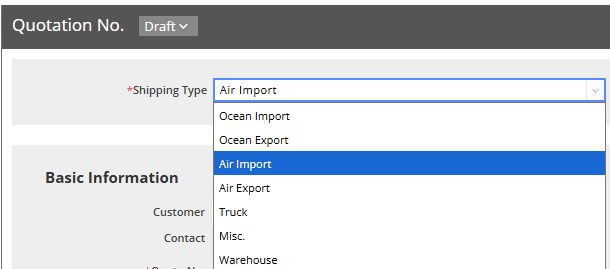
Step 2: Select Shipping Type: Air Import.
Step 3: In the Basic Information section, switch on the More fields.


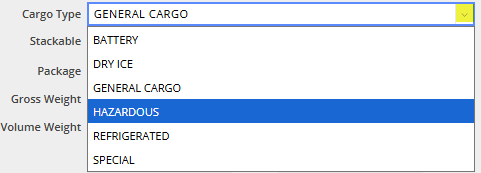
Step 4: Under the Commodity field, you will find Cargo Type and Stackable fields.
By default, the system will show General Cargo.
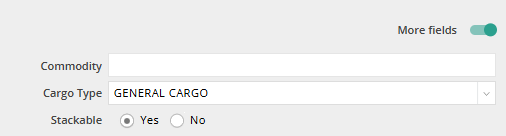
Step 5: Clickthe triangular icon to expand the options and select Hazardous Shipment as the cargo type.
Step 6: Select the appropriate option for Stackable based on the shipment characteristics.
Most hazardous cargo is not stackable, so select No if applicable.

Step 7: Complete the quotation and send it to the customer.
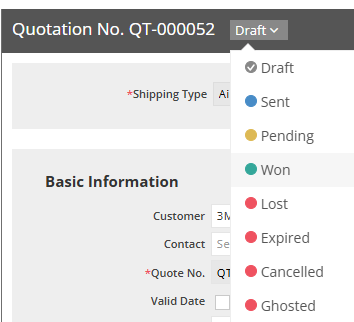
Once the quotation has been won, update the status of this Quotation to Won.
—
Creating a Shipment from the Quotation
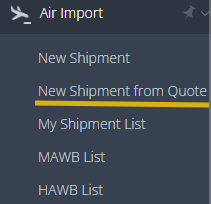
Step 8: Navigate to the Air Import module and select New Shipment from Quote.
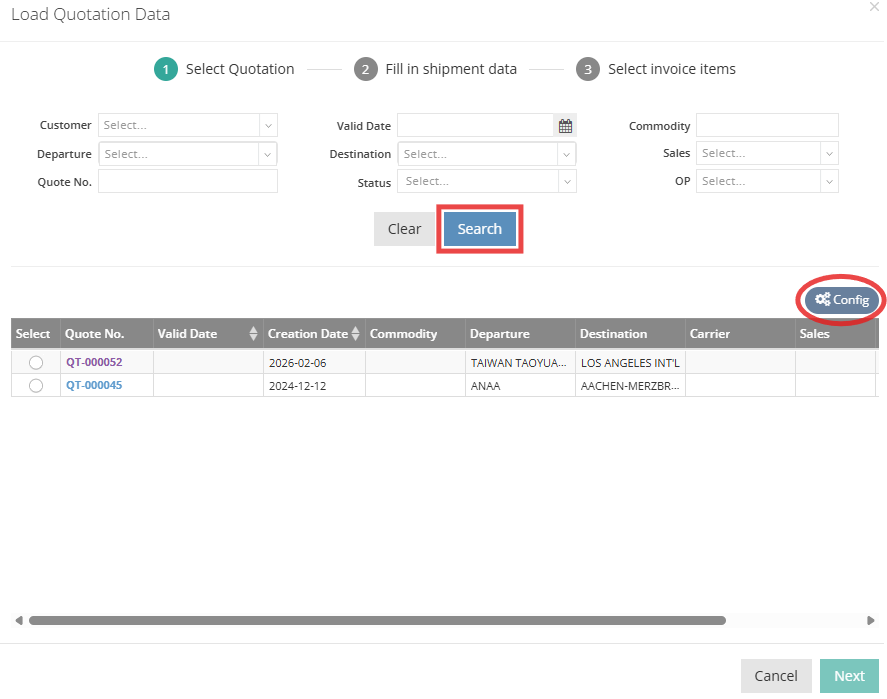
Step 9: A pop-up window will appear displaying the latest quotation numbers for selection.
You may also filter quotations by Customer, Valid Date, or Commodity.
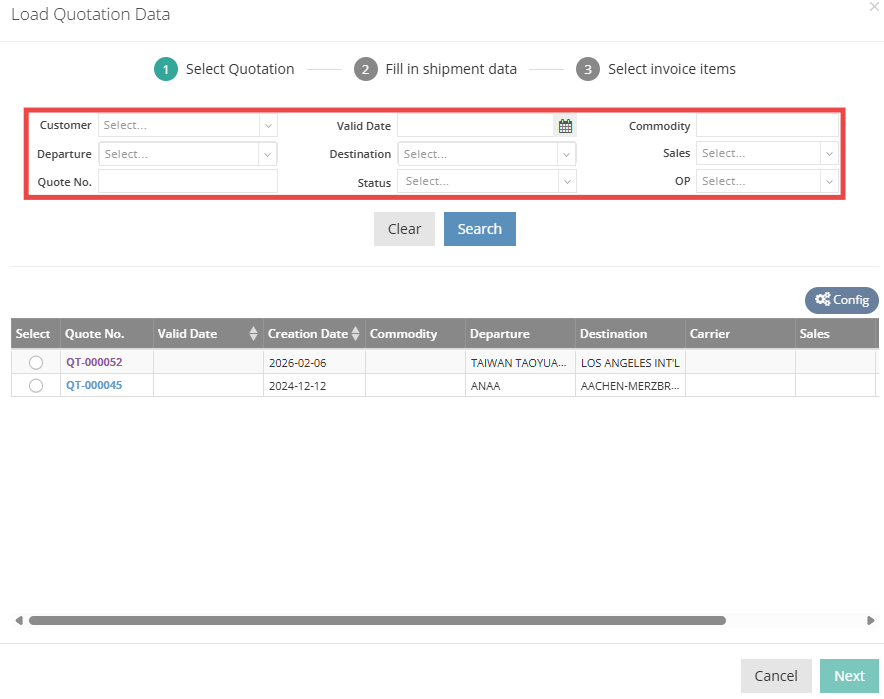
Step 10: Click Search to retrieve the results.
Optionally, click Config to customize the displayed columns (e.g., Creation Date, Departure, or Destination).
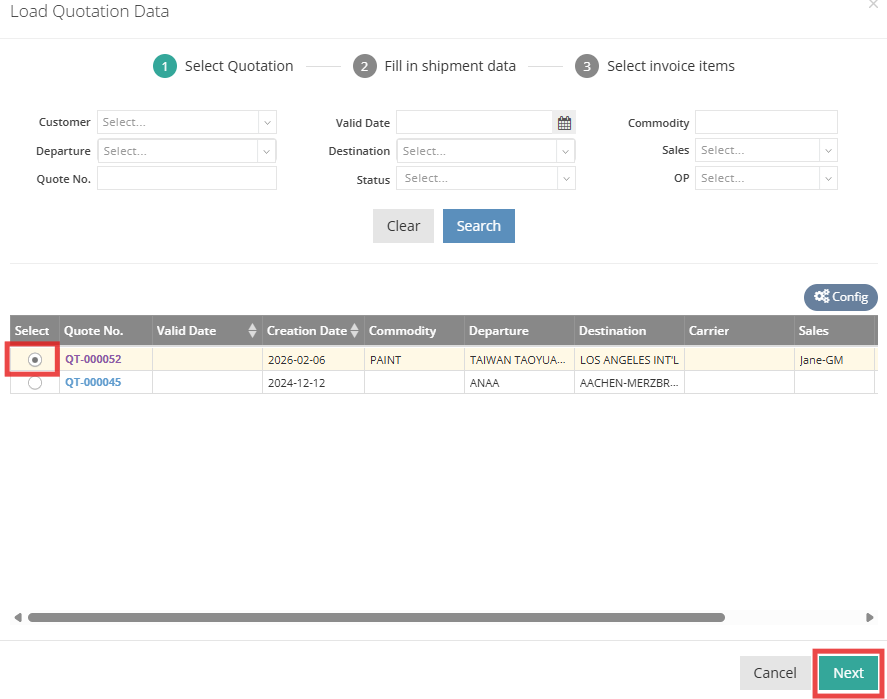
Step 11: Select the quotation that you would like to apply to a new shipment.
Step 12: Click Next to proceed to the shipment data entry.
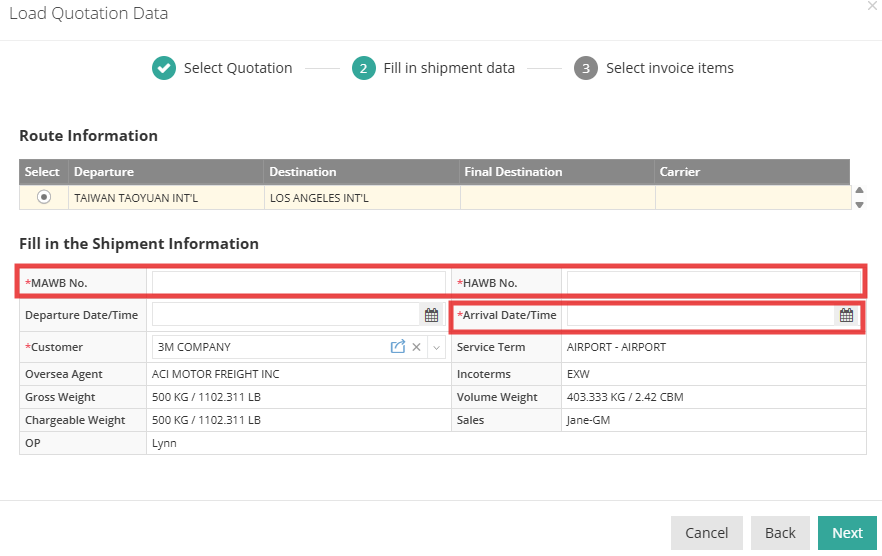
Step 13: Enter the Master Air Waybill (MAWB) and House Air Waybill (HAWB) numbers for the shipment, together with the Arrival Date/time.
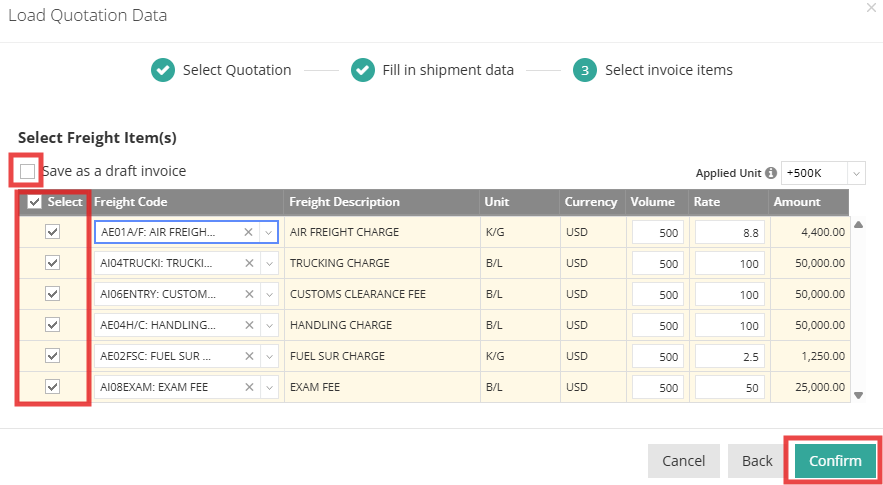
Step 14: Select the invoice items, which are the freight codes carried over from the quotation.
You may uncheck any freight codes that do not apply to this shipment.
If the invoice is not finalized, select Save as a Draft Invoice to create a draft instead.
Step 15: Click Confirm once all required data has been entered.
Step 16: A new Air Import Shipment will be created.
The Cargo Type and Stackable settings will be carried over from the quotation.
In this example, the shipment is marked as Hazardous and Unstackable.