
This guide provides an overview of the MAWB Stock List in GoFreight, a tool that helps you efficiently manage and assign Master Air Waybill (MAWB) numbers.
Overview
The MAWB Stock List allows you to:
- Reserve and assign MAWB numbers.
- Track the status of each number.
- Create new shipment files directly.
We recommend creating a new Air Export file directly from the MAWB Stock List.
This feature is available by default to users with the Operation, Operation Manager, and General Manager roles.
For detailed instructions on adding numbers to the inventory, please refer to our AWB Number Management Guide
Accessing the MAWB Stock List
To navigate to the MAWB Stock List:
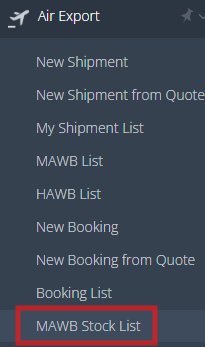
- Go to Air Export
- Select MAWB Stock List
Understanding MAWB No.Statuses
The MAWB Stock List categorizes air waybill numbers into three statuses:
- AVAILABLE: The number is ready to be used.
- ASSIGNED: The number has been linked to a specific shipment.
- RESERVED: The number has been reserved by a user for future use.
Creating a MAWB from the Stock List
To create a shipment file directly from the MAWB Stock List:
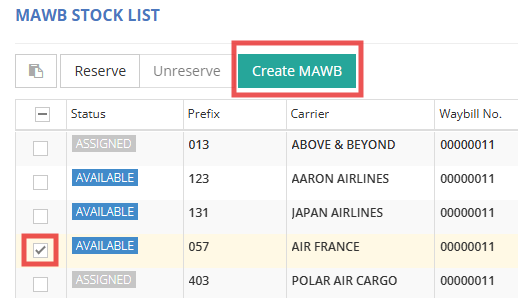
- Locate an AVAILABLE MAWB number.
- Select the number and click Create MAWB.
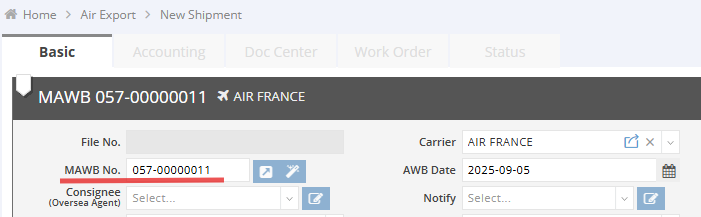
- A new shipment file page will open with the selected MAWB number, ready for you to input shipment details.
Alternatively, within a shipment file:
- Select the carrier for which you have created MAWB numbers. If no MAWB numbers are available for assignment, please reach out to your managers. Only users with the roles of Admin, Operation Manager, or General Manager have access to AWB Management.
- Click System Generate to auto-assign an available MAWB number.
- A confirmation message will appear: "Once you auto-generate AWB No., it will be assigned and non-reversible. Are you sure you want to continue?"
- Click OK to proceed. The assigned MAWB number will then be reflected in the stock list as ASSIGNED.
Reserving a MAWB Number for Future Use
To reserve a MAWB number:
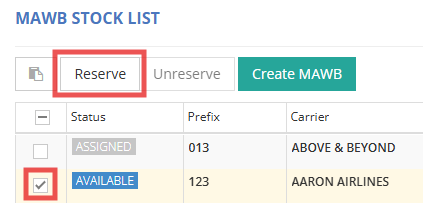
- Select the desired AVAILABLE MAWB number.
- Click Reserve.
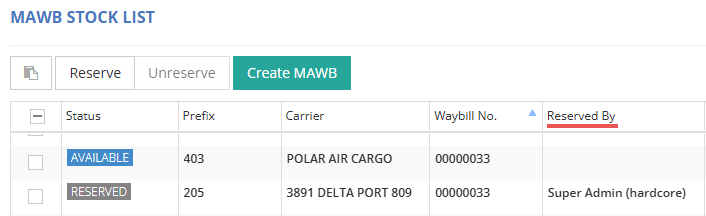
- The reserved number will now display the name of the user under the 'Reserved By' column. A reserved MAWB number can only be used by the reserving user. Other users will not be able to apply or modify it.
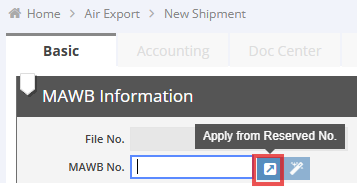
To apply a reserved number in a shipment file:
- Open the shipment file.
- Click Apply from Reserved No. to use the number you reserved.
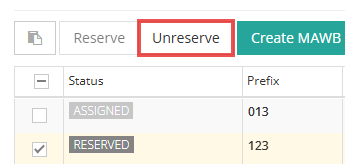
To cancel a reserved number:
- Select the reserved MAWB number.
- Click Unreserve to release the reservation.
Using Filters and Configurations in the List
Filtering MAWB Numbers
Use the filter options to search for specific MAWB numbers by:
- Airline prefix
- Carrier
- Reserved by
- Status (Available, Assigned, Reserved)

Configuring the Displayed Columns
To adjust the displayed columns in the stock list:
- Click Config.
- Drag and drop the columns to rearrange their order.
- Click Apply to save changes.

For a visual guide on using this feature, please refer to the following video: