
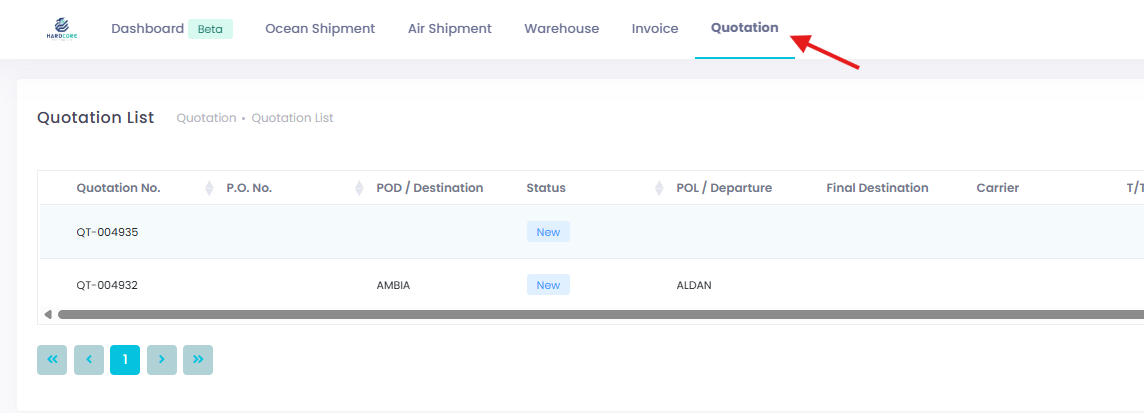
On the Customer Portal, you can enable the Quotation List to display key quotation details such as Port of Discharge (POD), Port of Loading (POL), and Valid date. Tracking users can access this information, improving collaboration and communication efficiency in business.
The Quotation List offers two publishing options: manual-publish and auto-publish. This article explains how the system handles each option.
Note: In this article, "Quotation List" refers to the Customer Portal - Quotation List, not the GoFreight System’s Quotation List, to avoid confusion.
What to Expect from the "Publish" Behavior?
Manually Publishing a Quotation
To publish a Quotation to the Customer Portal, follow these steps:
- Open a quotation and navigate to Tools > Publish to Customer Portal.
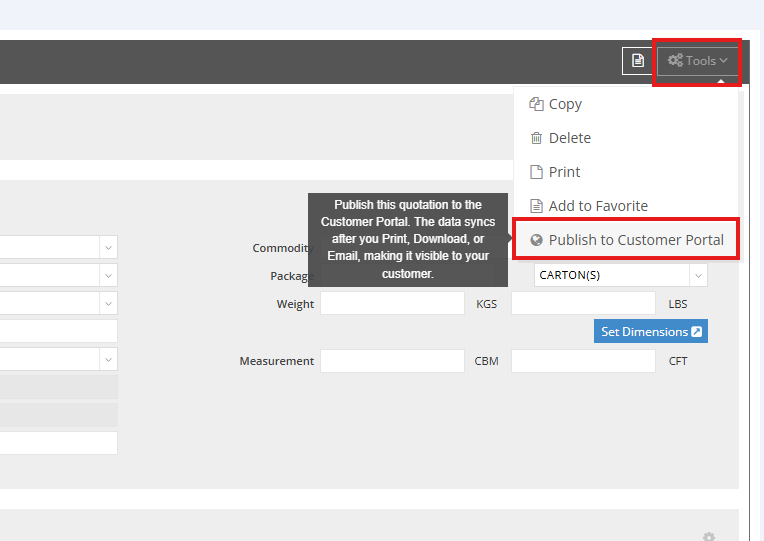
- The system will pop up a reminder: “A quotation document needs to be generated before publishing. Proceed?”

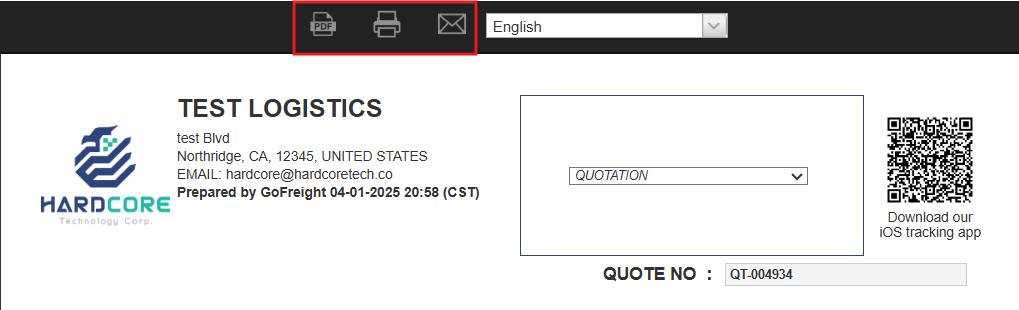
- Click "Yes, Preview Quotation" to proceed. Once clicking on any button on the quotation preview page to generate the quotation.
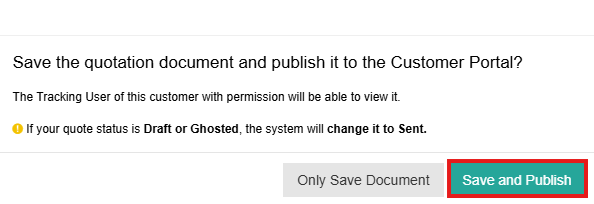
- The system will pop up another reminder:”Save the quotation document and publish it to the Customer Portal?”
- Click on “Save and Publish”, and tracking users with the correct permissions can view the quotation copy.
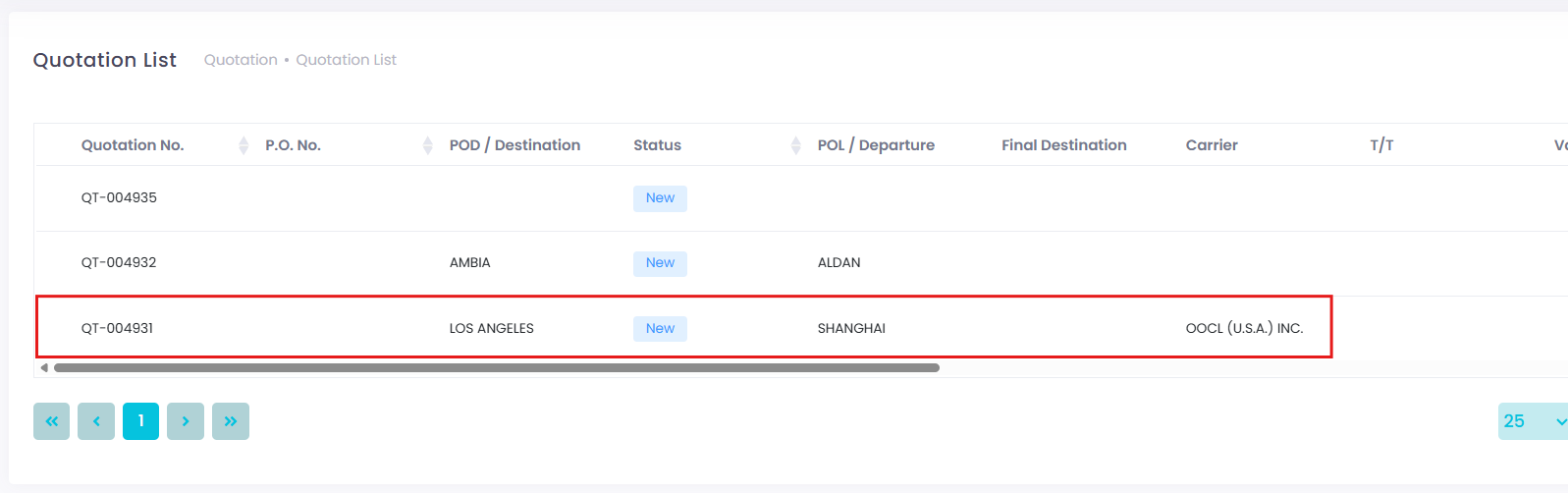
- To verify, go to Customer Portal > Quotation List—the quotation will be synced and visible there.
Auto-Publishing a Quotation
How Auto-Publish Works
You can Auto-Publish quotations by printing the quotation as a PDF or emailing it to your customer.
Note: The Auto-Publish function is disabled by default. To enable it, please contact GoFreight Support at support@gofreight.com .
Steps to Auto-Publish an AR Quotation
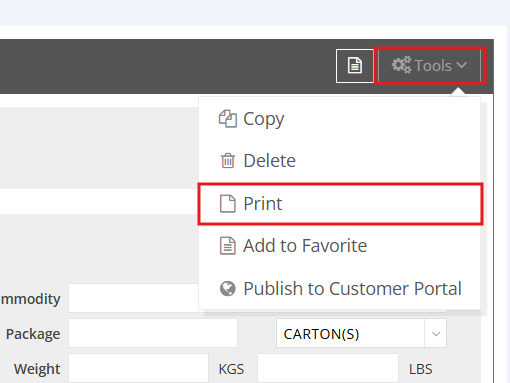
- Open a Quotation and go to Tools > Print.
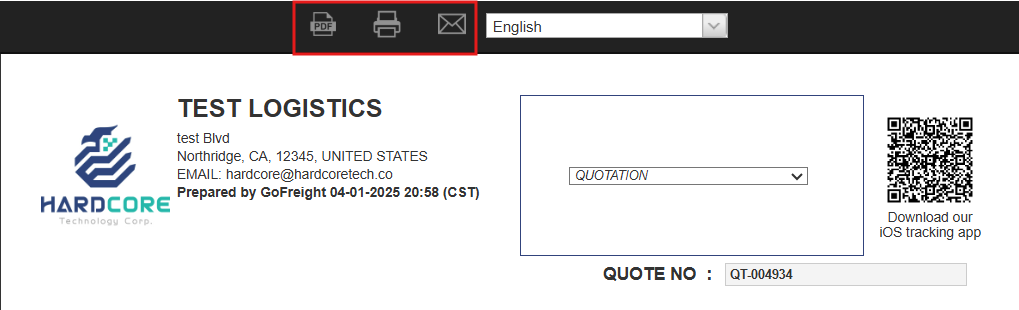
- On the preview page, select either Download PDF, Print or Email (this will also save the quotation in the Doc Center).
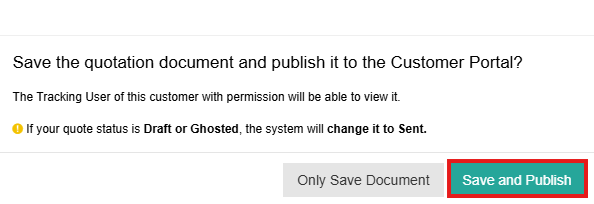
- A reminder will appear:”Save the quotation document and publish it to the Customer Portal?”
- Click on “Save and Publish”, and tracking users with the correct permissions can view the quotation copy.
- Click "View on Customer Portal" to access the Customer Portal.
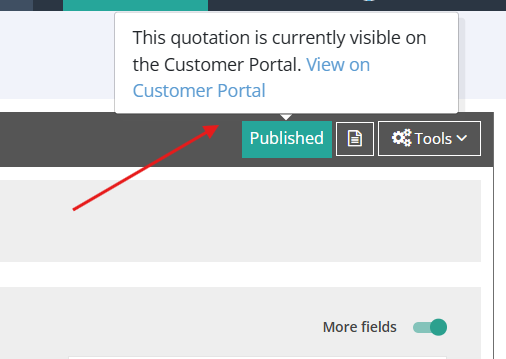
- You will see the quotation auto-synced and displayed in the Quotation List.

Unpublishing a Quotation
If you need to hide a quotation from tracking users, follow these steps:
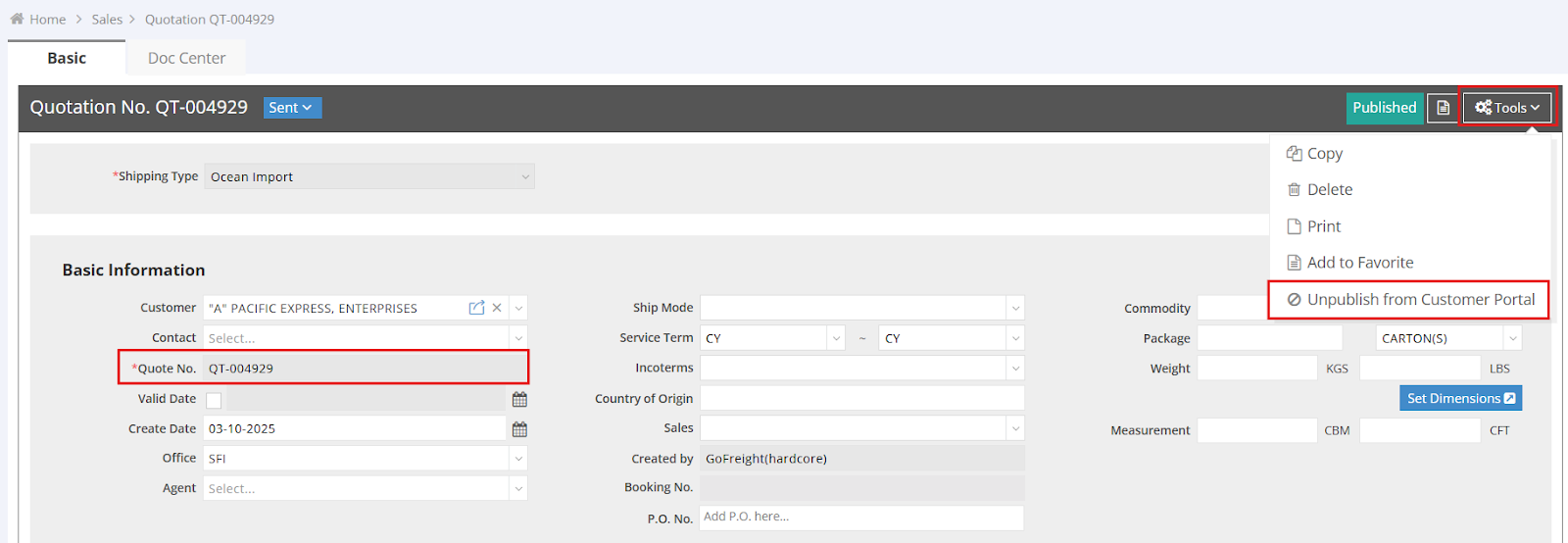
- Go to Quotation > Tools > Unpublish from Customer Portal. This will make the quotation invisible to tracking users until it is published again.
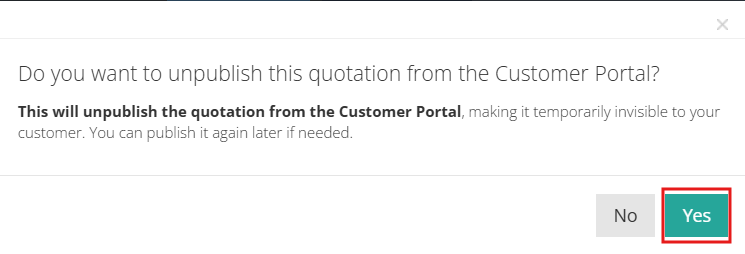
- Click on Yes on the popup.
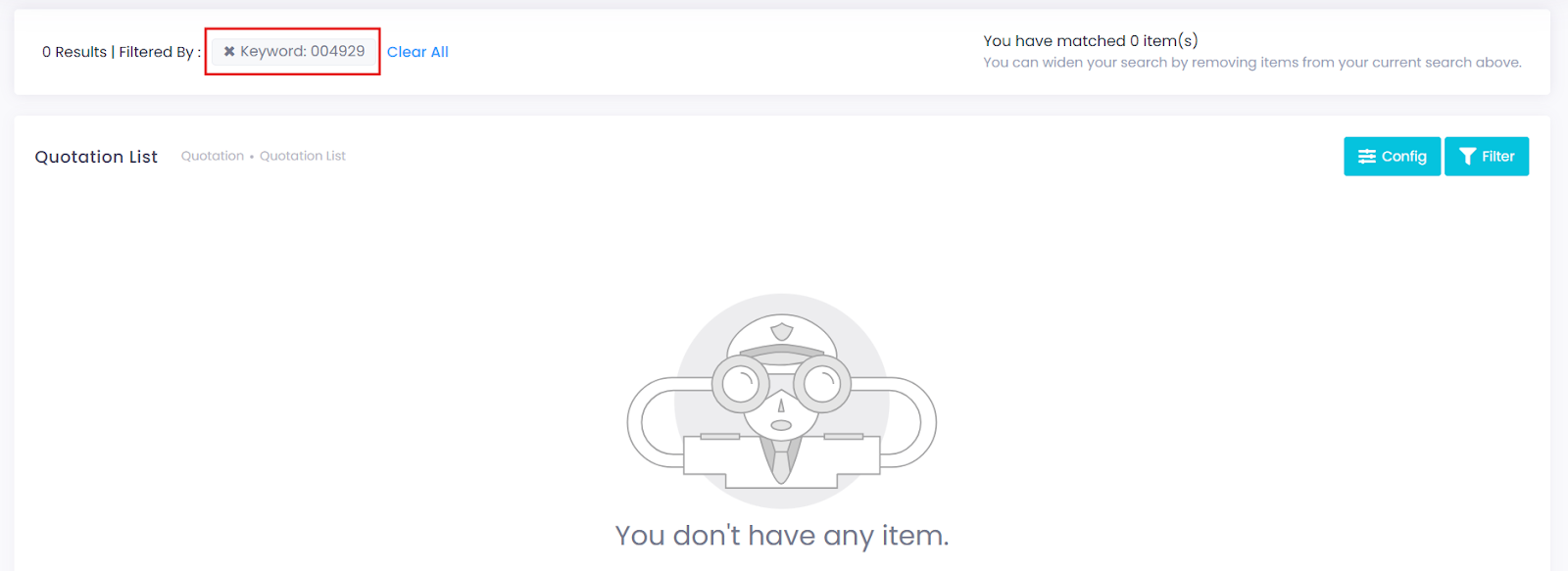
- Refresh the Quotation List—the quotation will no longer be visible to tracking users.
- Return to the quotation view in the GoFreight System and refresh the page. You will notice that the "Published" icon has disappeared.
Enabling Quotation List Access for Tracking Users
This guide outlines the steps required to enable a tracking user to view quotations.
- Access User Settings
Navigate to Home > Settings > Tracking User Management.
Select the desired tracking user (e.g., TKtest001).
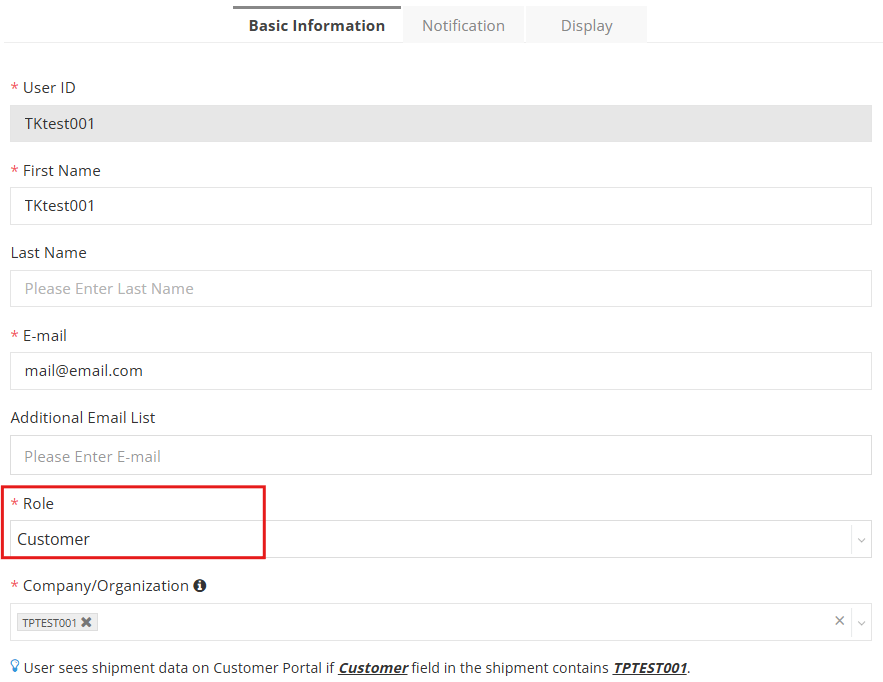
- Verify User Role and Organization
- Go to the Basic Information section.
- Ensure the System Role is set to Customer.
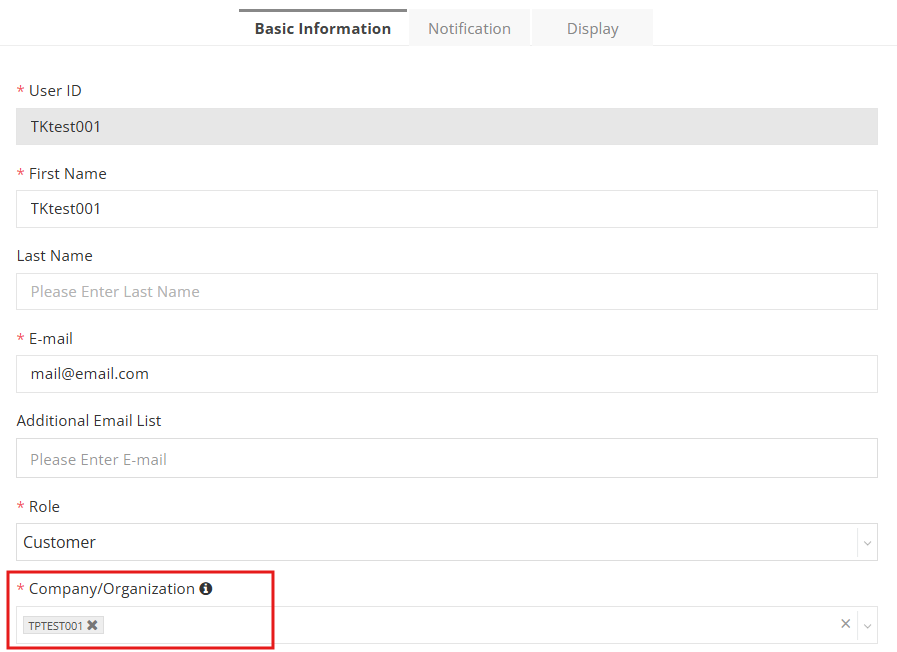
- In the Company/Organization field, enter the tracking user’s company (e.g., TPTEST001).
- Enable Quotation Viewing
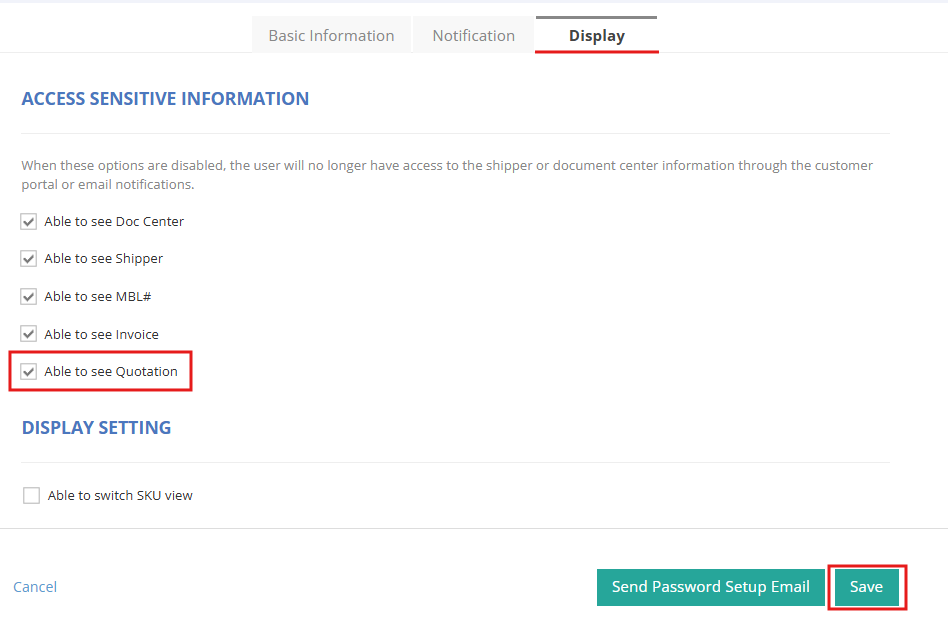
- Navigate to the Display tab.
- Check the box for "Able to see Quotation".
- Click on Save.
- Link Quotations to the Tracking User
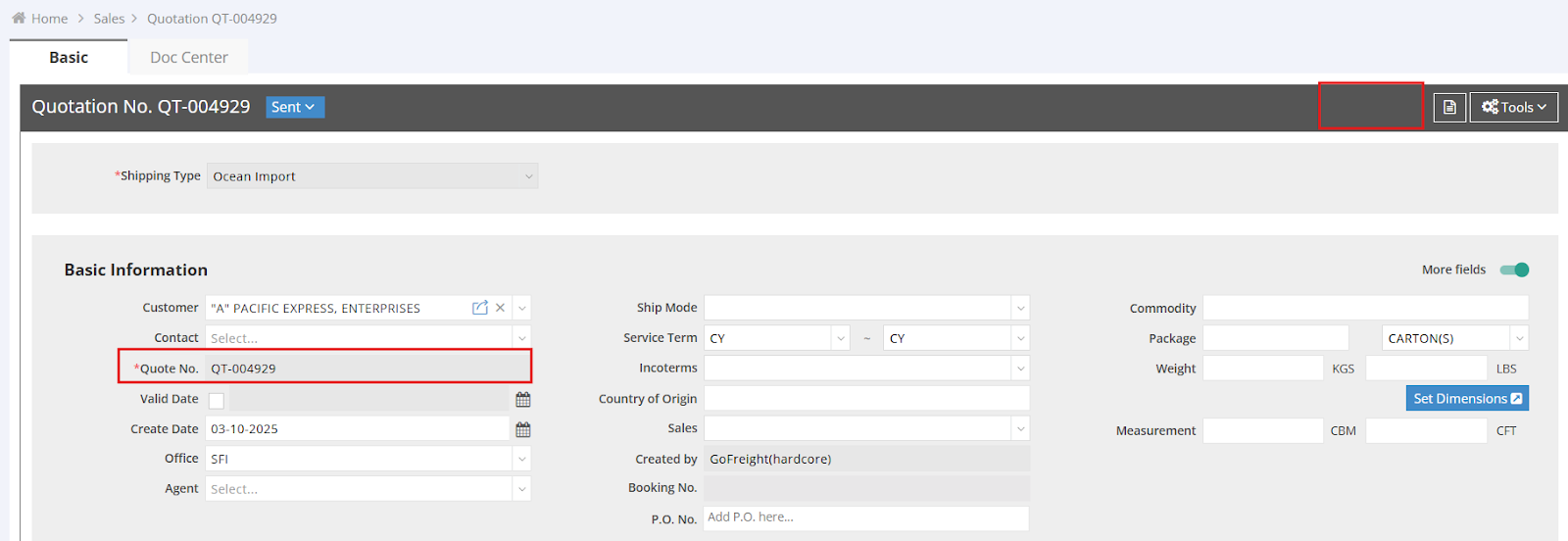
- Create a Quotation and ensure the Customer field is set to the organization (e.g., TPTEST001).

- Once the quotation is published, it will sync to the Customer Portal, allowing the tracking user (e.g., TKtest001) to view it.

Additional Notes
When creating a new tracking user with the Customer role, the "Able to see Quotation" option is enabled by default.
Quotation List - FAQs
Quotation List Features for Tracking Users
Question: What features can tracking users access in the Quotation List?
Answer: View Detail PDF – Users can download the published quotation PDF.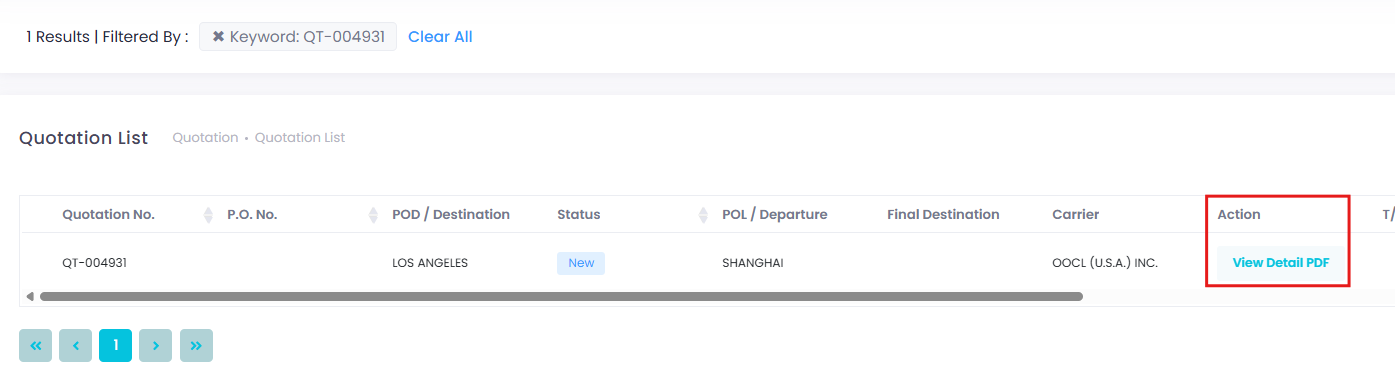
Permissions & Role Management
- Question: Which GoFreight system roles have access to the Publish/Unpublish features?
Answer: By default, the following roles can publish/unpublish quotations:
- Sales
- SM (Sales Manager)
- OP (Operations)
- OPM (Operations Manager)
- GM (General Manager)
If you need to adjust these permissions, contact support@gofreight.com.
- Question: Can I limit access to the Customer Portal's Quotation List for specific GoFreight (GF) users?
Answer: Yes! Contact support@gofreight.com with your request.
Question: Can I restrict the Publish/Unpublish feature to specific users?
Answer: Yes! Contact support@gofreight.com with your request.