
This guide explains how to set up tracking email notifications for your trade partners who do not require access to the customer portal but wish to receive updates via email. Notifications can be tailored for four TP types:
- Customer
- Consignee
- Shipper
- Overseas Agent
Two-step set up:
-
Configure Which Tracking Emails Trade Partners Should Receive
-
Enabling Notifications for Trade Partners
1. Configure which Tracking Emails Trade Partners should receive
Only the following user roles have permission to set up Tracking Email Notification for Trade Partners: General Manager and Operation Manager.
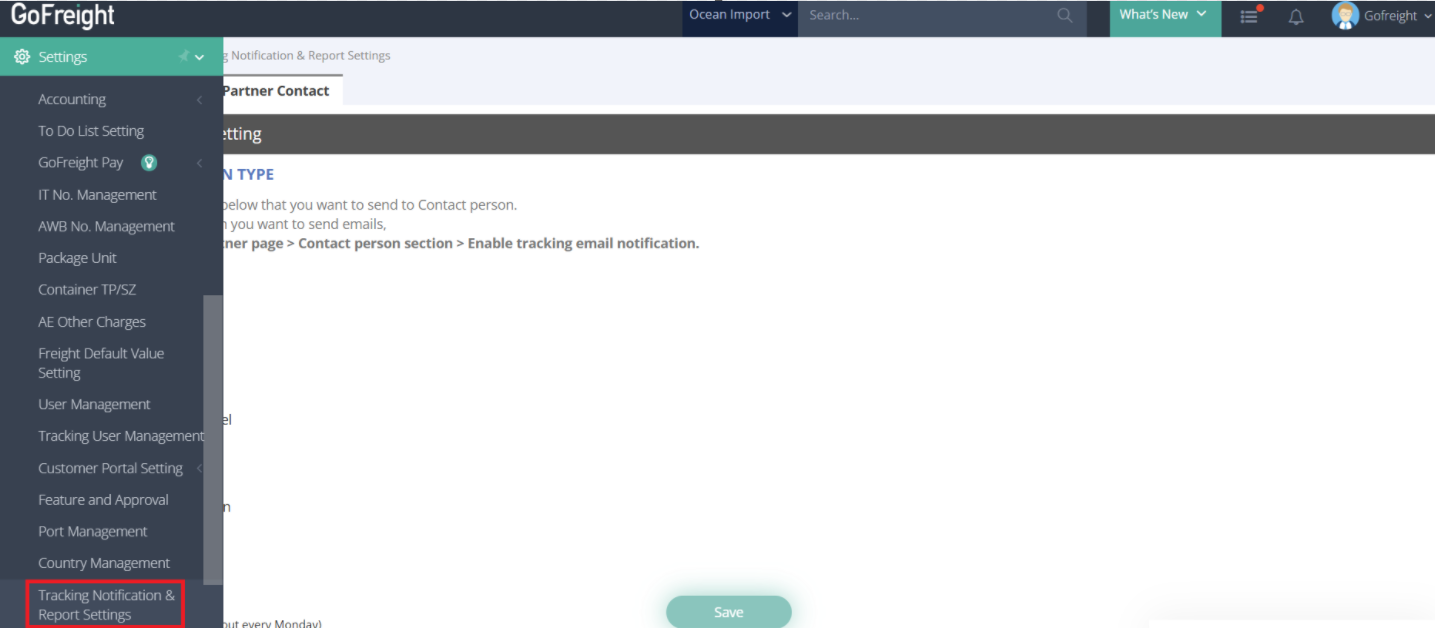
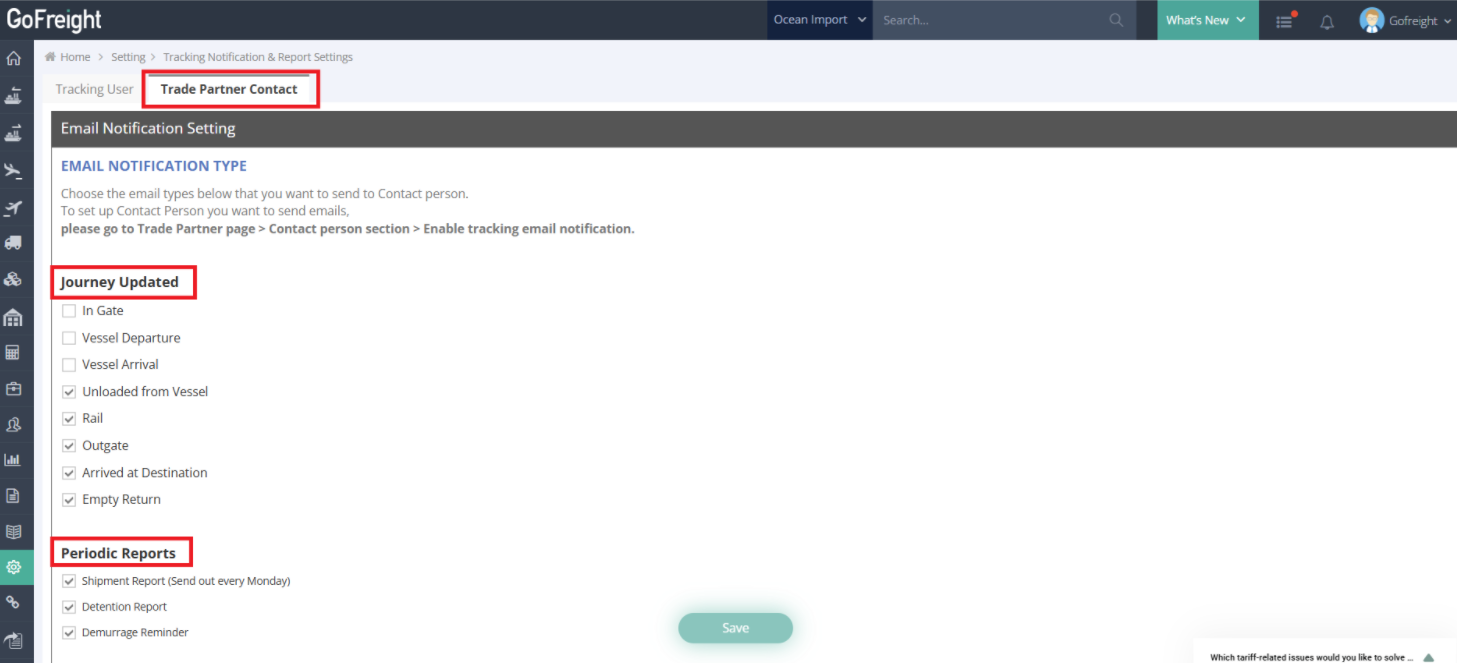
- Go to Settings > Tracking Notification & Report Settings > Trade Partner Contact tab
- Adjust the email settings for your trade partners based on their roles.
- Select the Journey Updates or Periodic Reports your trade partners should receive.
2. Enabling Notifications for Trade Partners
- Navigate to the Trade Partner Page and enable tracking email notifications for each desired trade partner:
-
-
-
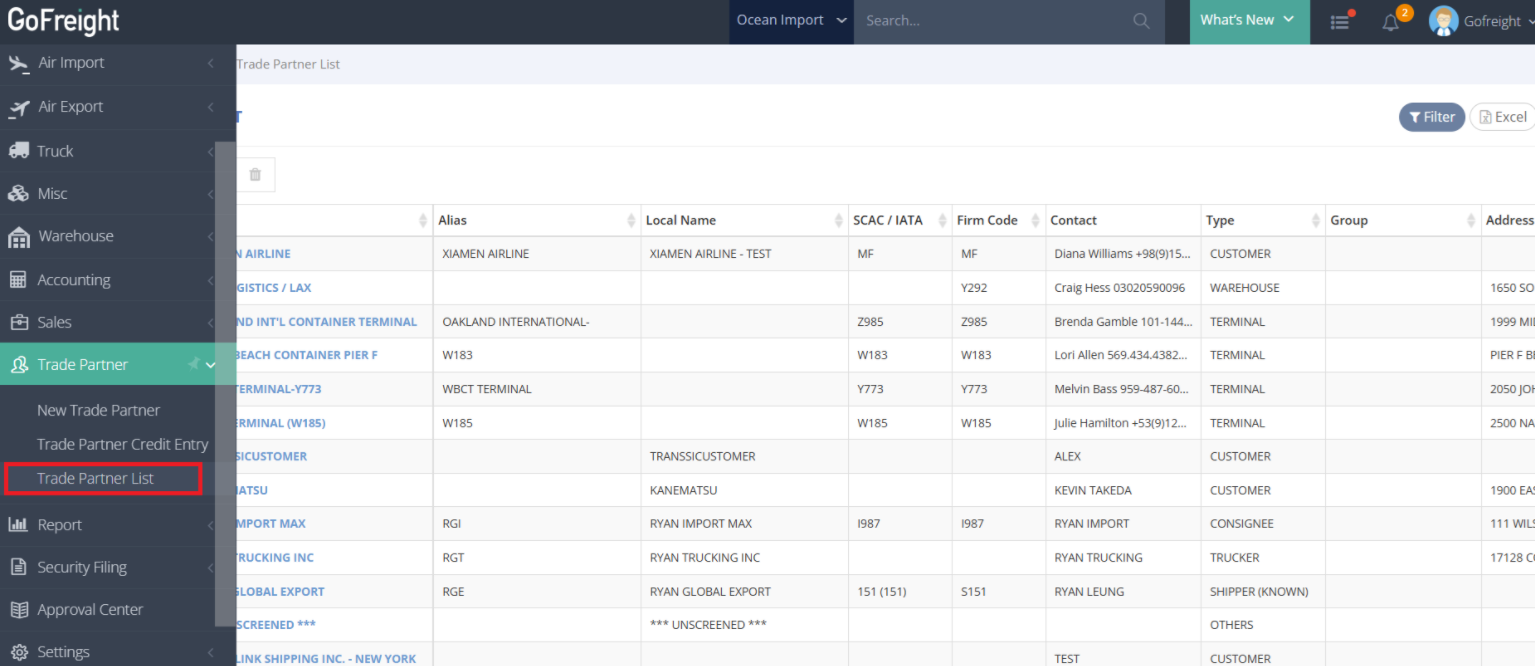
- Go to the Trade Partner List under Trade Partner.
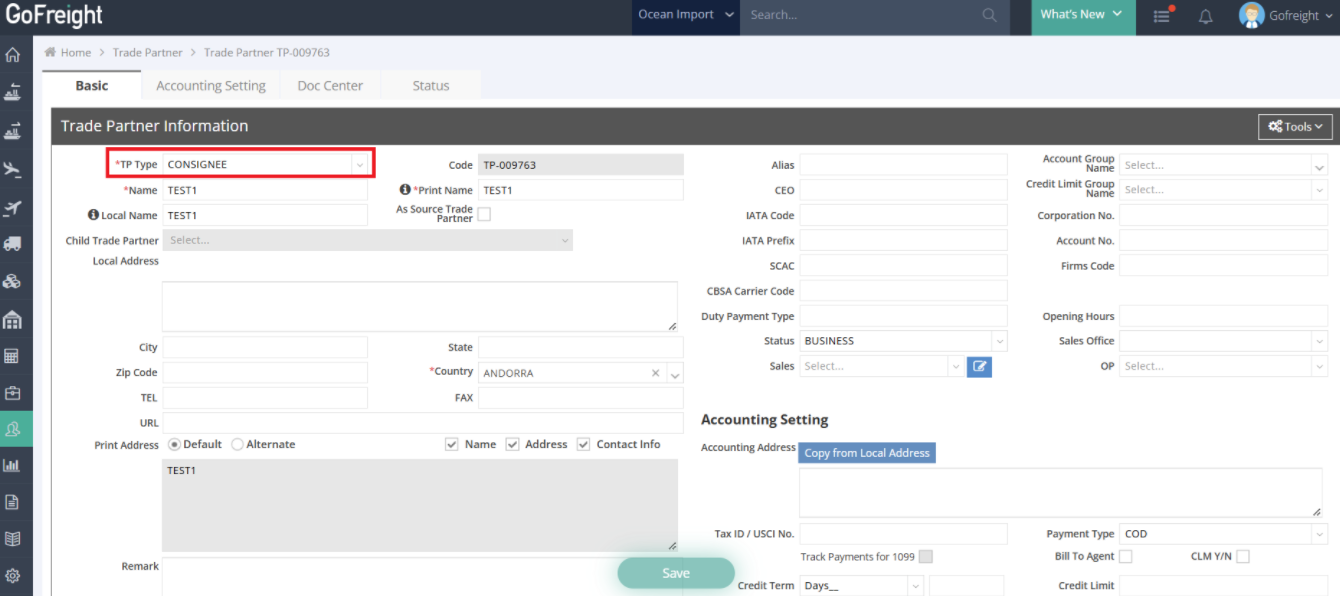
- Click on the trade partner in the trade partner list. Please make sure trade partners are one of these TP types: Customer, Consignee, Shipper, Overseas Agent.
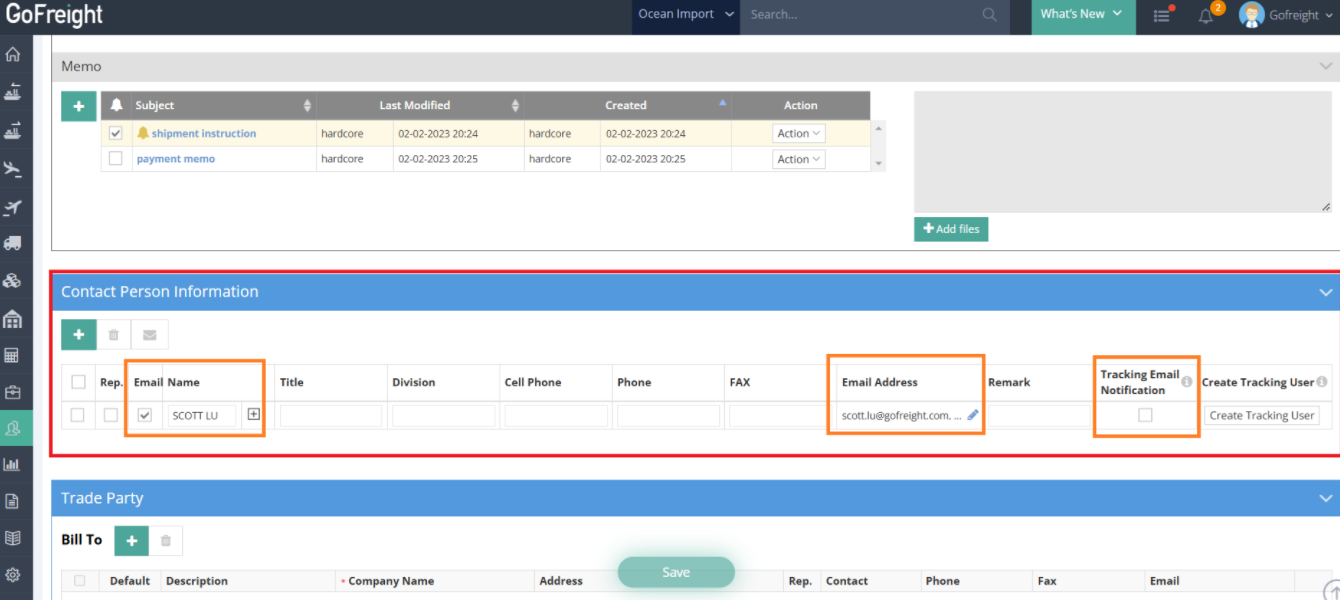
- Scroll down to the Contact Person Information section. Ensure the following details are completed:
- Name of the contact person.
- Email Address of the contact person.
-
-
- Check the Tracking Email Notification box to activate email notifications for the trade partner.
3. Additional Note:
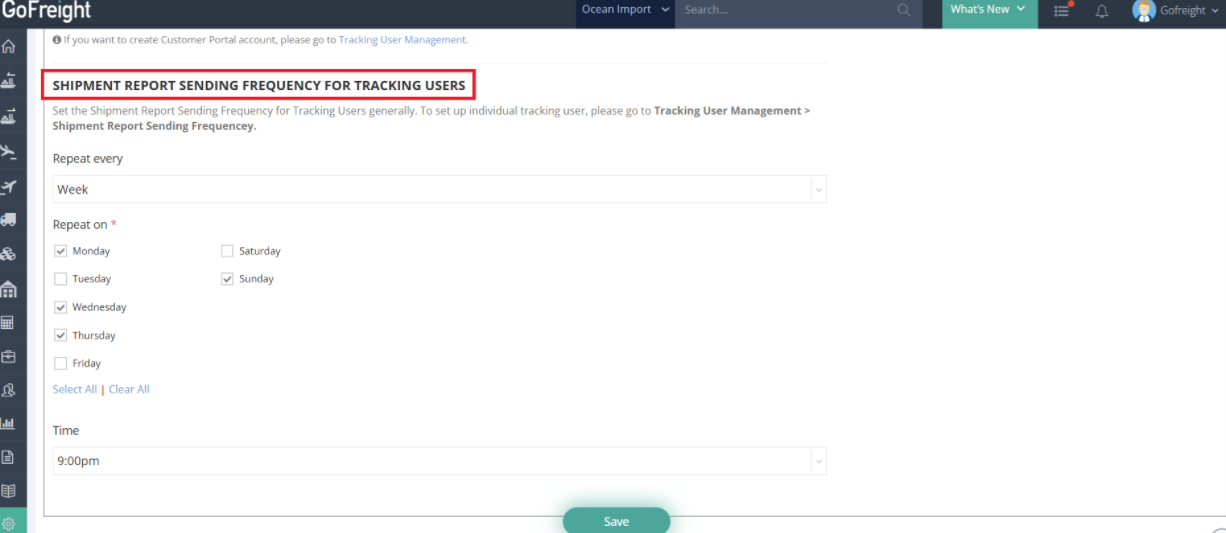
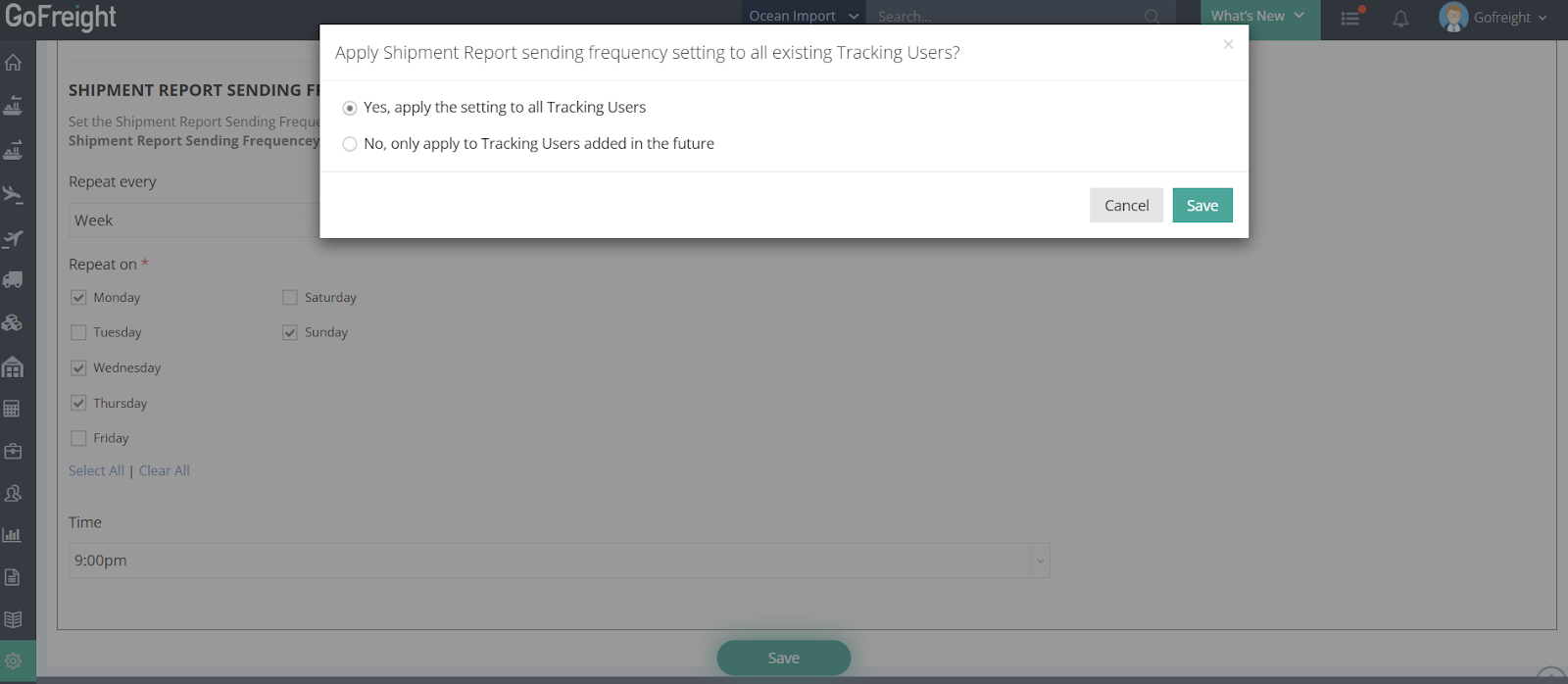
Please be aware that the "Shipment Report Sending Frequency for Tracking Users" on this page adjusts the report frequency for all tracking users (not trade partners).
We recommend consulting with other OPs/OPMs before making any changes to prevent unintended disruptions.
Final Notes
- Ensure all email settings are saved after configuration.
- For further assistance please contact Customer Support.
For a visual guide on this feature, please refer to the following videos:
FAQ
Q: Could you please advise that once we create tracking email notification for trade partner without creating a tracking user, will that person get ETA change update emails? It is not listed as an option in the Tracking Email Notification Settings.
A: Currently, the Tracking Email Notification Settings do not offer ETA update notifications. However, you can enable ETA update notifications by creating a Tracking User.
When setting up a Tracking User, go to the Notification tab, where you can enable the ETA update notification for that user.