
The Dashboard feature in the Customer Portal provides a streamlined view of key shipment and financial information at a glance. This feature is designed to help you efficiently monitor active shipments, track upcoming arrivals, and manage outstanding invoices.
Dashboard Overview
The Dashboard consists of three main sections that provide a quick and organized overview of your shipment and pending invoices:
1. Active Ocean Shipments
This section provides an overview of the total number of current ongoing and recently completed ocean import and export shipments. This helps you quickly assess the status of all active shipments at a glance.
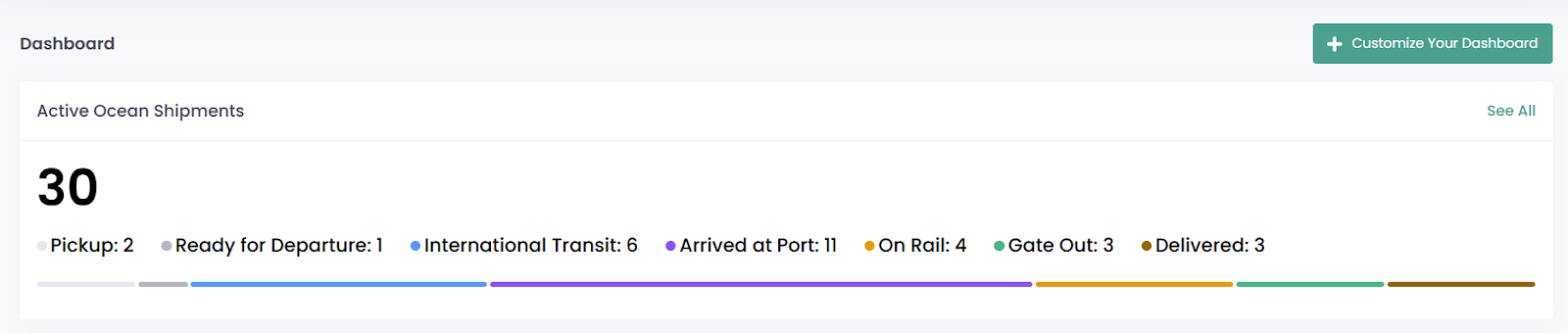
- Shipment Status Breakdown
Below the total shipment count, there is a colored bar that visually represents the number of shipments at each stage. Each stage corresponds to specific shipment stages on the Customer Portal:- At Origin = Booking Confirmation, In Gate
- In Transit = Vessel Departure
- Arrived = Vessel Arrival, Unloaded from Vessel
- Rail = Rail
- Gate Out = Gate Out
- Container Returned = Arrived at Destination, Empty Return
***Note:
Once a shipment is marked as complete, it will no longer appear in Active Ocean Shipments.
Shipments can be marked as complete in two ways:
- Manually: Your OP has checked the Complete box for the container in My Containers.
- Automatically: Based on your Customer Portal Display Settings, shipments will be marked complete after a set number of days following the final stage. → To view the set number of days, go to your Ocean Shipment List View page > click Filter > hover over the ℹ️ icon next to the Display Complete Shipment filter.
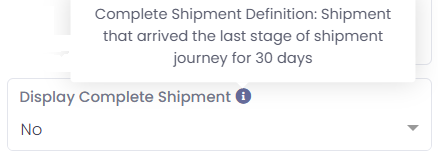
- Viewing Shipment Details
- To view shipment details for a specific stage, click on the corresponding colored section of the bar.
- Alternatively, you can click the "See All" button in the upper right corner to view a detailed list of all active shipments. To see detailed information about a specific shipment, simply click on the BL number — this will direct you to the shipment entry page.
In the upper left corner, you’ll find a filter that allows you to sort shipments by status, including all active shipments or specific stages.
2. Estimated Arrival
This section displays ocean shipments scheduled to arrive within the next five days, including today. You can adjust the date range by clicking the arrows next to the dates. Under each date, a maximum of five shipments will be displayed. To view more shipments, click "View More."

- Viewing Shipment Details
Under each date, the arriving shipments are listed with key details,- HBL Number – Displays the shipment’s HBL number.
- ETA – Shows the latest known ETA, which could be Port ETA, DEL ETA, or Door ETA depending on the shipment status.
- If there is an "!" icon next to the ETA, it means the shipment has multiple containers with different ETAs — the earliest ETA is displayed.
- Location – Indicate the shipment’s location from the Port of Loading (POL) to the final destination.
- Shipment Stage – Shows the current status of the shipment based on the latest event update.
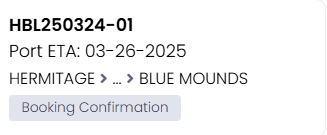
3. Outstanding Invoices
This section provides an overview of unpaid invoices for easy tracking and follow-up. It displays invoices that are overdue or due within the next 7 days. Only tracking users with the Customer role can see this section. To see the full list of invoices, click “See All” on the right-hand side or “View More” at the bottom.
- Invoice Details
The invoices are listed with following details:- Invoice Number – Click to open the invoice details.
- B/L Number – Click to open the shipment entry page.
- Due Date – Displays the payment due date of the invoice.
- Currency – Indicates the currency used in the invoice.
- Balance – Shows the total amount due.
- Action:
- View PDF – Open the invoice in PDF format.
- Pay Online – A "Pay Online Now" button will appear if the online payment feature is enabled. If this option is not available, please contact your freight forwarder to request activation.
