
The Ocean Shipment page allows you to track and manage your shipments efficiently. The page is divided into two sections: Ocean Import and Ocean Export, providing a clear separation of your shipments. Both sections offer similar functionality, enabling you to search, filter, and organize shipment information with ease.

Tabs Overview
When you access the Import Shipment page, you will find two tabs:
- All Shipments – Displays the full list of your shipments.
-
Arrival Delay – The system has detected that the latest ETA is later than the ETA you originally entered. To facilitate your follow-up actions, it has been consolidated and displayed here.
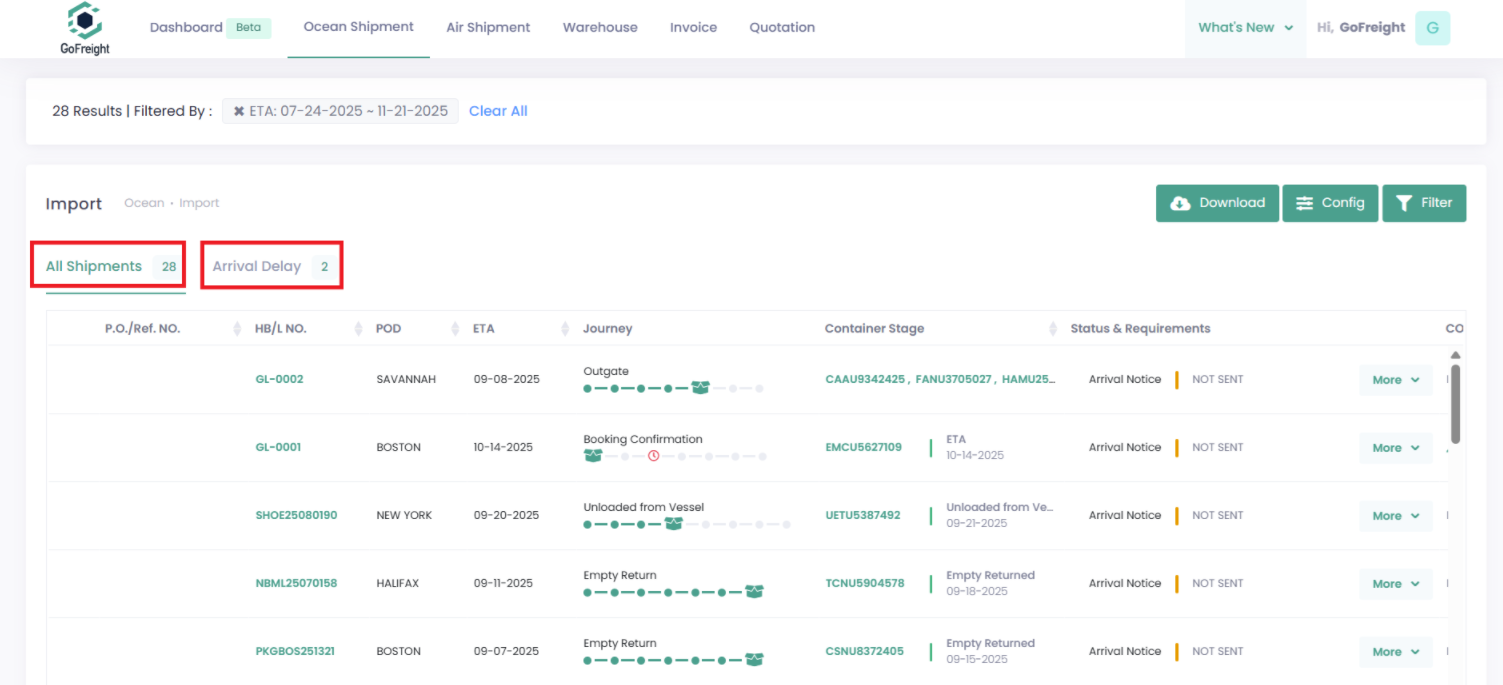
Working with Shipments Tabs
Both the All Shipments and Arrival Delay tabs provide flexibility to download shipment information, customize displayed fields, and apply filters to quickly locate the data you need.
1. Downloading Shipments Data
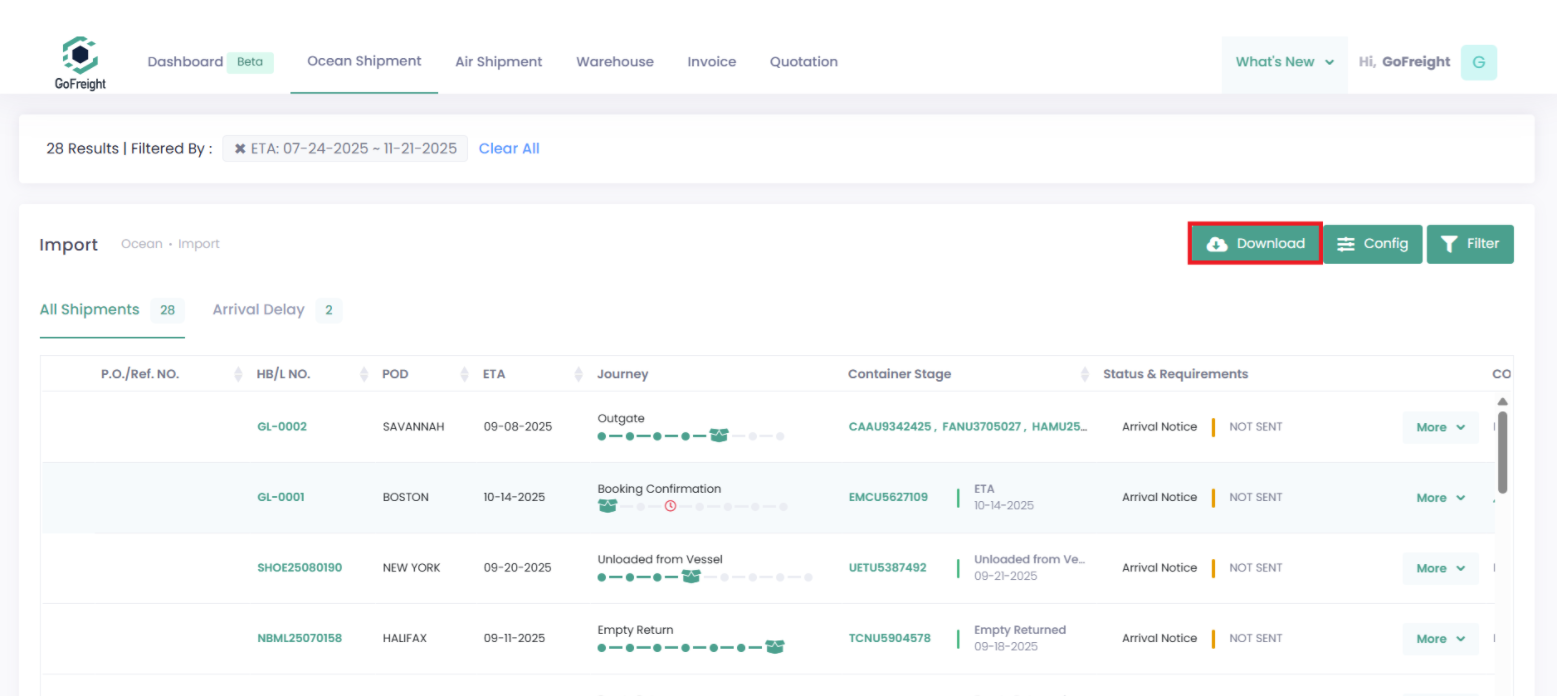
At the top-right corner of the page, you will find the “Download” button.
This button allows you to export your shipments exactly as displayed and sorted on your shipment page into an Excel file.
2. Configuring Data Fields
The “Config” button is located next to the Download button. This feature lets you adjust which data fields are displayed and in what order.

- Click the Config button, a configuration window will appear, listing all available data fields. From this window, you can:
- Use the switch next to each field to show or hide it:
- Green = the field is visible on your page
- Grey = the field is hidden from your page
- Drag and reorder fields to arrange how they appear on your page.
- Use the switch next to each field to show or hide it:
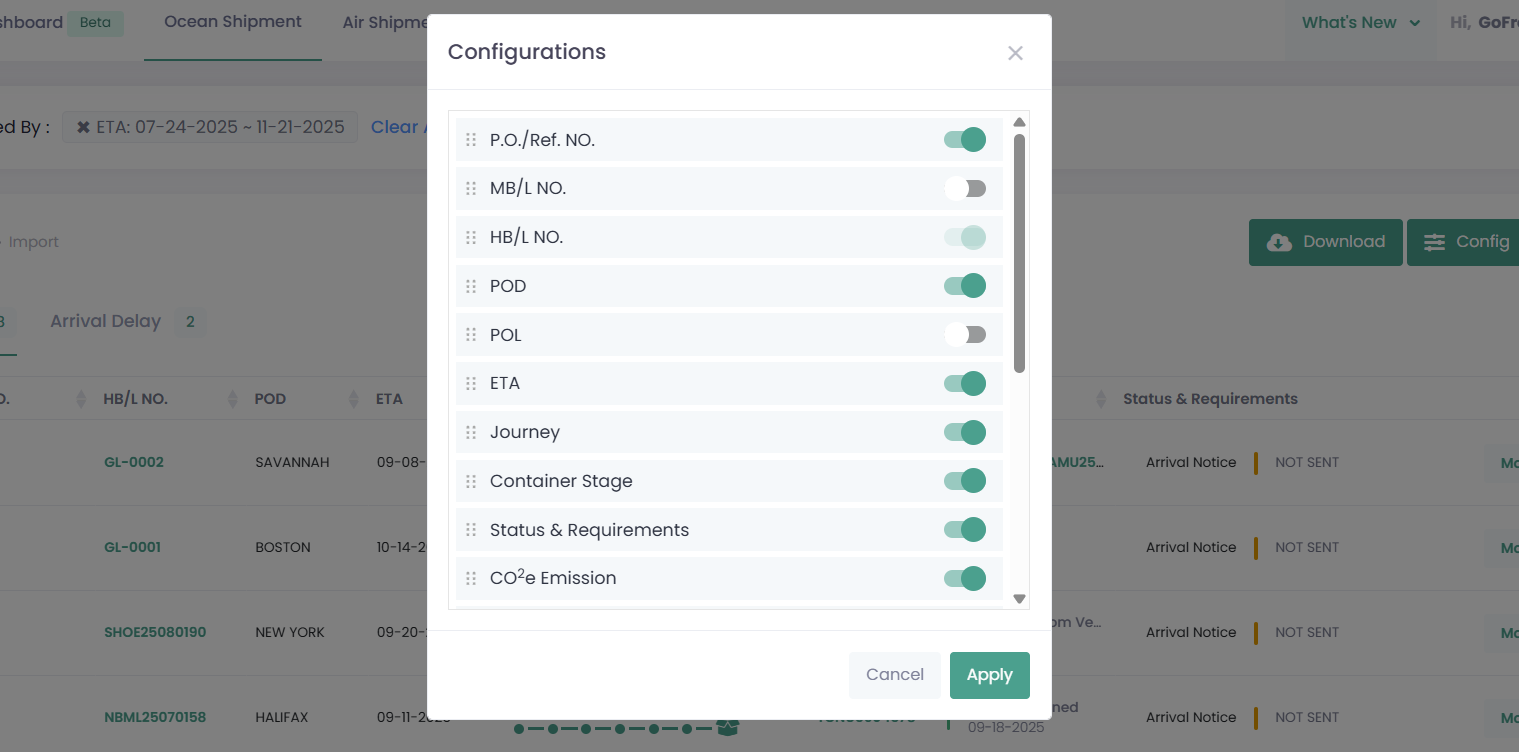
- After making adjustments, click “Apply”. The changes will take effect immediately on the Ocean Shipment page.
3. Filtering Shipments
Next to the Config button, you will find the “Filter” button. This tool helps you quickly locate specific shipments.
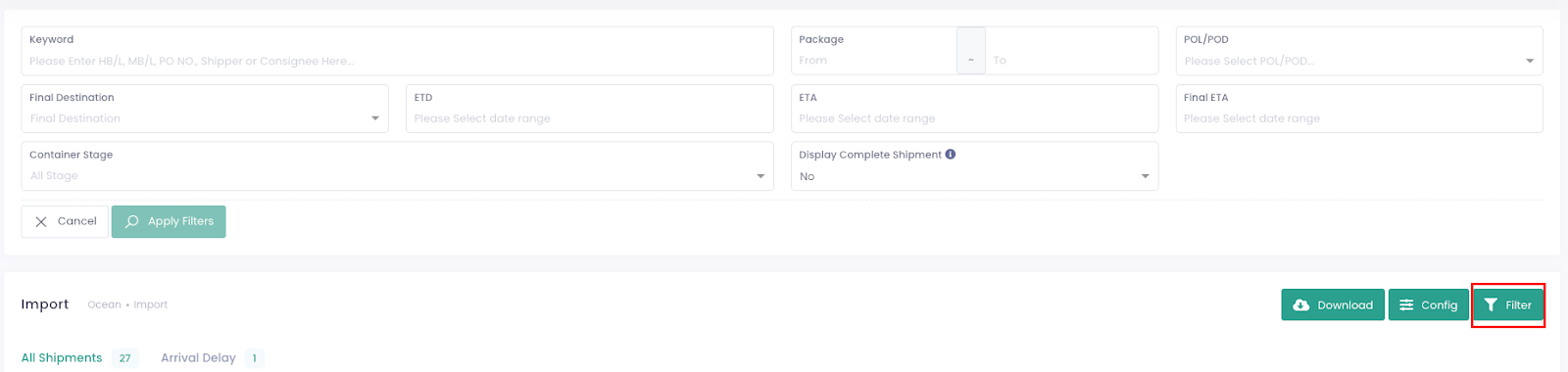
- Click the Filter button, enter key information such as shipment number, container number, or other criteria.
- If you cannot find a shipment, check the following:
- ETA Range – Ensure the expected time of arrival matches your filter.
- Display Complete Shipment – This option controls whether completed shipments are shown. To include these completed shipments in your search results, select YES in this field.
-
Hover over the information icon next to this field to see how many days are configured in your system for a shipment to be considered “complete.”
(For example, if it shows 30 days, it means a shipment is considered complete 30 days after the final stage of its journey on the portal.)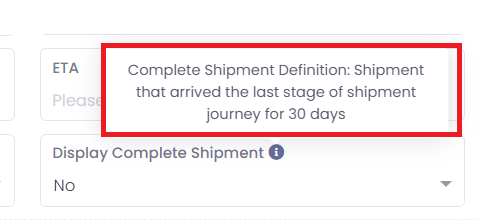
-