
GoFreight conducts Denied Party Screening based on the embargo and sanction list of the US government to verify whether exported shipments have potential customers or trade partners. This process ensures compliance with export control laws and regulations, helping you avoid fines, criminal liabilities, loss of export privileges, or damage to your reputation.
If you are interested in this feature, please contact us at support@gofreight.com.
Screening Trade Partners
1-1. Trade Partner Status Update
After creating a Trade Partner, click "Save." The status of the Trade Partner will be displayed in the upper left corner. If any data is changed, the system will re-screen the Trade Partner upon clicking “Save” and update the status accordingly.
1-2. Screening Results for Trade Partners
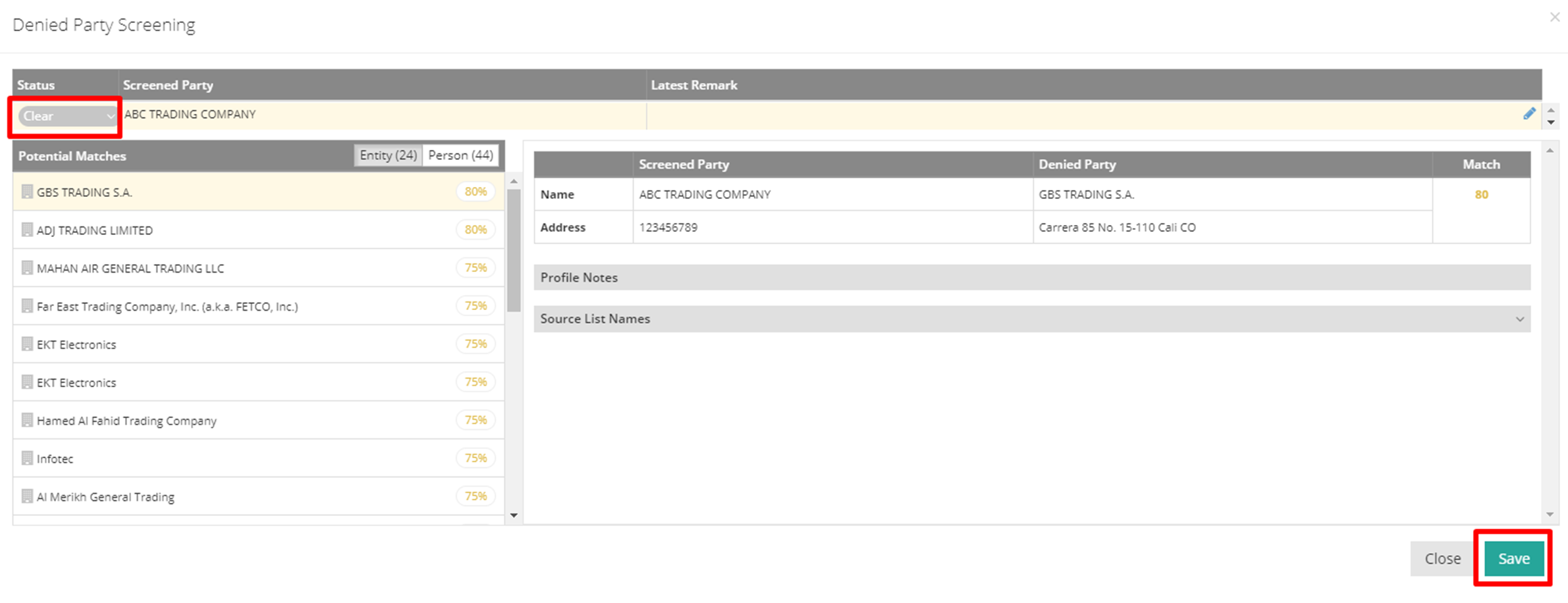
If the status is "Unknown" or "Matched," a window will pop up displaying the screening results. The upper section shows the screened party and status, while the lower left lists potential matches categorized as "Entity" and "Person." The lower right indicates the similarity between the screened party and the denied party.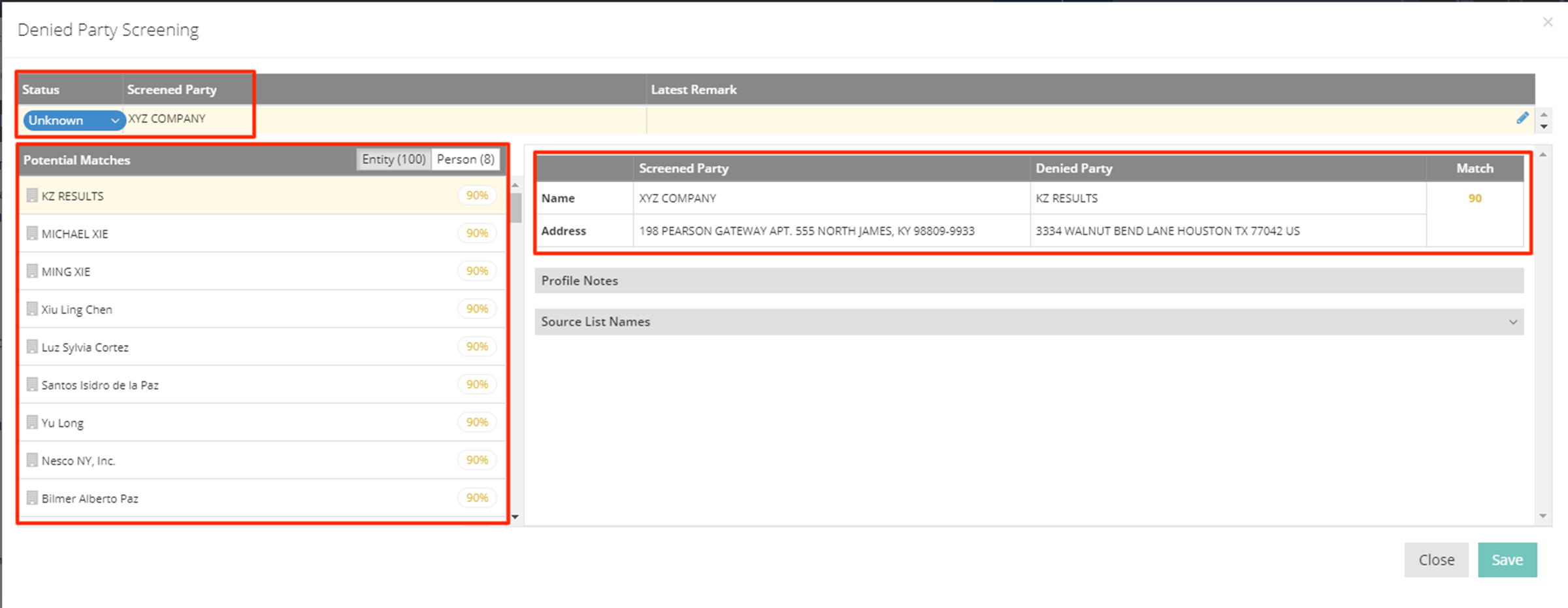
1-3. Confirming Trade Partner Status
To confirm that a Trade Partner is "Clear," only the operation manager and general manager have the authority to change the status and add remarks.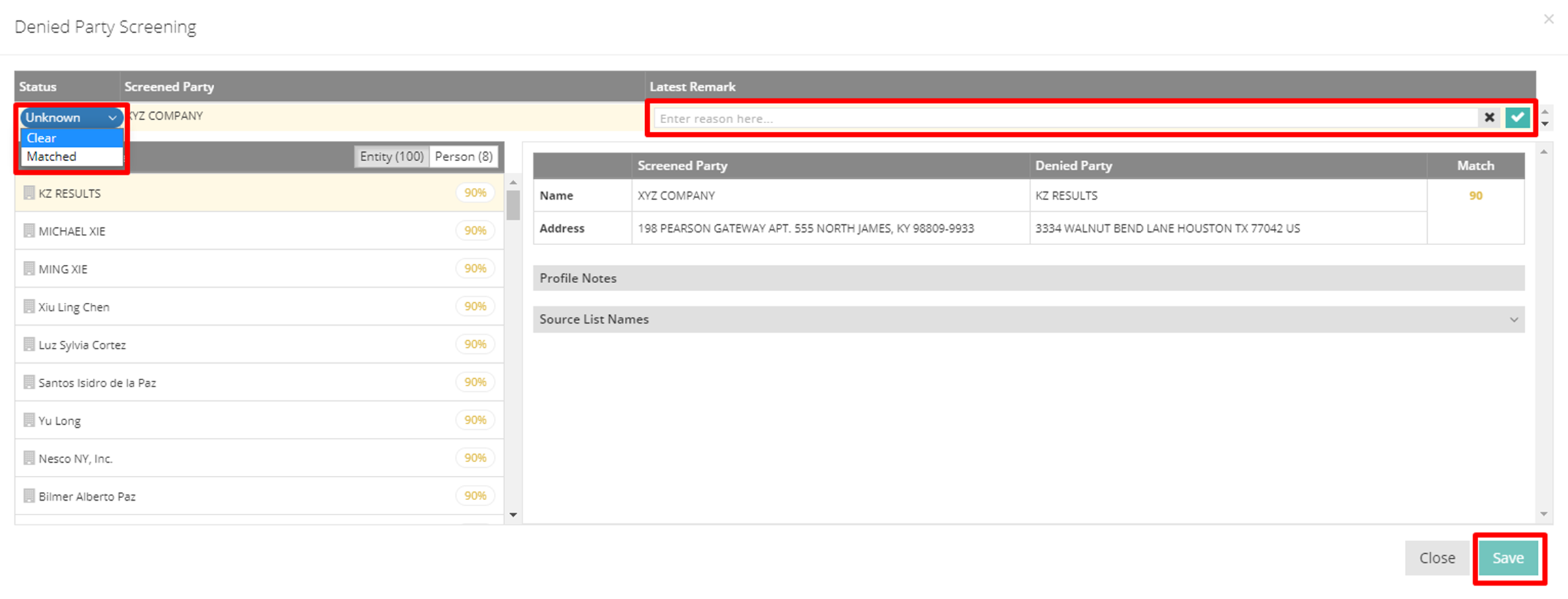
1-4. Viewing Screening Results
If you wish to view the screening results again, click "Tools" in the upper right corner and select "Denied Party Screening."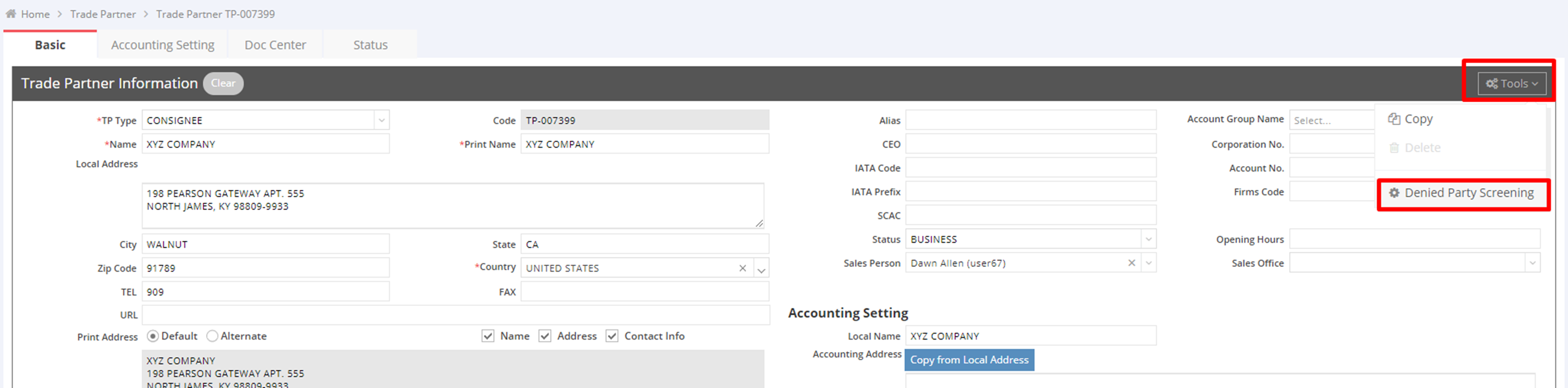
Screening Export Shipments (Only ocean and air export shipments will be screened)
2-1. New Export Shipment Screening
When adding a new export shipment, click "Save." The system will display a window showing the result of the Denied Party Screening.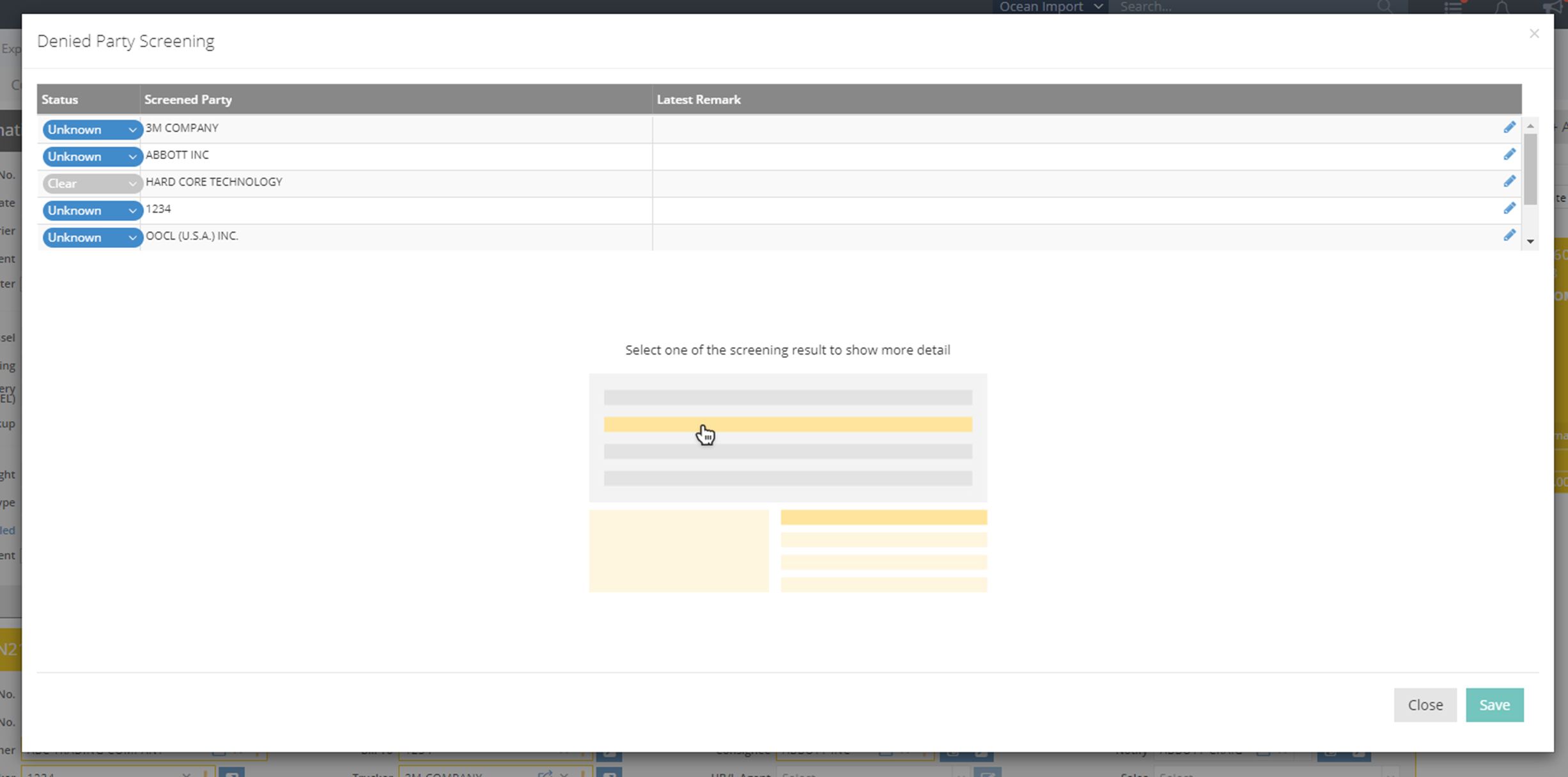
2-2. Screening Results Overview
The screened party and status will be listed at the top. Click on the party to check for any matching potential denied entities or persons.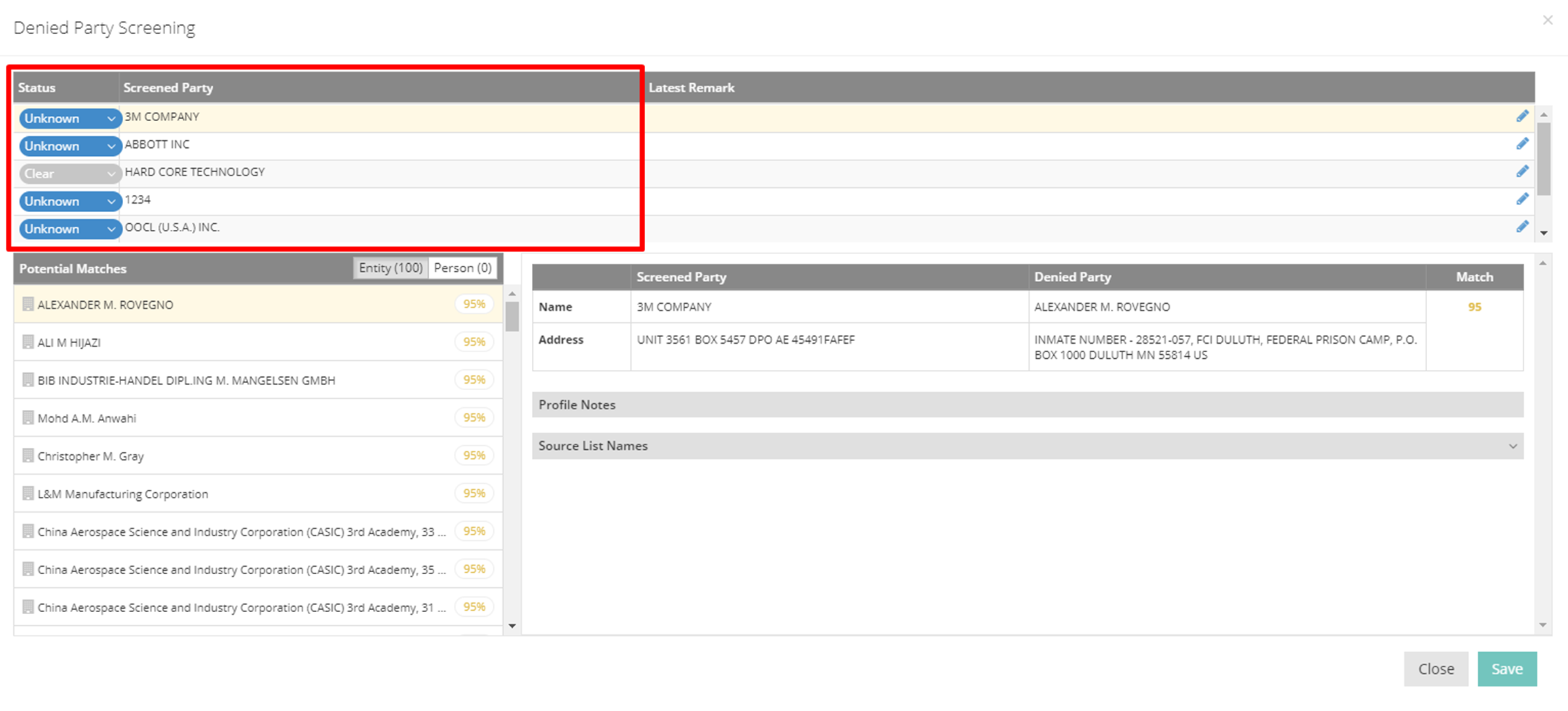
2-3. Potential Matches
Potential matched parties will be shown on the left, divided into "Entity" and "Person." The right side displays the similarity between the screened party and the denied party.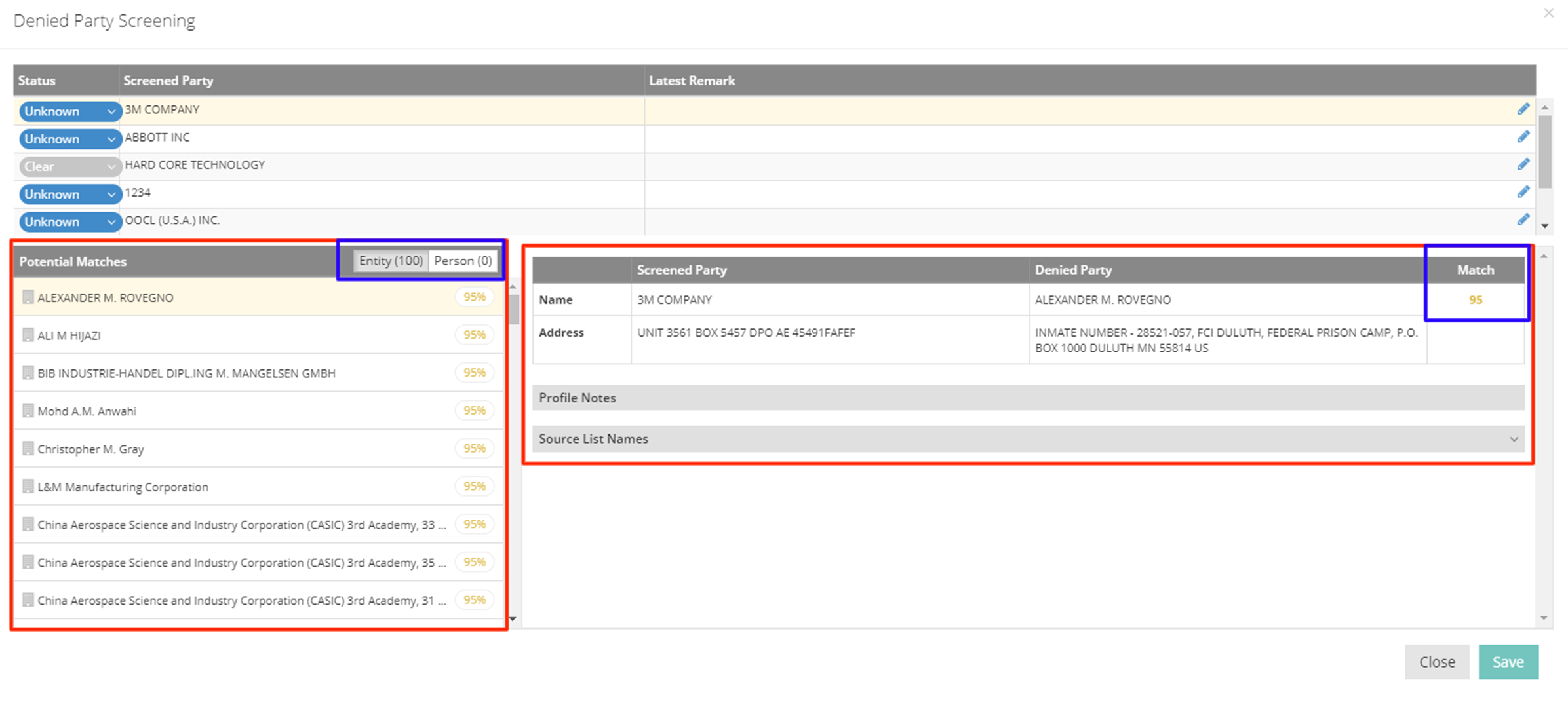
2-4. Confirming Trade Partner Status
To confirm that a Trade Partner is "Clear," only the operation manager and general manager have the authority to change the status and add remarks.
2-5. Re-Viewing Screening Results
If you want to view the screening result again, click "Tools" in the upper right corner and select "Denied Party Screening."
2-6. Printing Restrictions
If the status of the screened party is not "Clear," the system will restrict printing the HB/L or HAWB. Printing can only occur when the status of all Trade Partners is "Clear."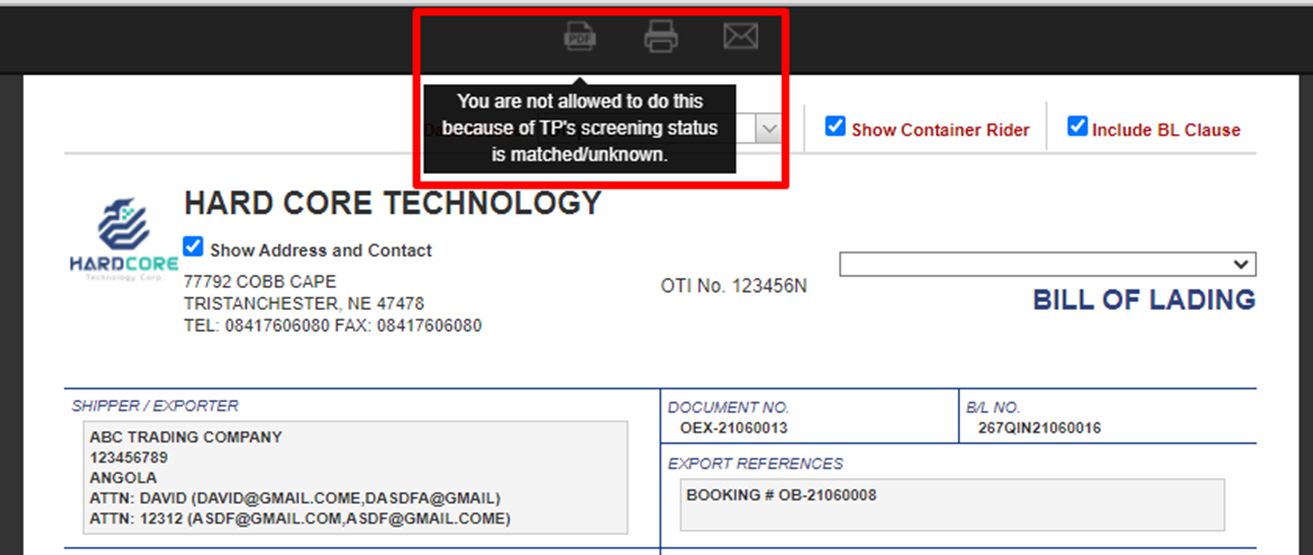
2-7. Status Alerts
An exclamation mark will appear on the basic page to indicate which Trade Partners have an “unknown” or “matched” status. Click the yellow exclamation mark to view the screening results for that Trade Partner. If confirmed as “Clear,” the operation manager and general manager can change the status to "Clear," and the exclamation mark will be removed.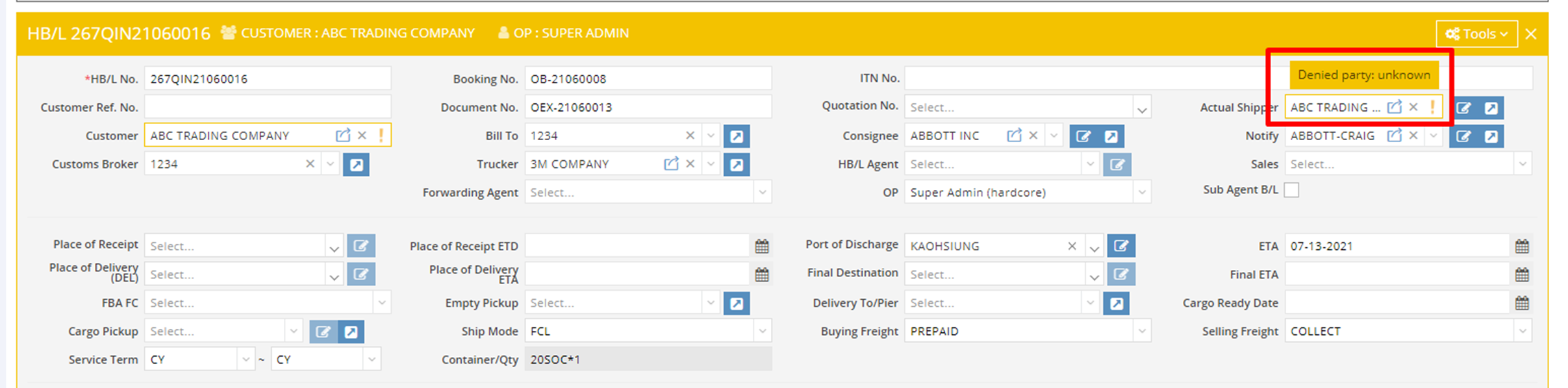
2-8. HB/L Alerts
If a HB/L has a Trade Partner with a status of "Unknown" or "Matched," an exclamation mark will also be displayed as an alert on the House B/L list.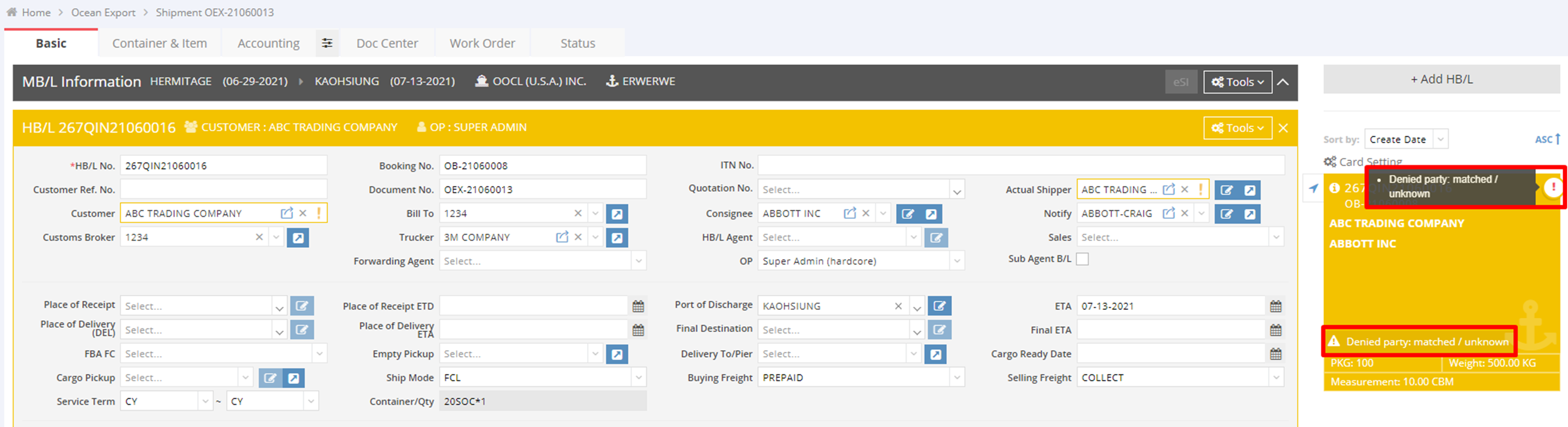
2-9. Changing Trade Partners
If you change the Trade Partner for the shipments, the system will re-screen and update the status upon clicking “Save.”
Status List
Not Screened: 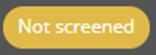
Indicates that this Trade Partner has not been screened yet.
Unknown: 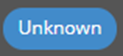
Indicates that this Trade Partner has been screened, but there are matching potential denied parties that need review.
Matched: 
Indicates that this Trade Partner has been screened and matches a denied party.
Clear: 
Indicates that this Trade Partner has been screened and does not match any denied party.