To prepay your trade partners (vendors), such as carriers, truckers, brokers, etc. Please follow the steps outlined below.
Note: By default, this function is only available for the role of General Manager, Accounting Manager, and Accounting.
(A) Create Billing Code for Prepayment-use
First, create a billing code for the prepayment.
Please follow the steps in the article link below to create a new billing code. Billing code is known as Freight Code in the GoFreight system.
When setting up the billing code, choose the same General Ledger (G/L) code for both Revenue and Credit, and select another G/L code for Cost and Debit.
In this example, we will name the billing code "Other Charges."
Example: You need to make a total payment of USD 2,000 to your agent, Davidson Group, for Other Charges totaling USD 2,000.
(B) Entry Prepayment
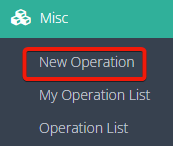
1. Navigate to "Misc" > "New Operation" to fill in and complete the related information in the basic tab, then save the entry.
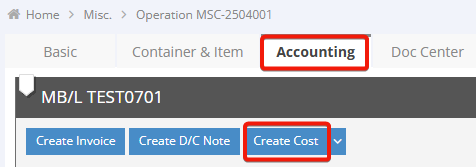
2. Switch to the "Accounting" tab and click “Create Cost.”
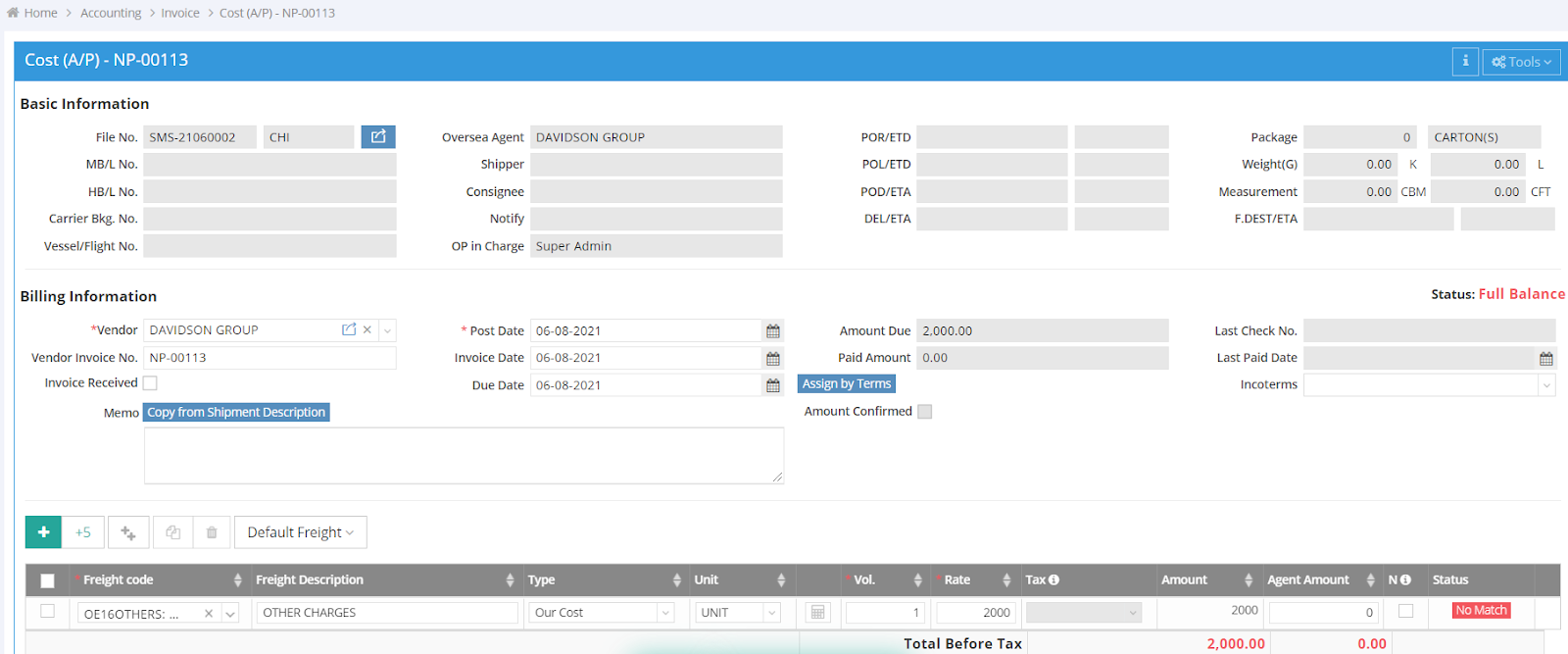
3. Add a proper freight code (in this example, we select "Other Charges"), select the type, and enter the rate you are paying: $2000.
4. After saving the invoice, click "Tools" at the upper right corner and select "Make Payment." 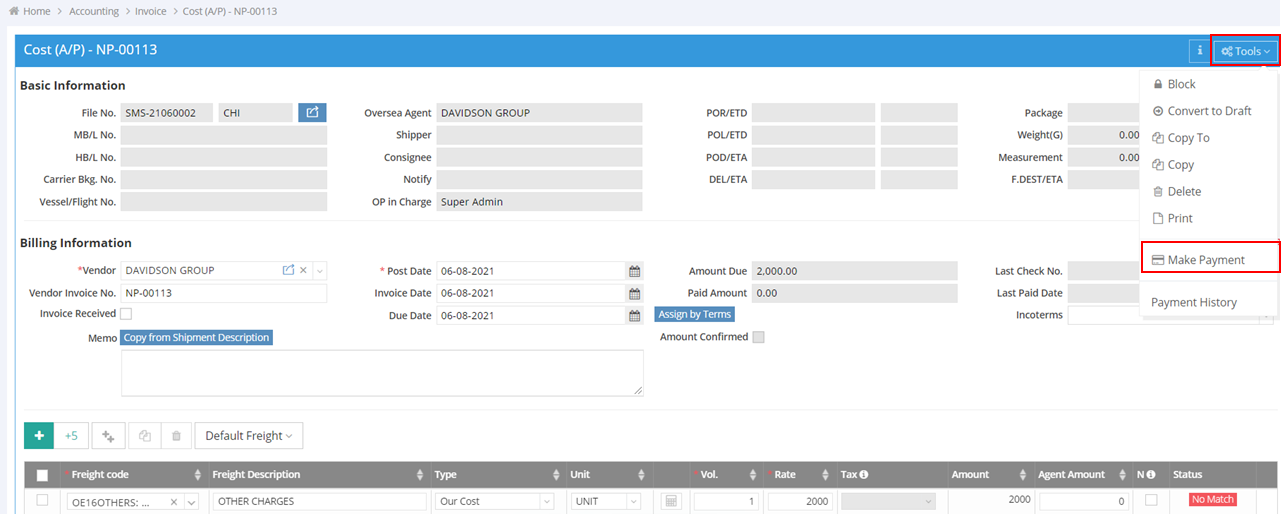
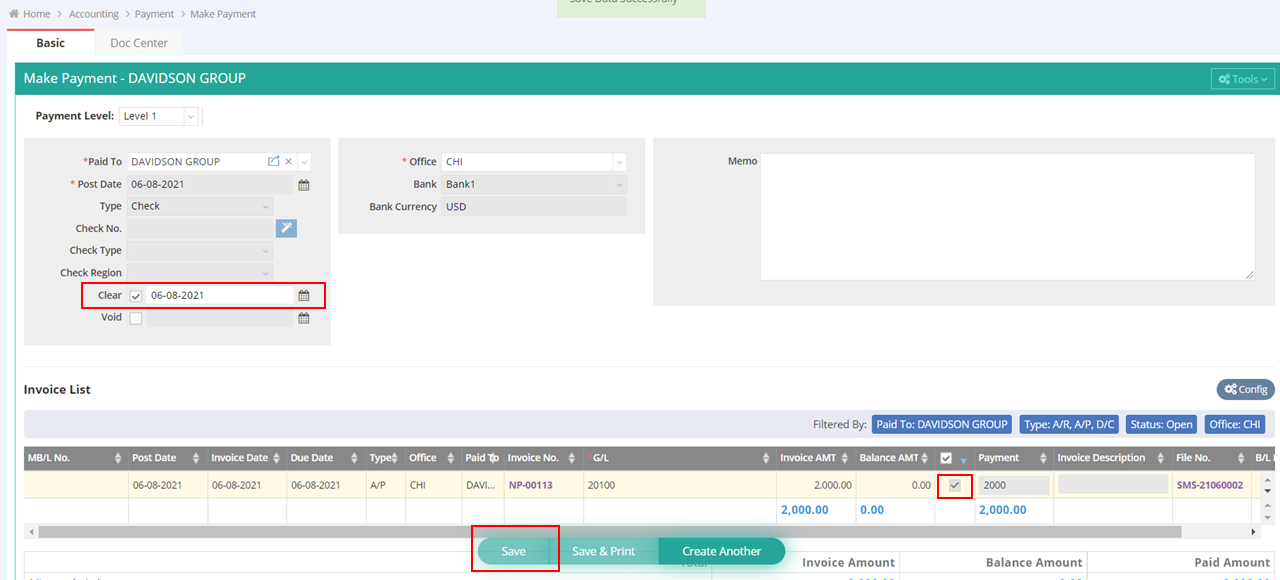
5. You will be directed to the Payment page. Verify the freight details, then click "Clear." After that, click "Save" at the bottom of the page to complete the payment process.
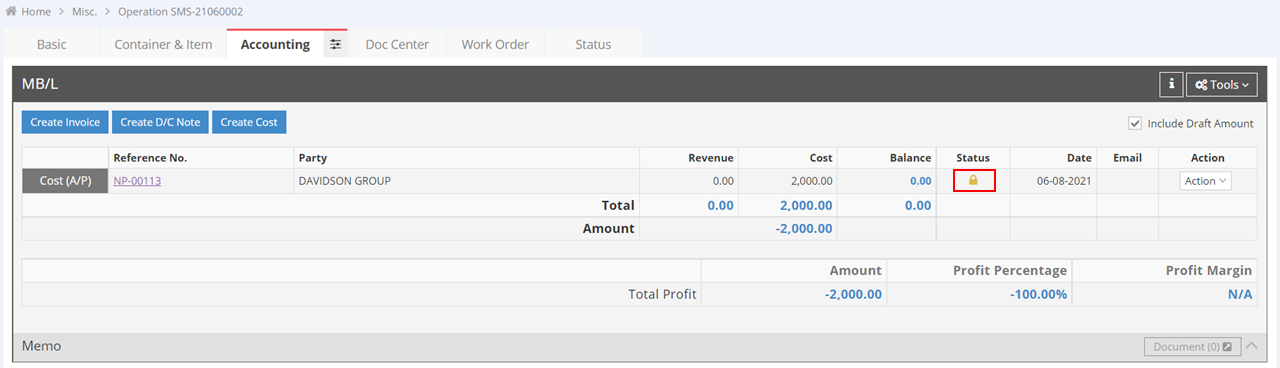
6. Return to the Accounting tab. A yellow lock icon  will appear next to the invoice status, indicating that the payment has been successfully made.
7. Next, click "Create D/C Note." ( Debit and Credit note )
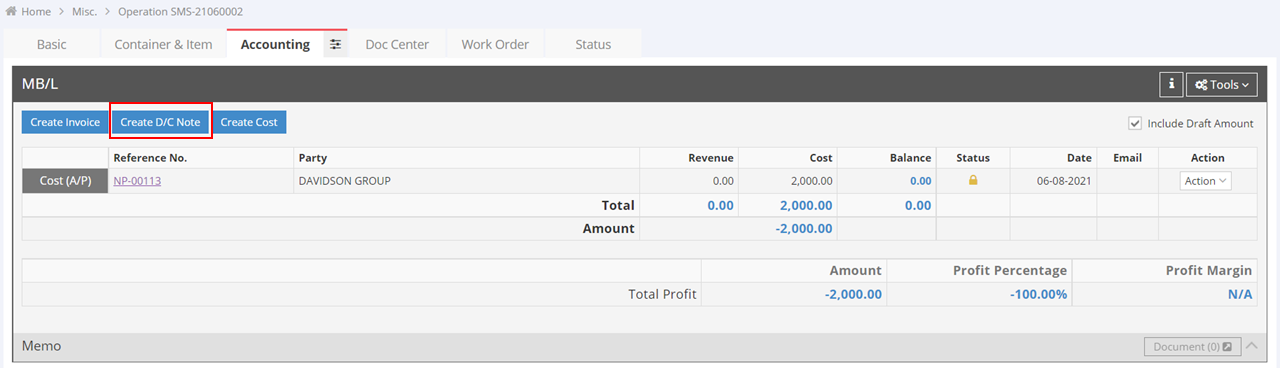
8. Enter "Davidson Group" in the "Agent Name" field. Use the same freight code “Other Charges”, select the type as "Debit," and enter the amount $2,000. Click "Save" to complete the entry.
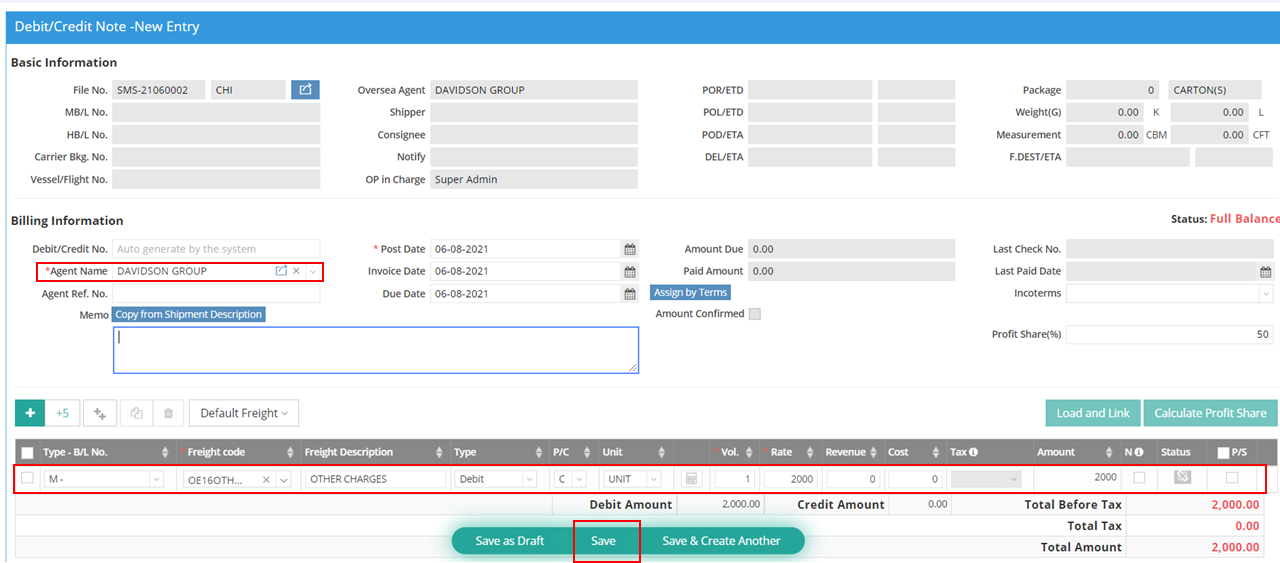
9. The page will automatically redirect to the Accounting tab. Your Debit Note has been successfully created and will be used to offset accounts payable in the future.
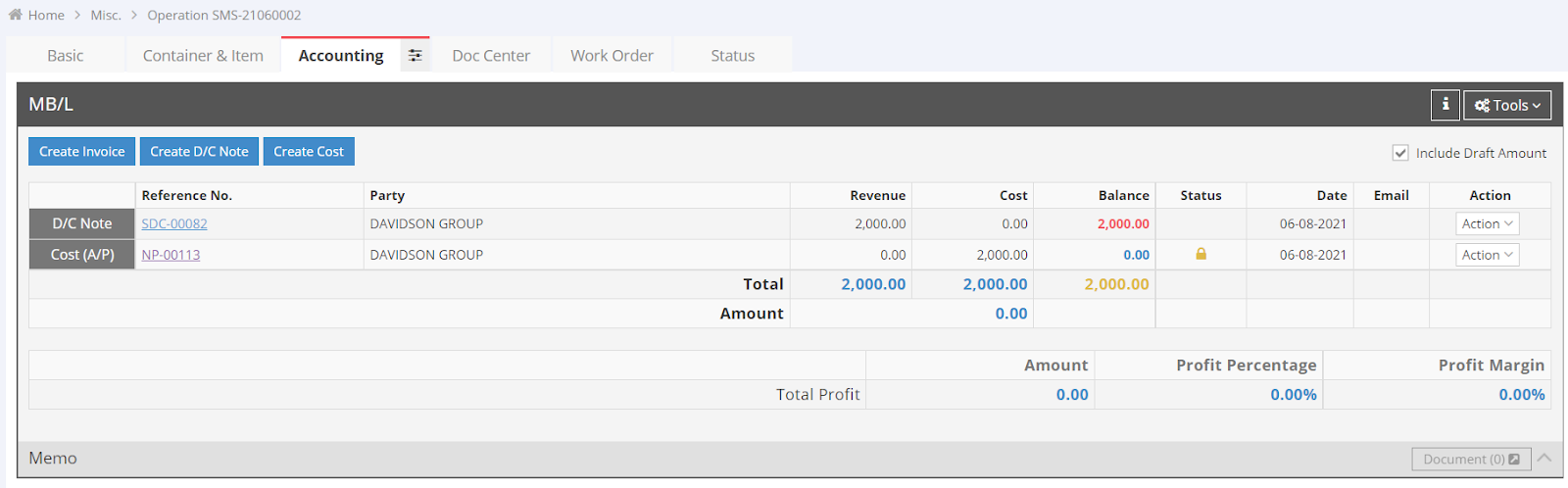
(B) Offset the Prepayment
When you create an accounts payable (AP) for Davidson Group in the future, you can offset this amount. Below are three scenarios:
Scenario 1. Fully Offset
(Accounts Payable (AP): $2,000 | Prepayment: $2,000)
- Go to "Accounting" > "Payment" > "Make Payment."
- Select "Paid To" as "Davidson Group," and then click "Search."
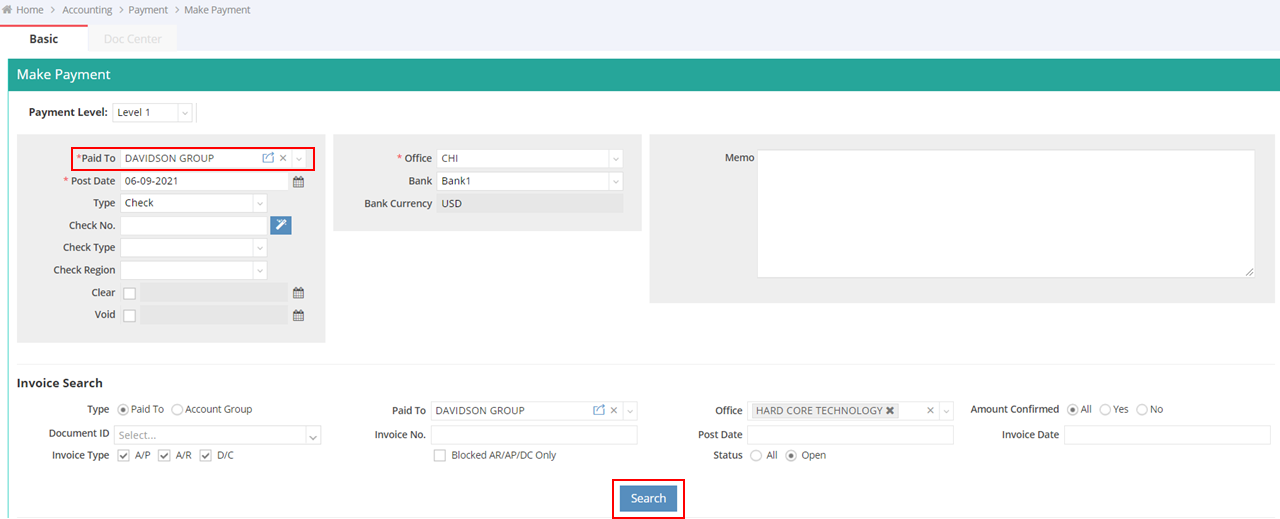
- Select the Debit Note created earlier and the AP Invoices to offset, then click “Save.”

Scenario 2. Partial Offset (AP $1,500 | Prepayment $2,000)
- Go to "Accounting" > "Payment" > "Make Payment."
- Select "Paid To" as "Davidson Group," and click "Search."

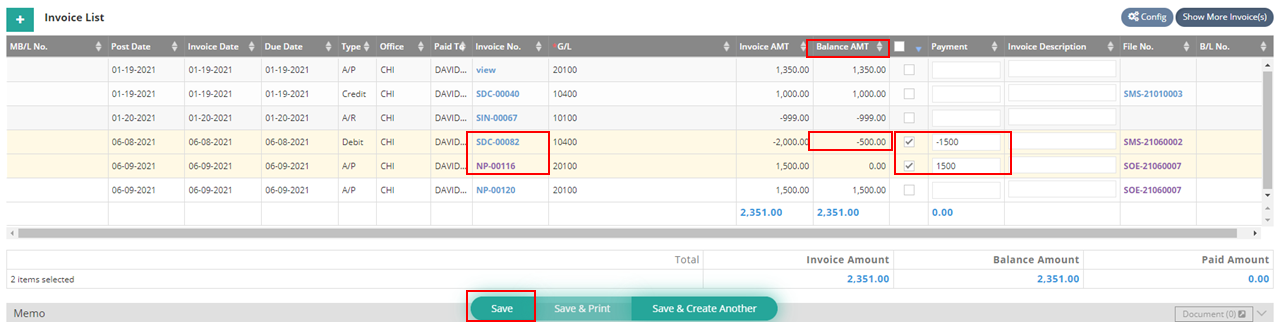
- Select the AP to offset and the previously created Debit Note, then enter the amount of -1,500.
- The Balance Amount of the Debit Note will be -500, indicating that you still have a $500 prepayment credit available for future AP.
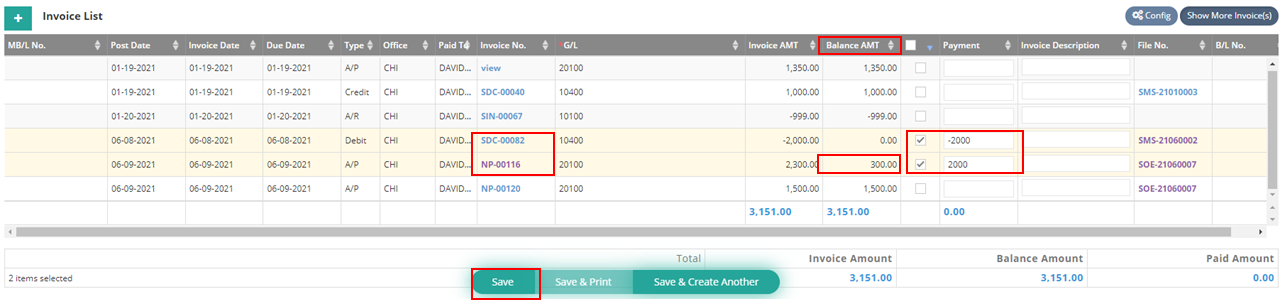
Scenario 3. AP Exceeds Prepayment (AP $2,300 | Prepayment $2,000)
- Go to "Accounting" > "Payment" > "Make Payment."
- Select "Paid To" as "Davidson Group," and click "Search."
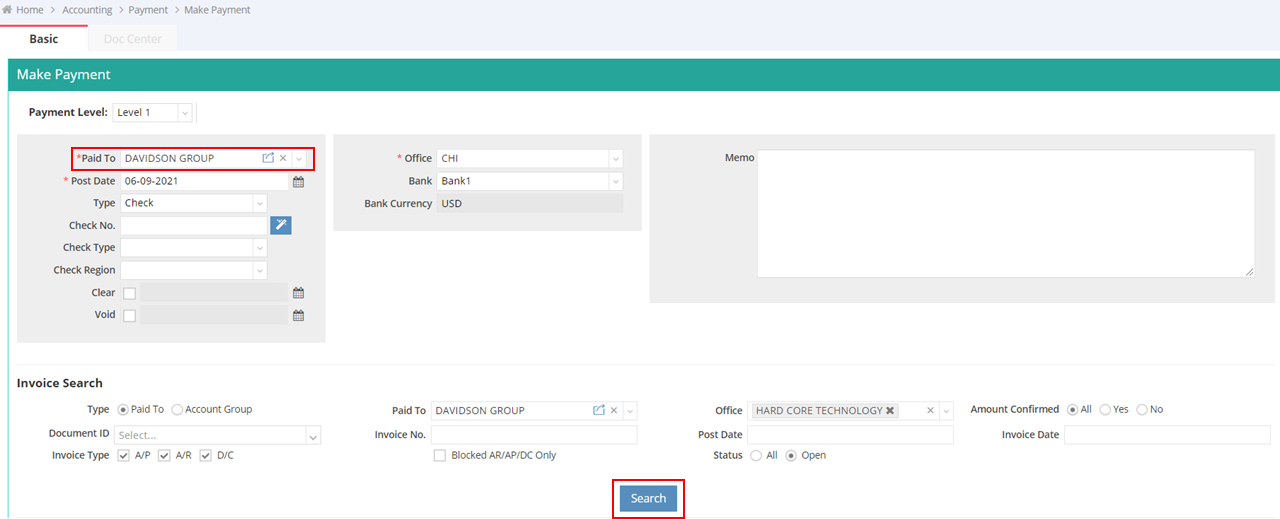
- Select the AP to offset, enter the amount of $2,000, and select the Debit Note created earlier. Click “Save.”
- The Balance Amount of the AP will be $300, indicating that you still need to pay $300 to this Trade Partner (Vendor).