
Introduction
GoFreight provides the Inventory feature under the Warehouse module.
This article will guide you through the steps to create a new receiving entry in the Warehouse module.
Note: This function is available to users with the following roles: General Manager, Accounting Manager, Accounting, Operation Manager, Operation, and Operation Assistant.
Steps to Create New Receiving Entries
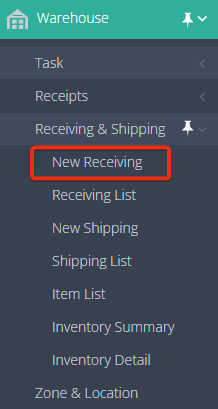
1.Navigate to “Warehouse” > “Receiving & Shipping” > “New Receiving
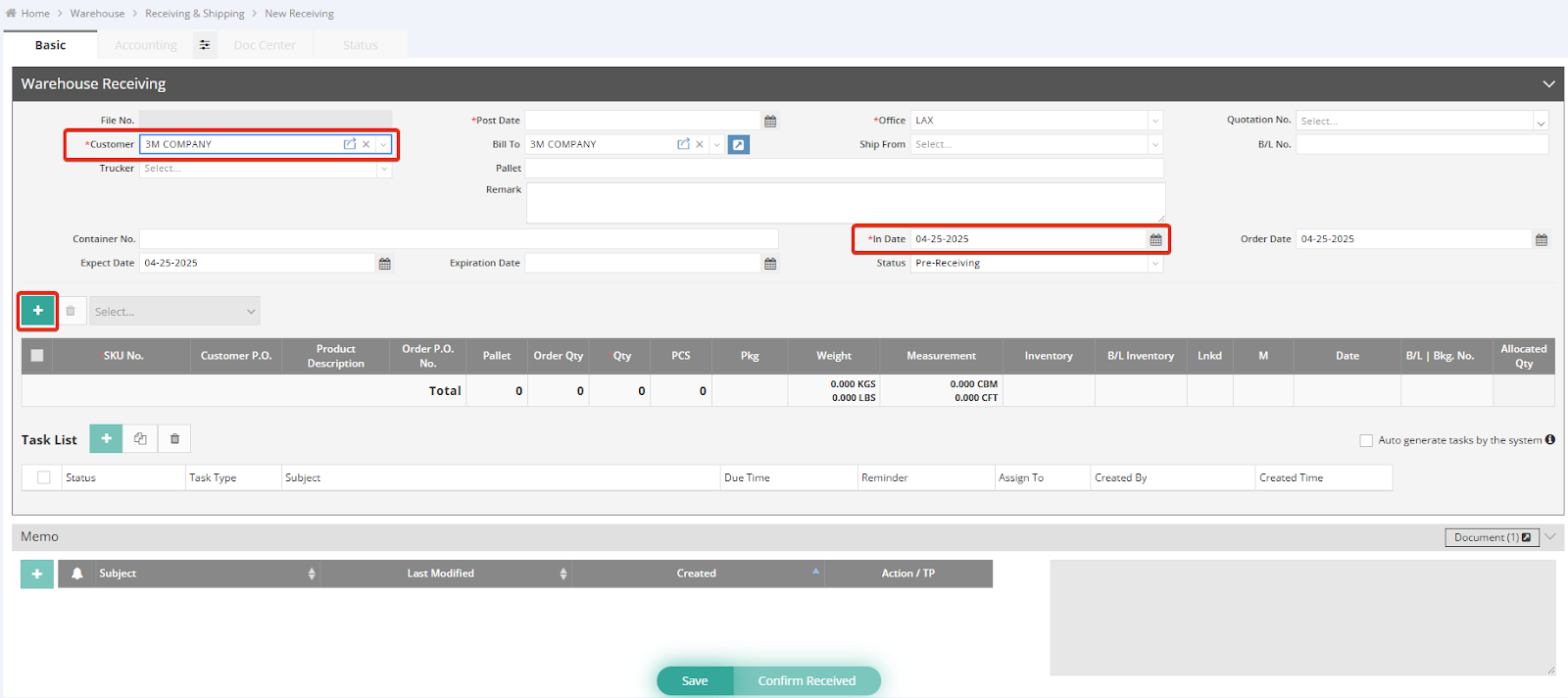
2. In a new receiving entry, the “Customer” and “In Date” fields are marked with a red asterisk (*), indicating that they are mandatory. Please make sure to complete both fields before saving.
3. Click the green “+” button to add new items.
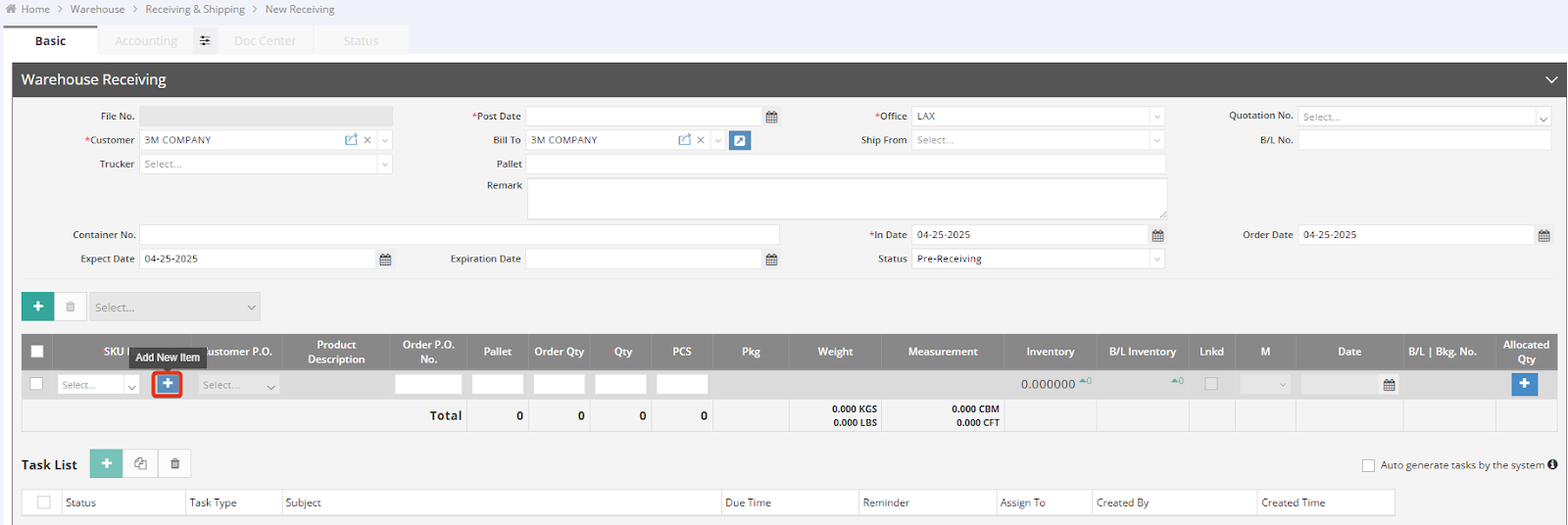
4. A new row will appear; click the blue "+" button to add the SKU No. (Stock Keeping Unit Number, a unique identifier for each product) for the items being received from the customer.
Note: The SKU number cannot be deleted once it is created. It can only be deactivated after the inventory quantity reaches zero.
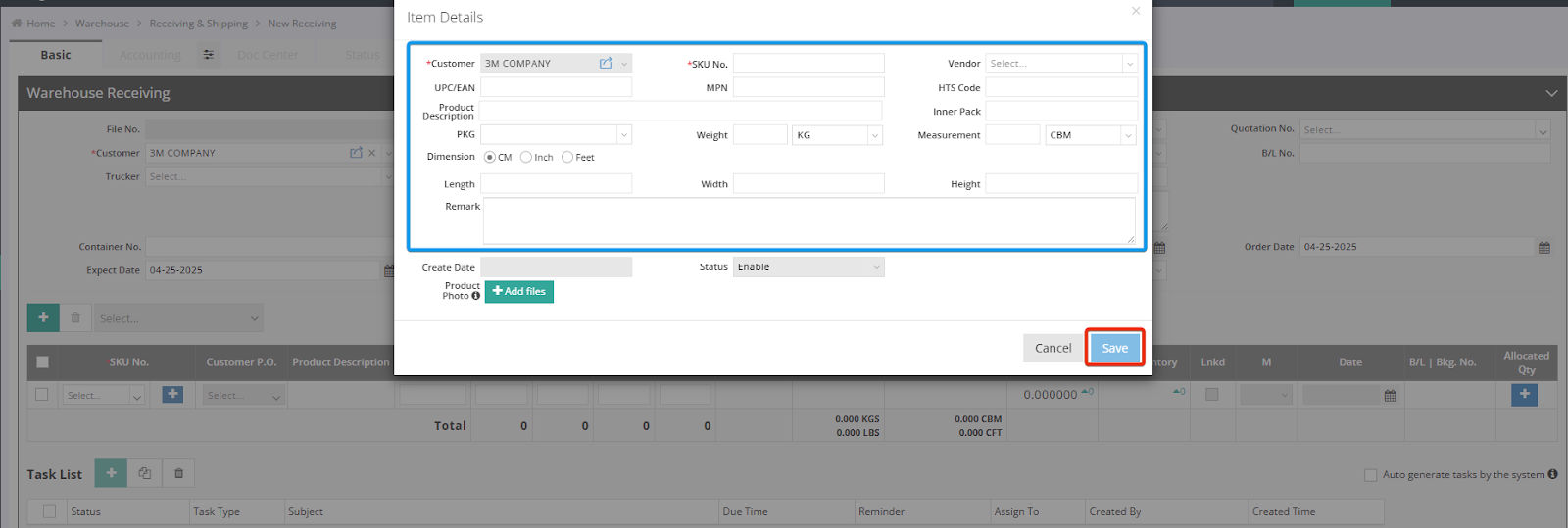
5. A new window, “Item Details,” will pop up. Enter the required item information, and click “Save” once all details have been filled in.
6. The SKU number will now be displayed. Enter the quantity (Qty) received along with any other required information. The “Inventory” field will automatically update as you input the quantity.

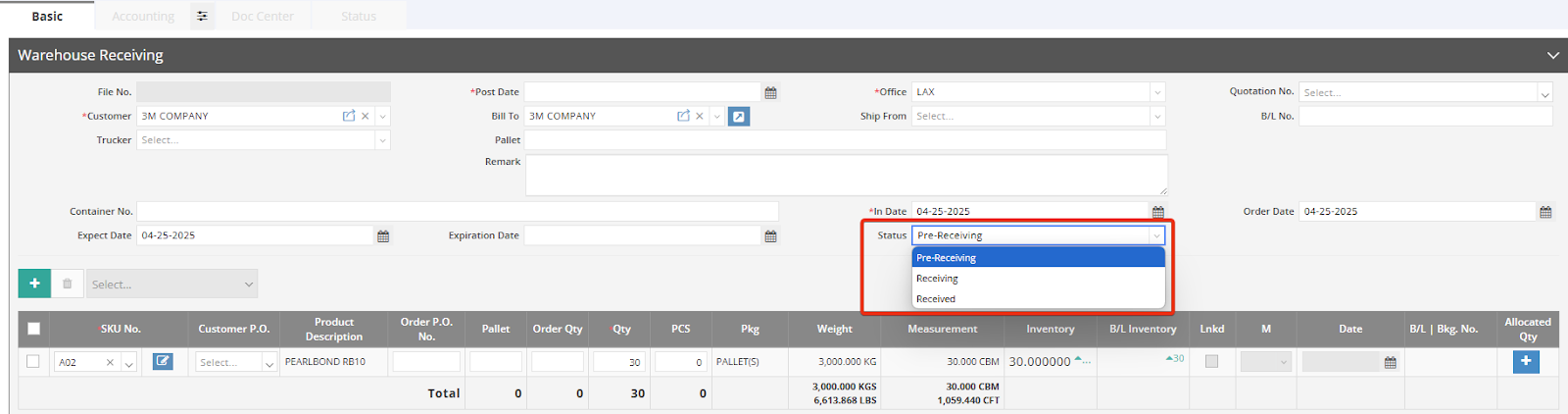
7. The status column is used to record the shipment status, from “Pre-receiving” to “Receiving” and finally “Received”, allowing users to reflect the current receiving status.
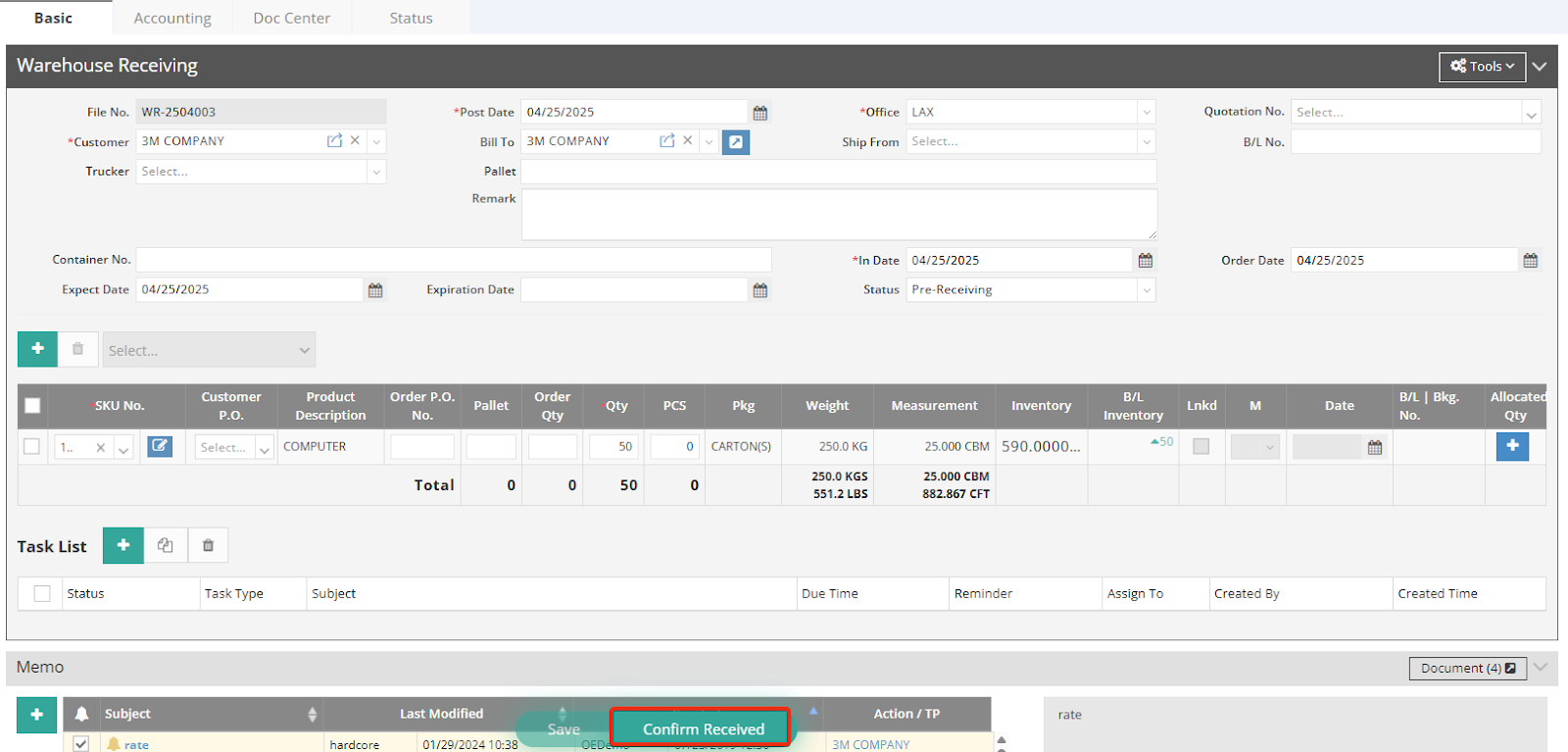
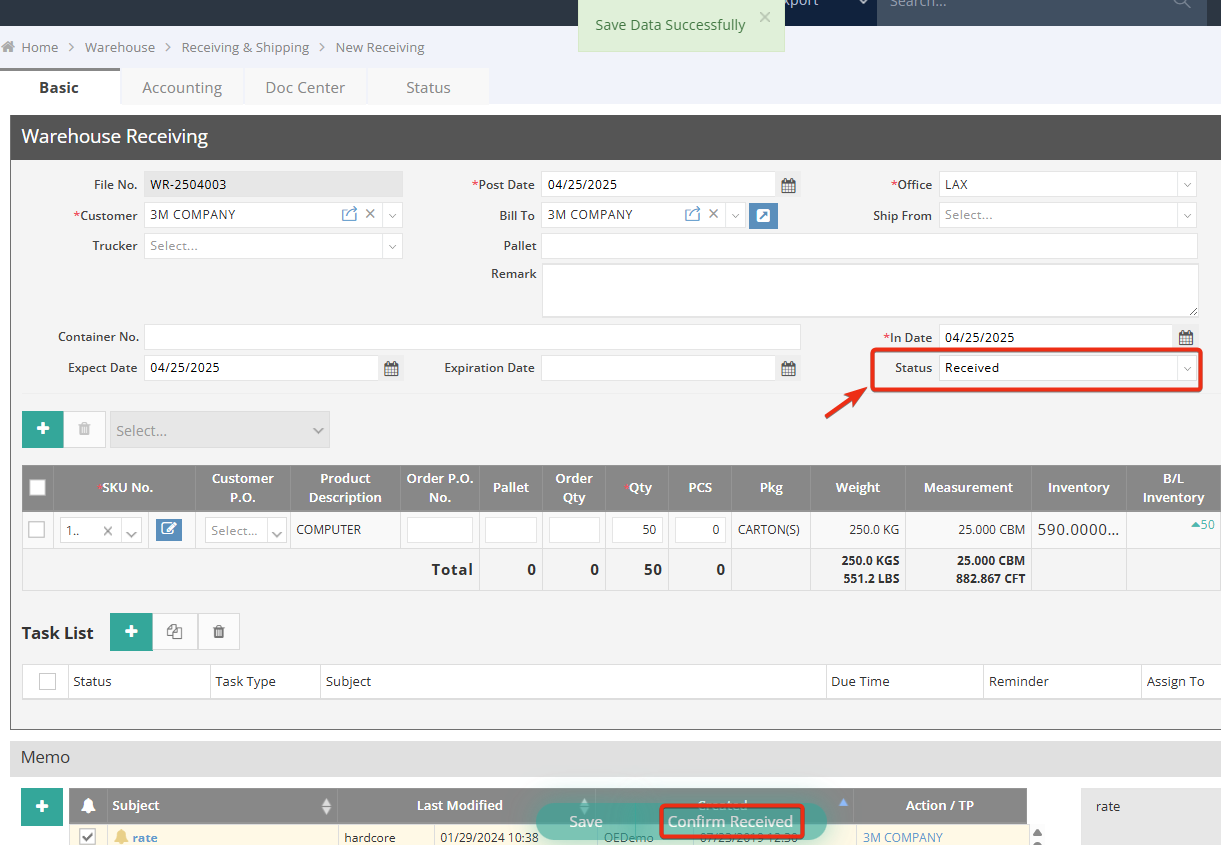
8. After confirming receipt of the shipment, you can click “Confirm Received” next to “Save” at the bottom of the page. The status will automatically update to 'Received' in the status column.
For a visual guide on this feature, please refer to the following video: