Introduction
Rate Finder is a powerful feature within GoFreight’s Rate Management add-on service. It is designed to help users, the sales teams, and operations staff quickly search for and compare freight rates across different carriers.
Who Can Access
Under the role of Sales, Sales Manager, Operation, Operation Manager, and General Manager can create new quotations. The Rate Finder feature is currently available upon request with approval from the General Manager. Please contact support@gofreight.com for more details or to request permission to enable this feature.
Creating Quotations by Using Rate Finder
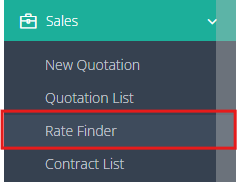
- Navigate to the left-side navigation bar.
- Select Sales > Rate Finder
- Input the route information in the filter and click the Search icon.

Note: All filters marked in red are mandatory.

- The default Departure date is set to Today.
If you have previously searched for rates, you can quickly access your four most recent routing filters by selecting a result from the "Search History" section below.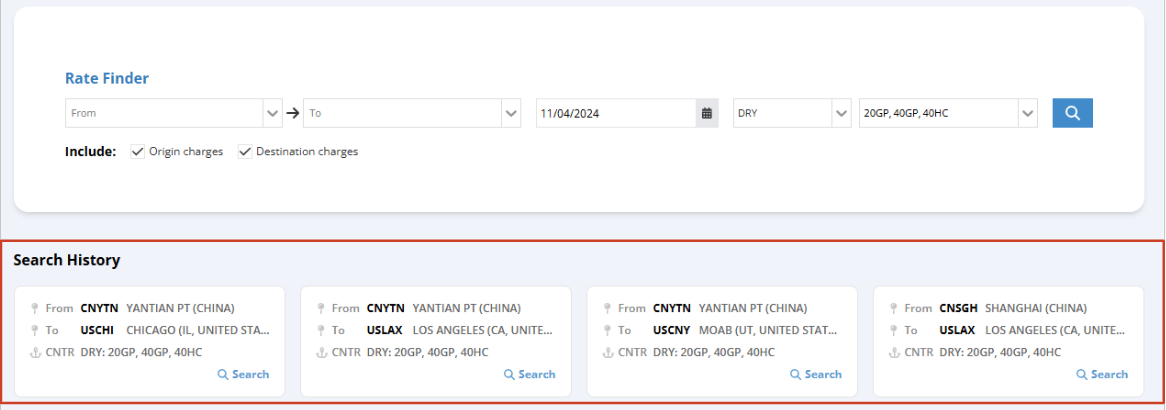
4. Review the results.
Note: The reference next to the carrier name indicates the rate data source.
- SPOT: Rate data from the carrier's website.
- CONTRACT: Rate data from the uploaded contract.
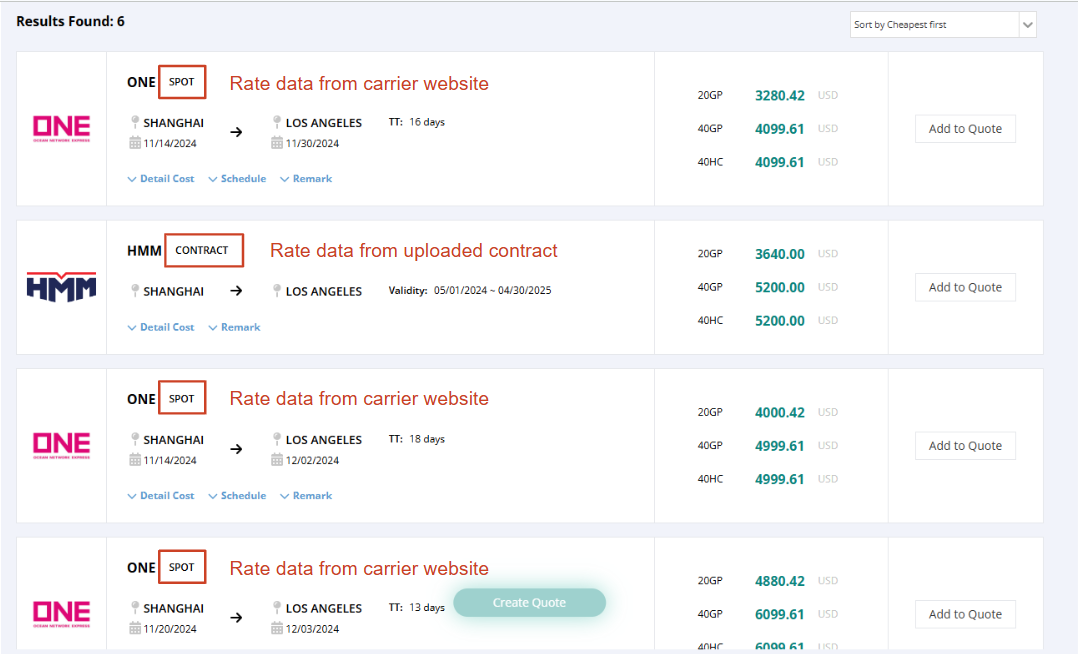
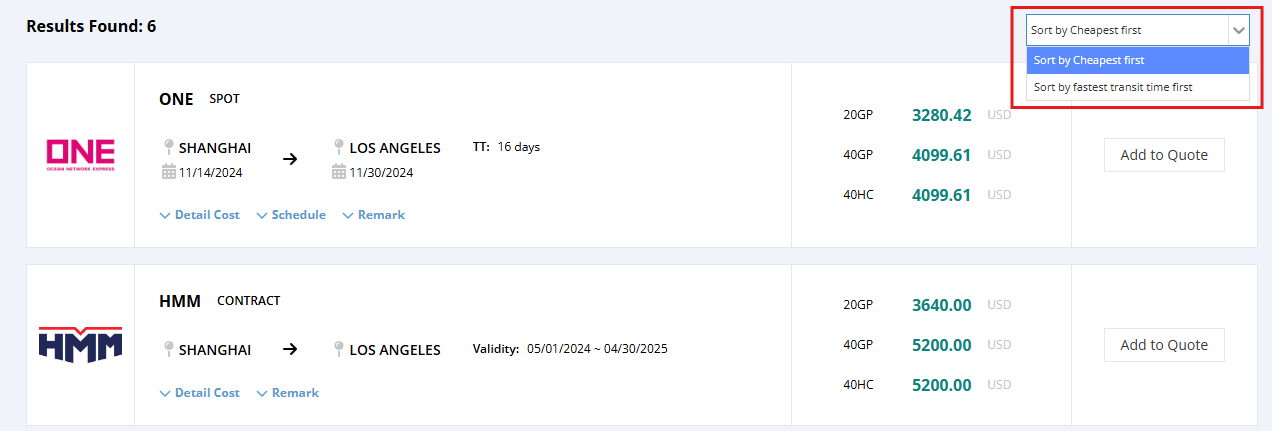
5. You can sort the results by either the Cheapest or Fastest Transit Time using the sorting tool located at the upper right corner of the results section.
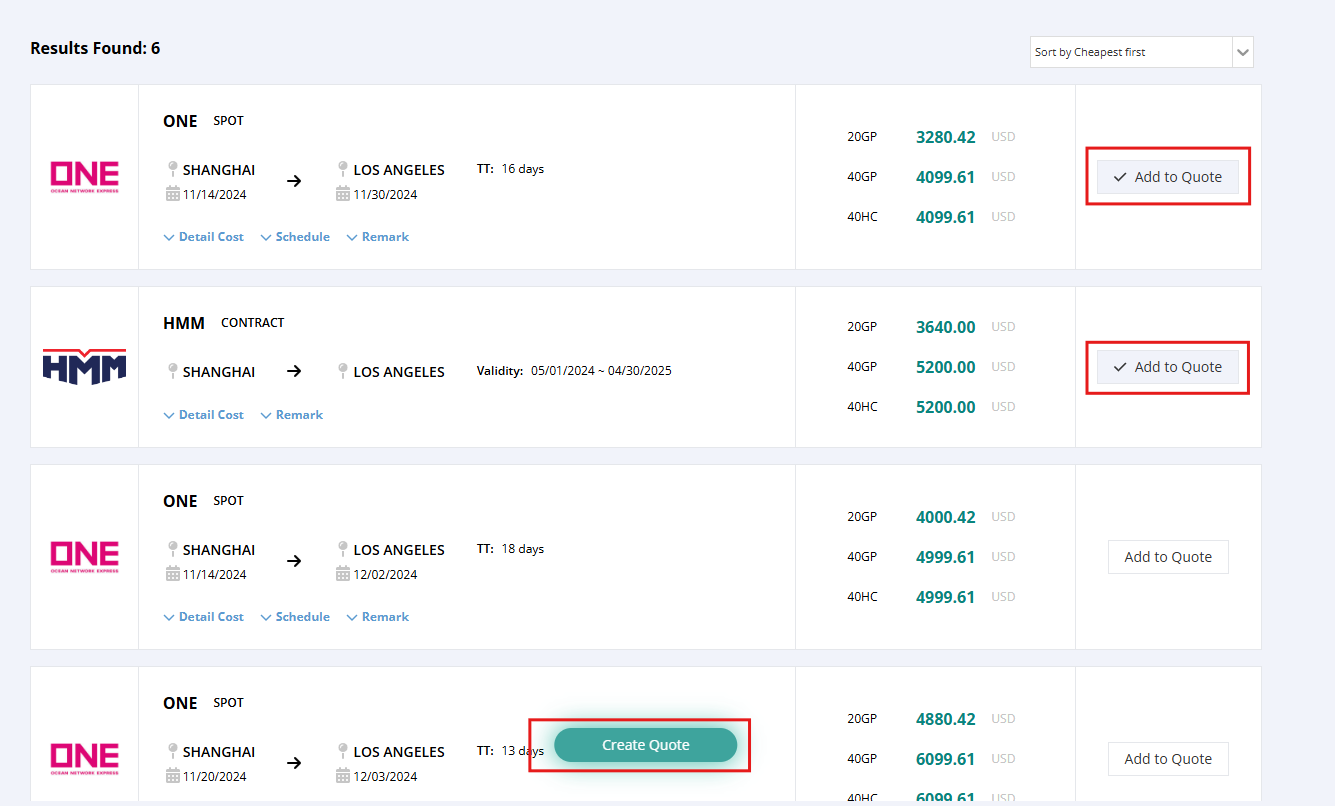
6. Once the desired rate is located, select “Add to Quote” on the right-hand side of the result. Then, click “Create Quote” at the bottom of the page to proceed with generating the quotation.
7. In the pop-up window, select the rate and fill in other necessary information, such as the Office, Shipping Type, and Quote No.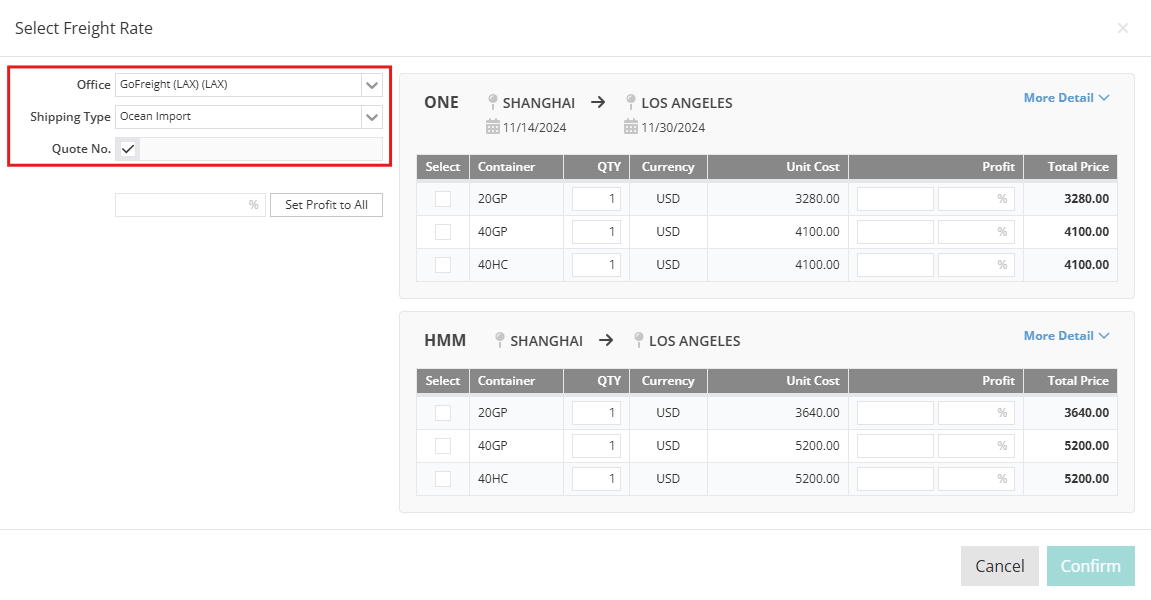
8. Select the rate you wish to convert to a quotation.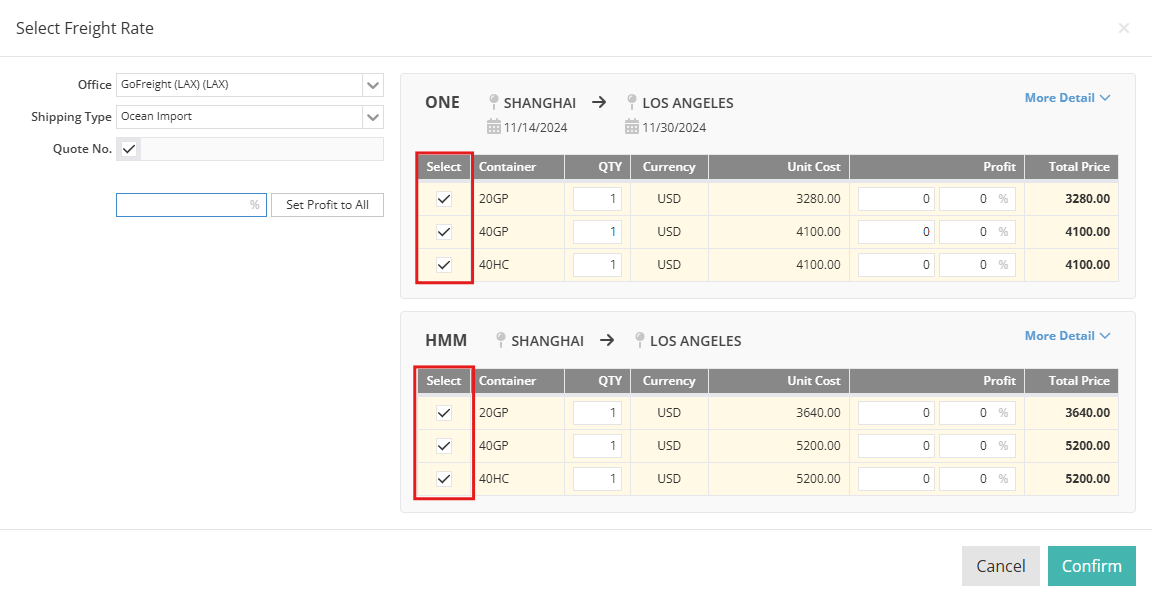
9. You can manually input the expected profit amount. The system will automatically calculate and display with profit percentage and the Total Price based on the input.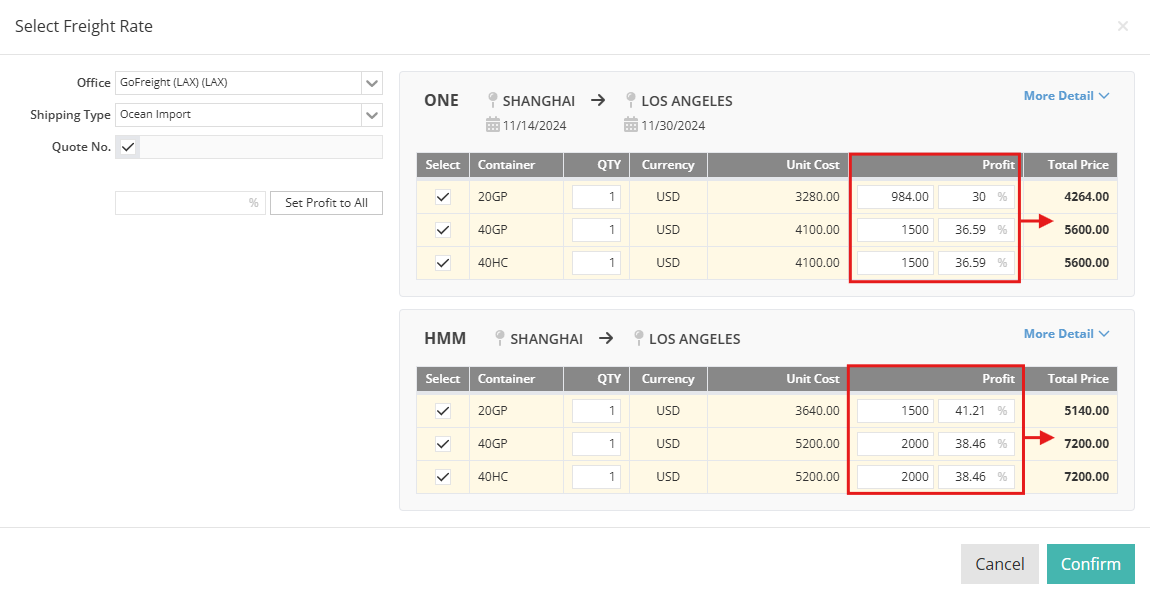
10. Alternatively, preset the expected profit margin and click Set Profit to All to apply the calculation across all rates.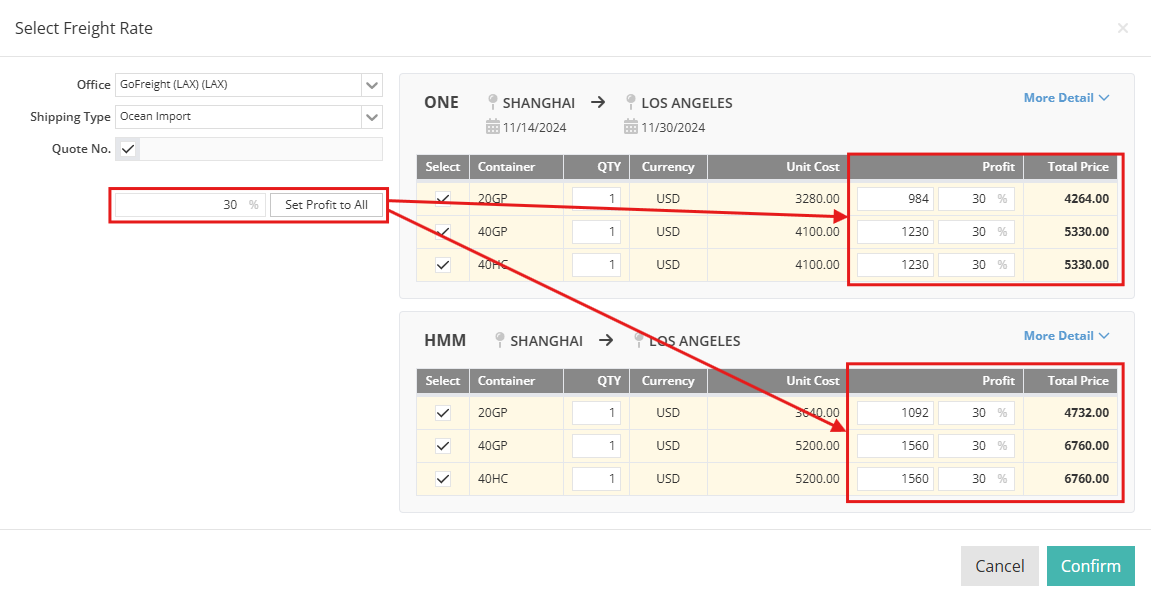
11. After all the data has been input, click “Confirm” at the bottom.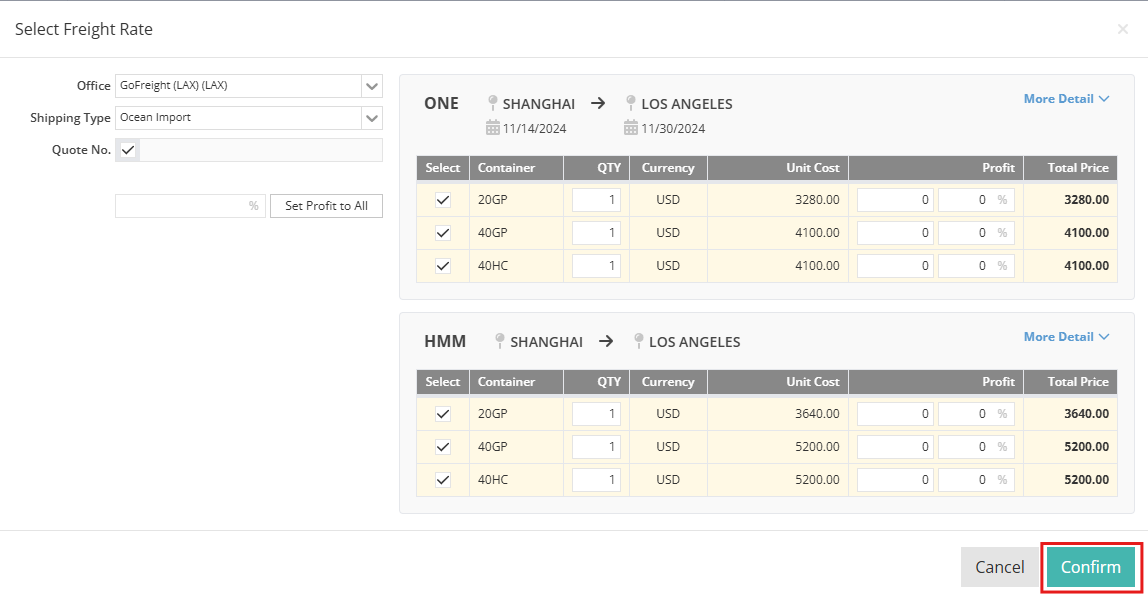
12. There will be a pop-up window showing “Data Mapping”. Please complete the data mapping by selecting the following 3 items.
- Trade partner
- Currency
- Freight code
Note: Ensure correct data mapping; the system will not prompt for data mapping again until additional data needs mapping. Our team is enhancing the mapping flexibility, and updates will be provided once improvements are implemented.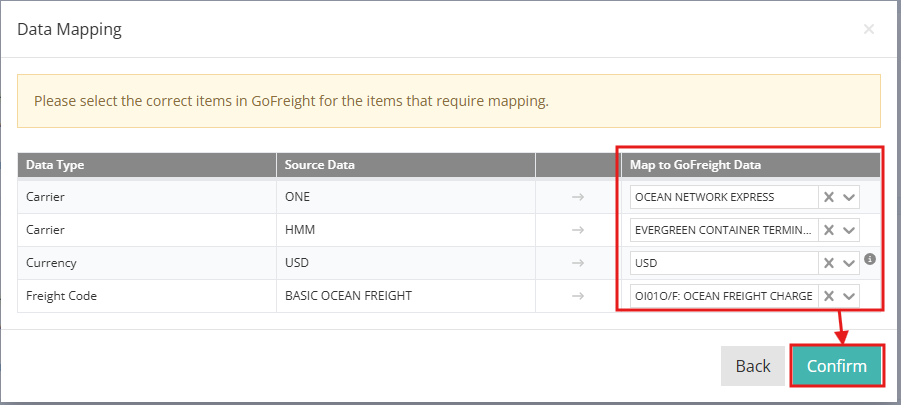
After clicking “Confirm”, the system will direct you to the quotation entry page.
In the quotation page, you can review the route information, including price and cost, and fill in the remaining fields as needed.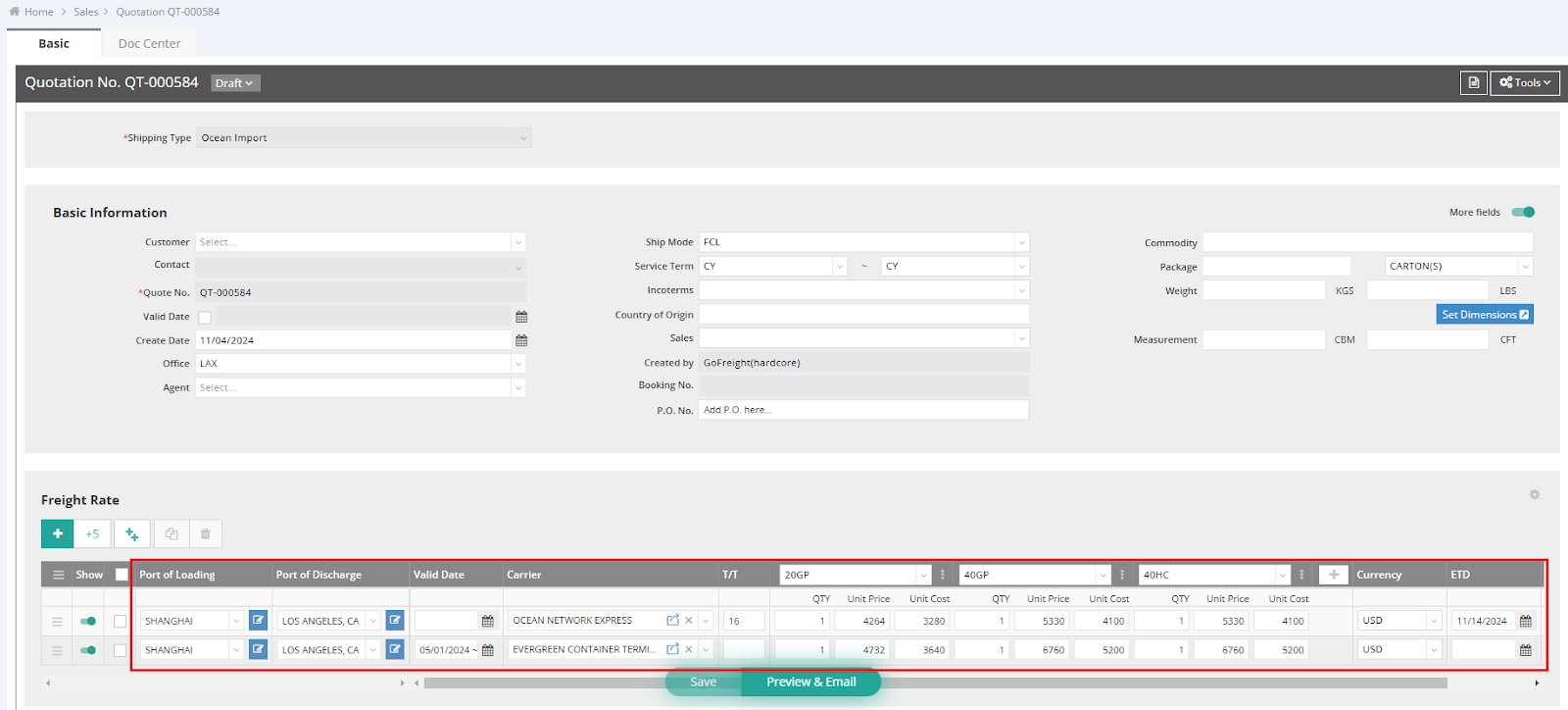
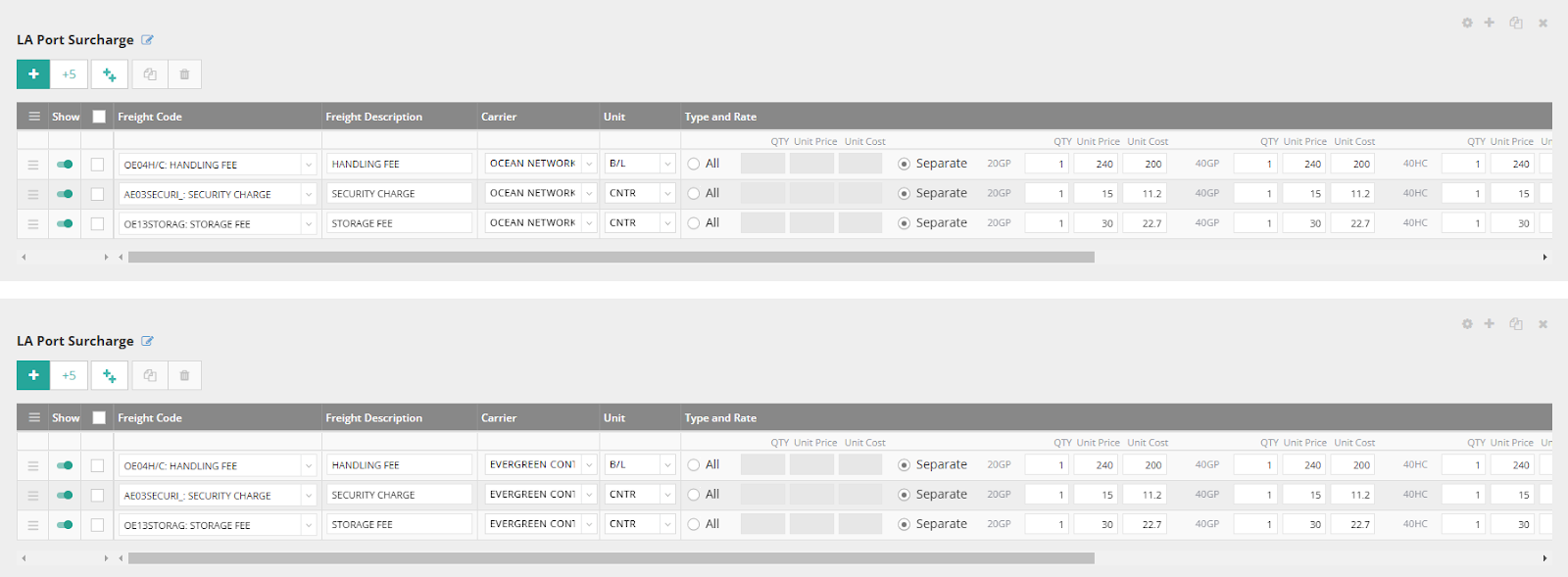
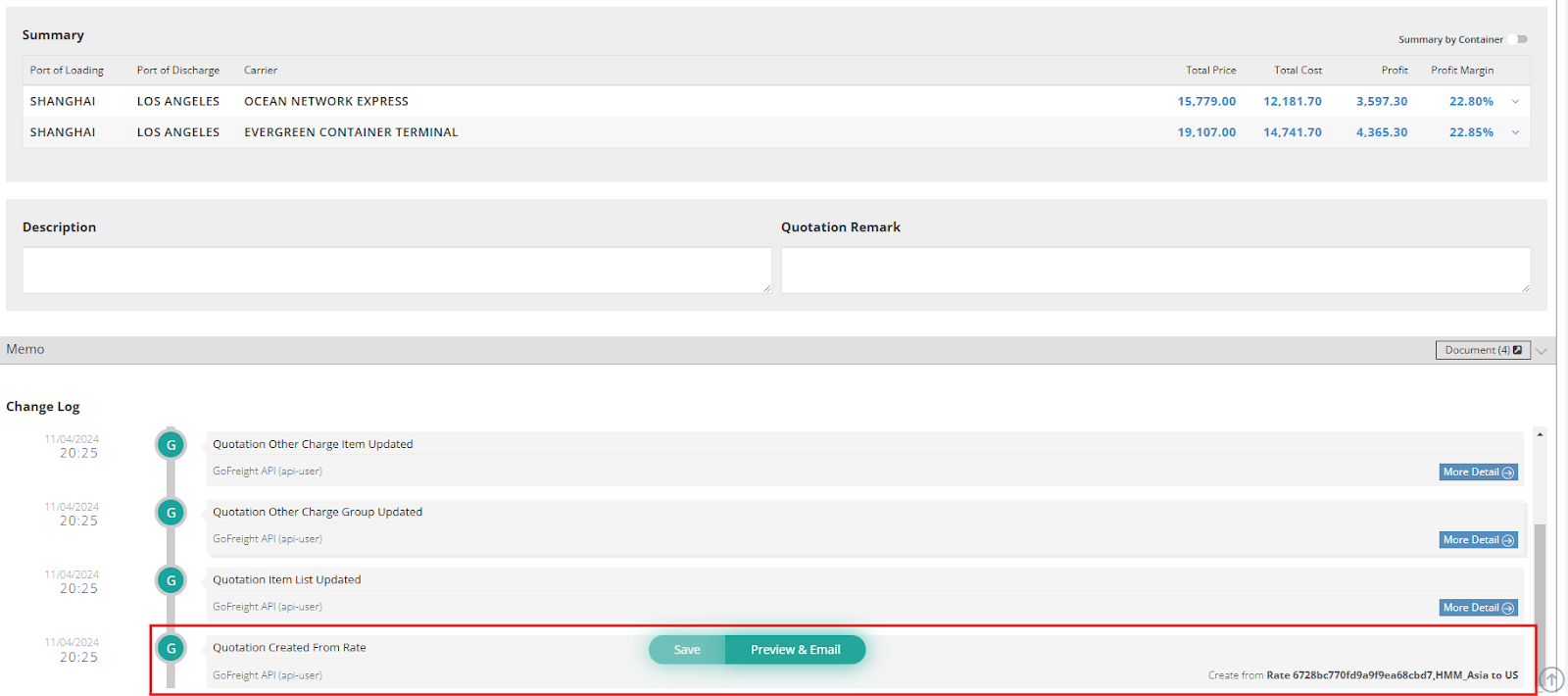
Additionally, you can view the Change Log, which indicates that this quotation was generated using the Rate Finder feature.