
Introduction
GoFreight provides the Inventory feature under the Warehouse module.
This article will guide you through the steps to create a new shipping entry in the Warehouse module.
Note: This function is available to users with the following roles: General Manager, Accounting Manager, Accounting, Operation Manager, Operation, and Operation Assistant.
Before creating a new shipping entry, ensure that the corresponding receiving records have been saved in the system.
For instructions on creating receiving records, please refer to the article “How to Create a New Receiving in the Warehouse Module? ”
Steps to Create New Shipping Entries
Once the receiving has been completed in the Warehouse module, we can start to create a new shipping.
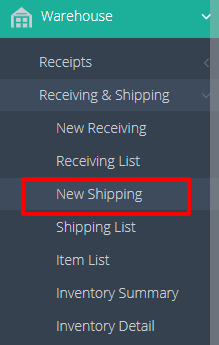
1.Navigate to “Warehouse” > “Receiving & Shipping” > “New Shipping.”
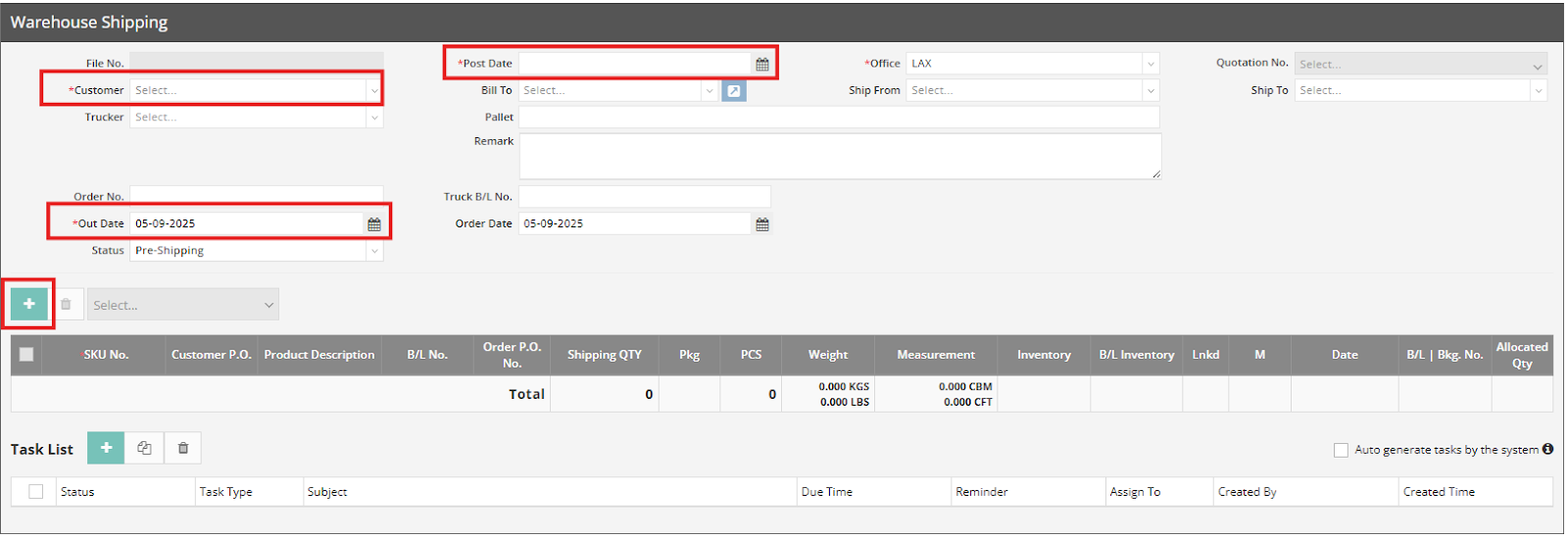
2. Complete Mandatory Fields: All fields marked with a red asterisk (*) must be completed. For a new shipping entry, the required fields include:
- Customer
- Post Date
- Out Date (This field defaults to today's date. You can change it by clicking the column and selecting a different date.)
3.Click the green “+” button to add items to your shipment.
4. For each item, enter the Stock Keeping Unit (SKU) number and the Shipping Quantity (Shipping Qty). You can add more details if needed. As you input the shipping quantity, the "Inventory" column will automatically update, reflecting a decrease in available stock.

5. Click “Save” to save the current shipment data.
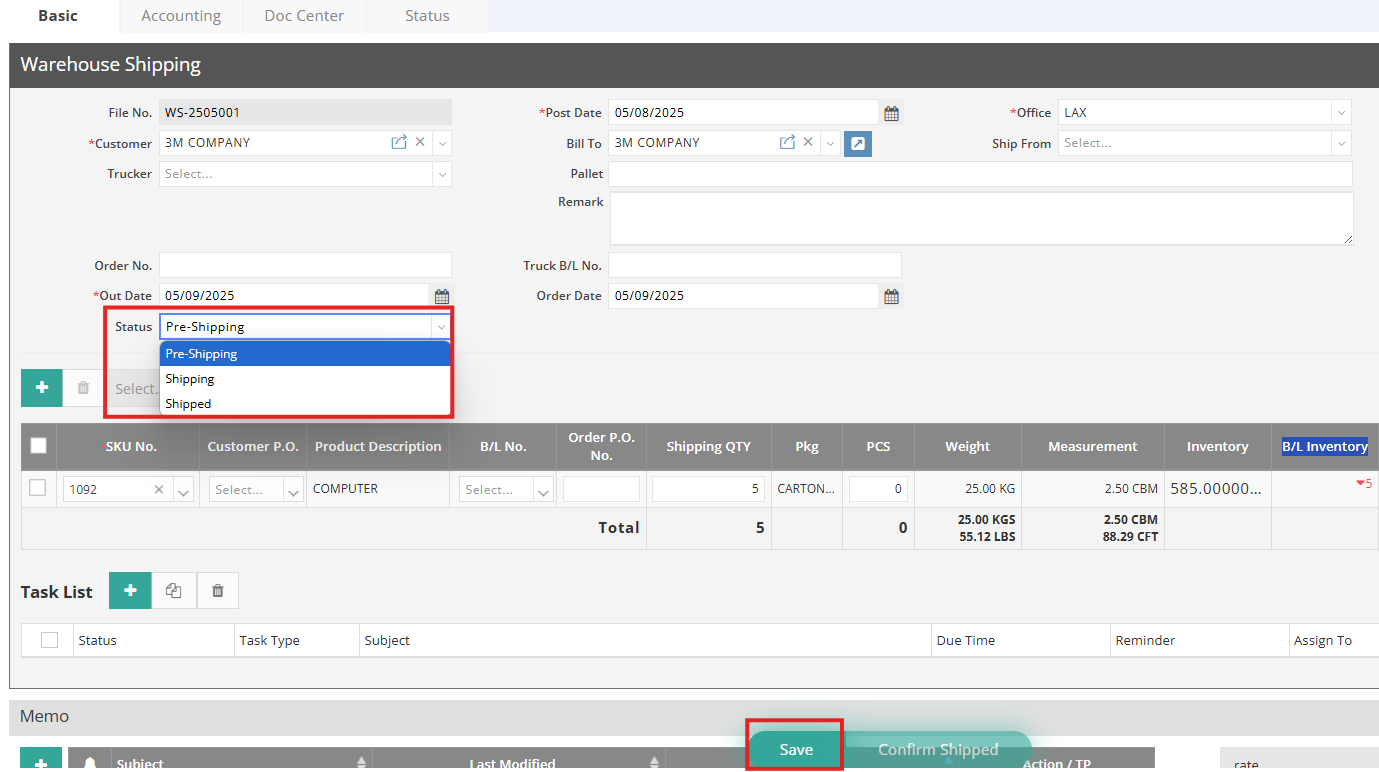
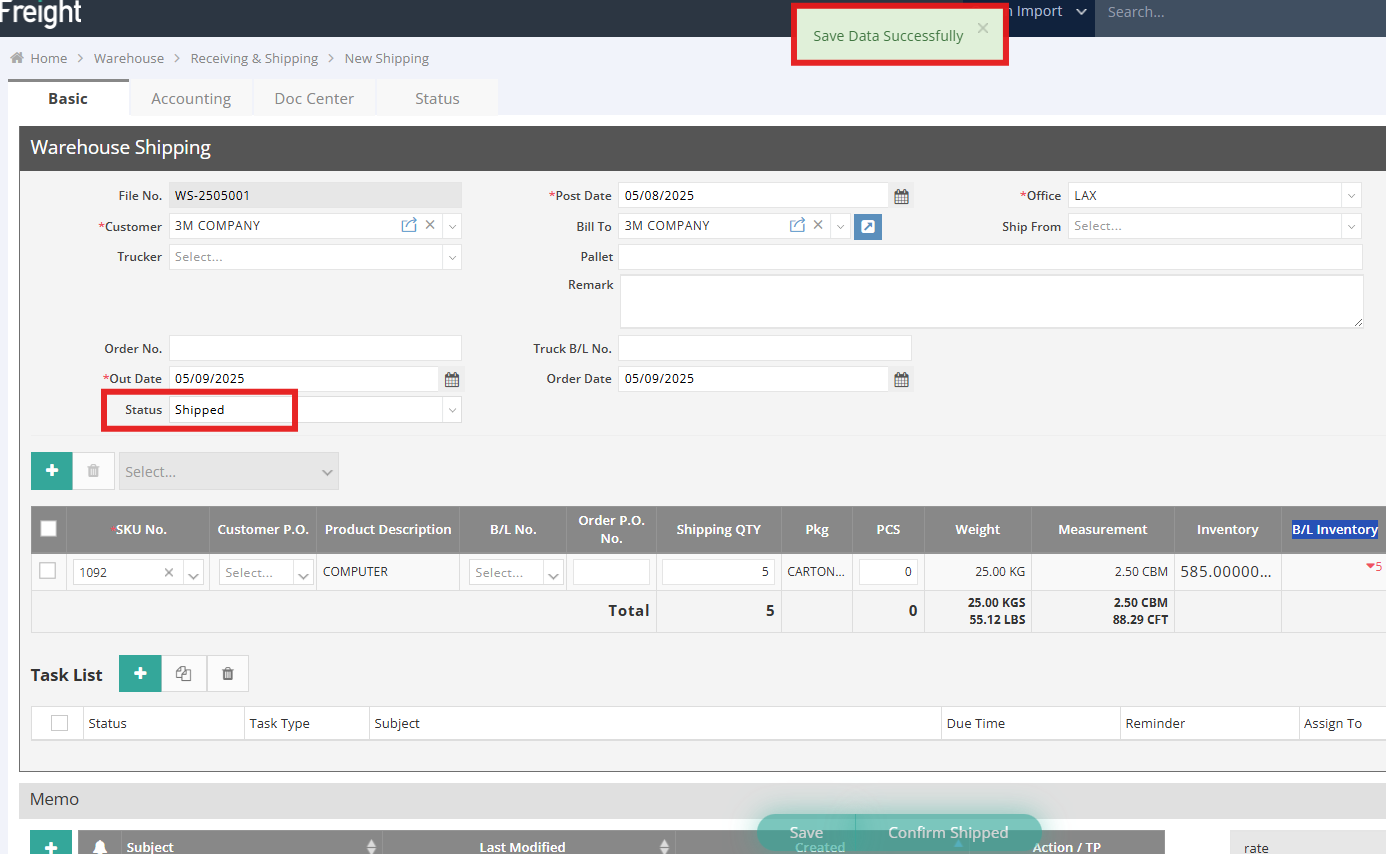
6. On the Warehouse Shipping entry page, the Status field allows you to record whether an inventory item has been dispatched. If the inventory item has been physically shipped, simply click Confirm Shipped to change the Status to "Shipped." Alternatively, you can directly select "Shipped" from the Status dropdown menu and click Save.

7. Upon clicking "Confirm Shipped," the "Shipment Status" will update to "Shipped," indicating the completion of the shipping process for that record.
For a visual guide on this feature, please refer to the following video: