
If you are subscribed to GoFreight Tracking EDI Services and you would like to track your shipment statuses at the container level, please follow the guide below:
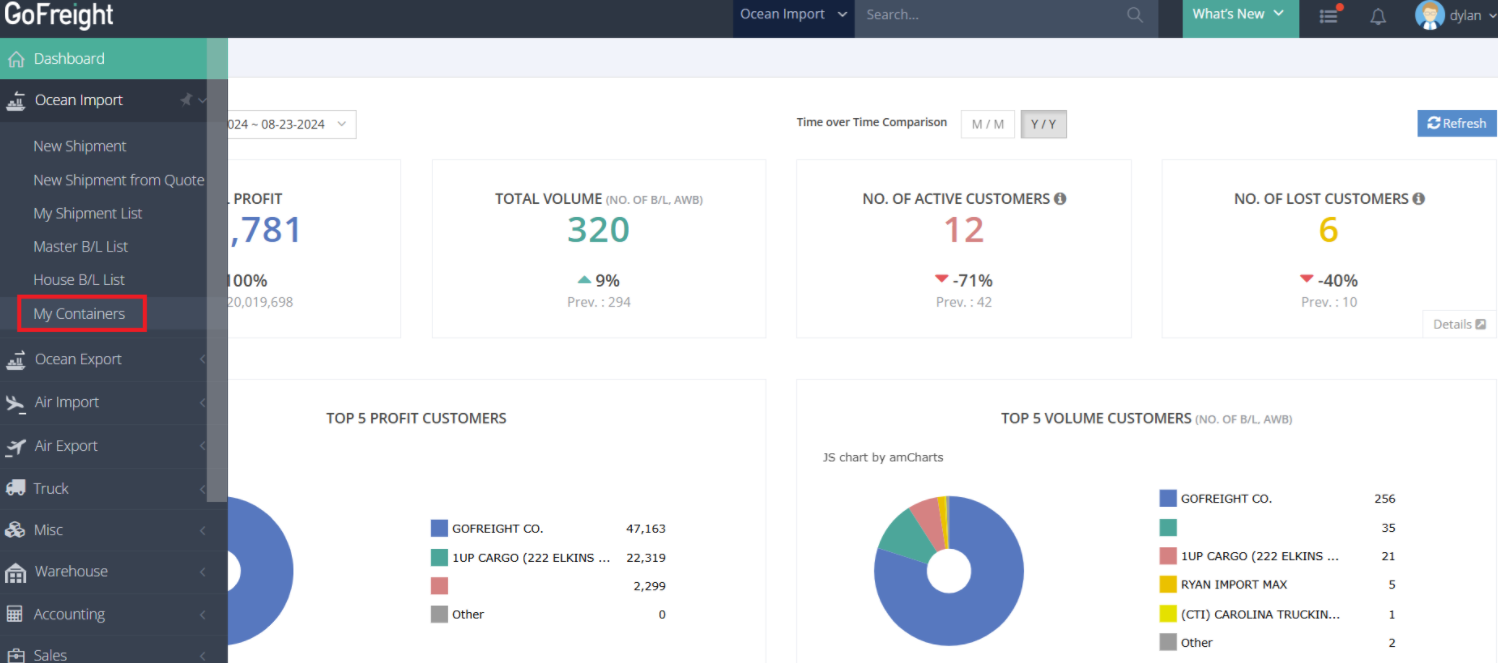
1. Navigate to My Containers
- Navigate to My Containers under Ocean Import.
- Here each OP can view containers assigned to them.
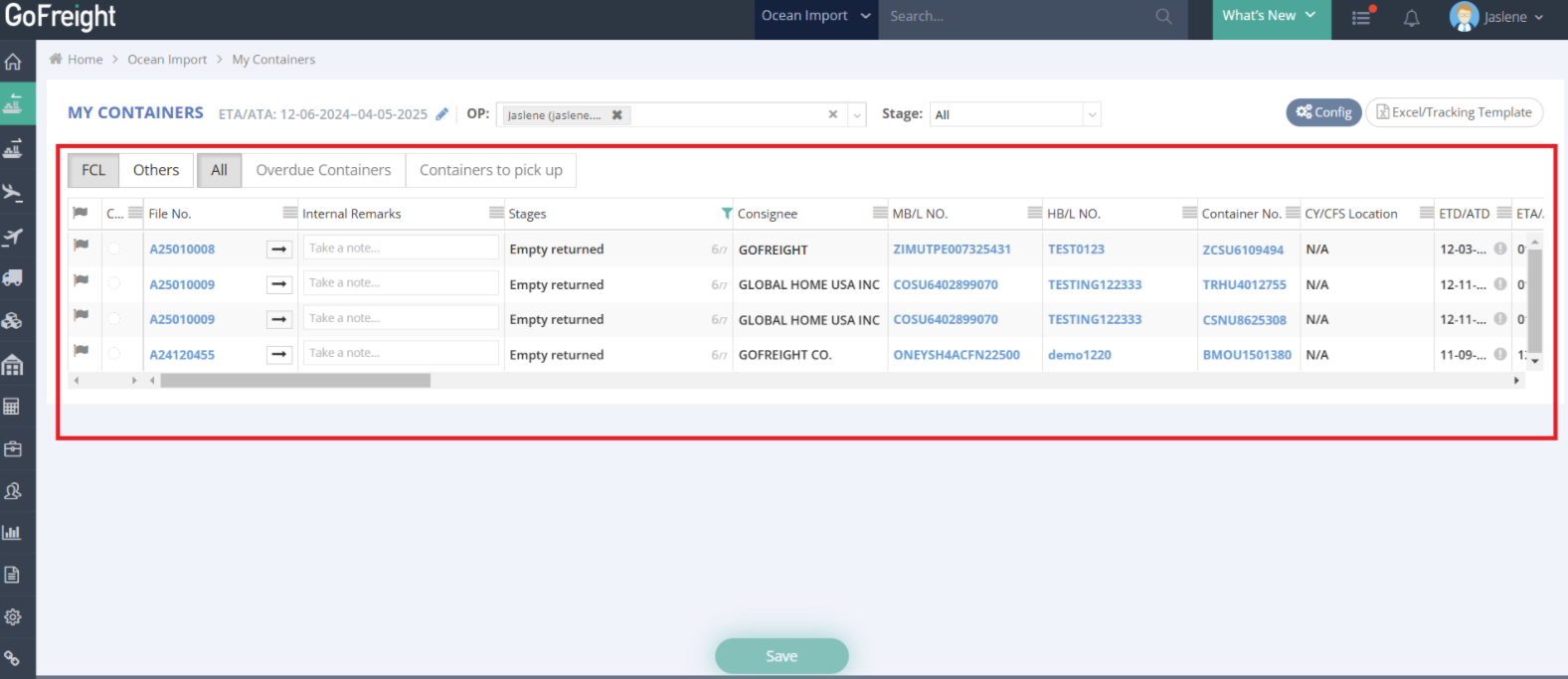
- The visibility of containers varies from different user roles:
-
Operations Personnel (OP):
- View containers assigned to you.
-
Operations Managers:
- View containers assigned to you.
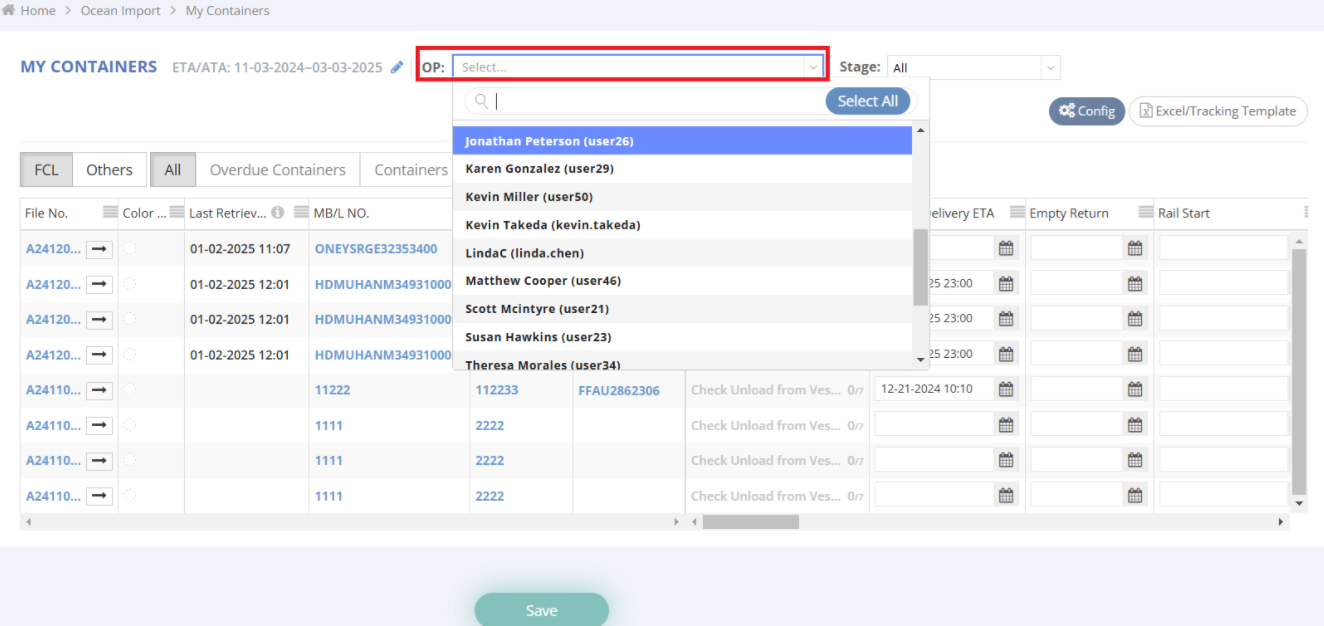
- View all containers assigned to all OPs within the office to which the Operations Manager is assigned:
- Use the top dropdown menu to switch between viewing containers for a specific OP or all OPs within your office.
-
2. Container Information Overview
- General Information Displayed:
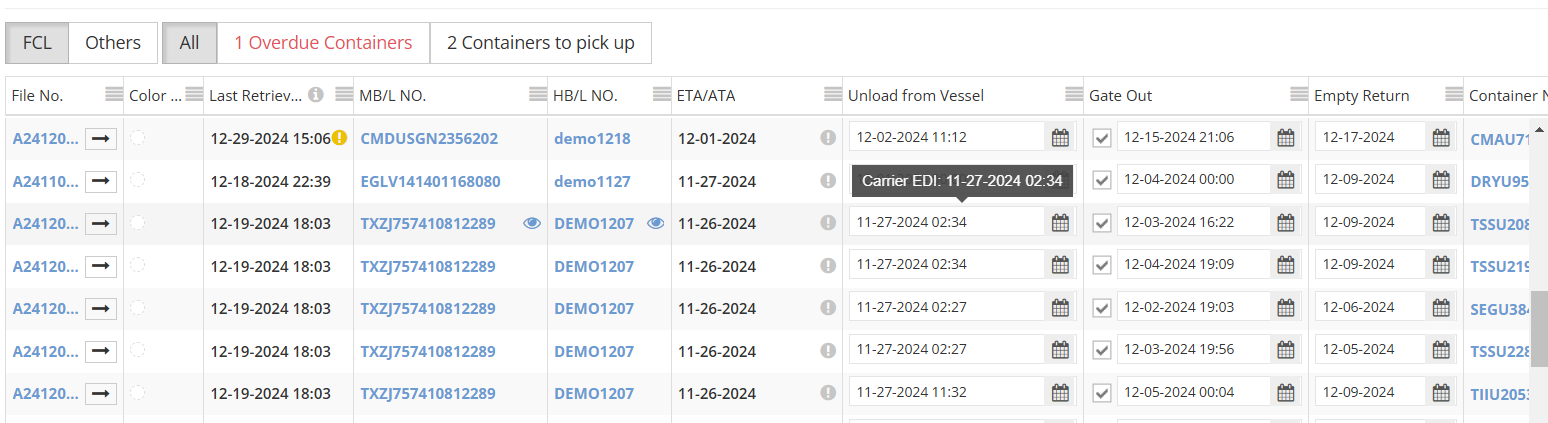
In the Container View, you can access general container status such as the ETA, Unloaded from Vessel Date, Gate Out Date, Empty Return Date, and more.
- Fields updated by EDI will display the source and update details when you hover your mouse over the data field.
- Fields not updated by EDI can be manually edited to ensure accurate and complete information.


3. Customizing the List View
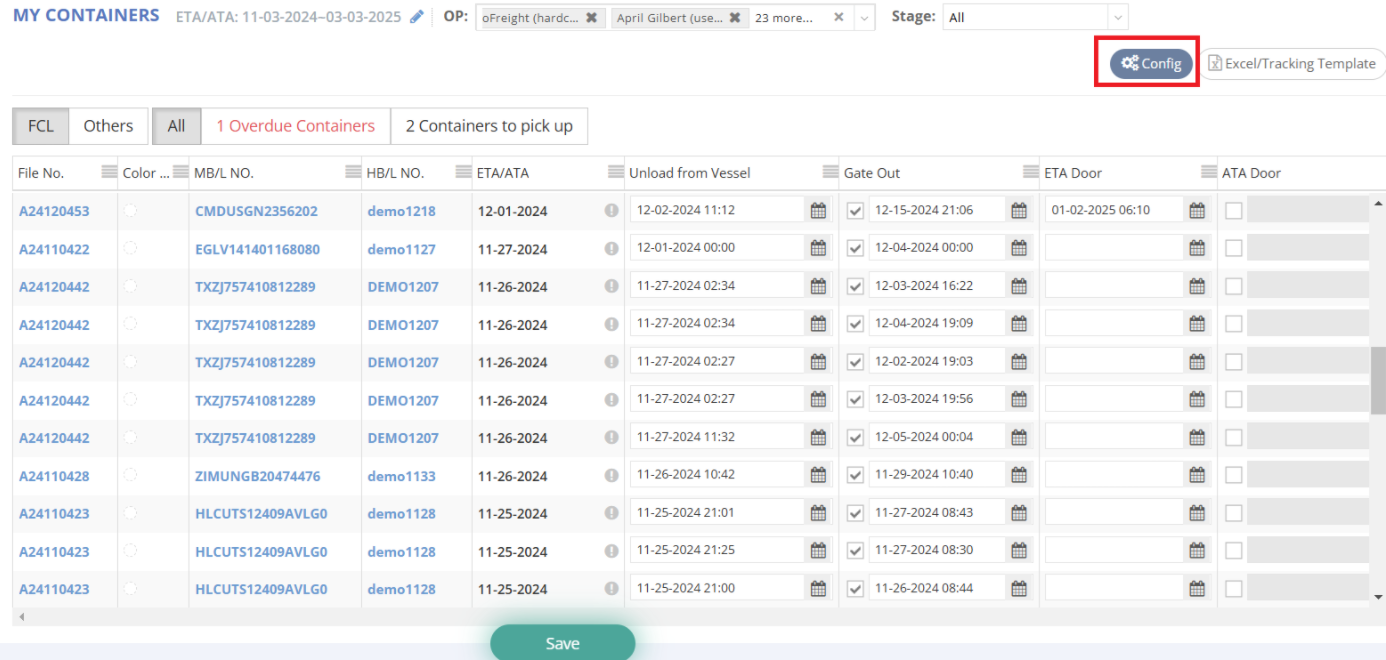
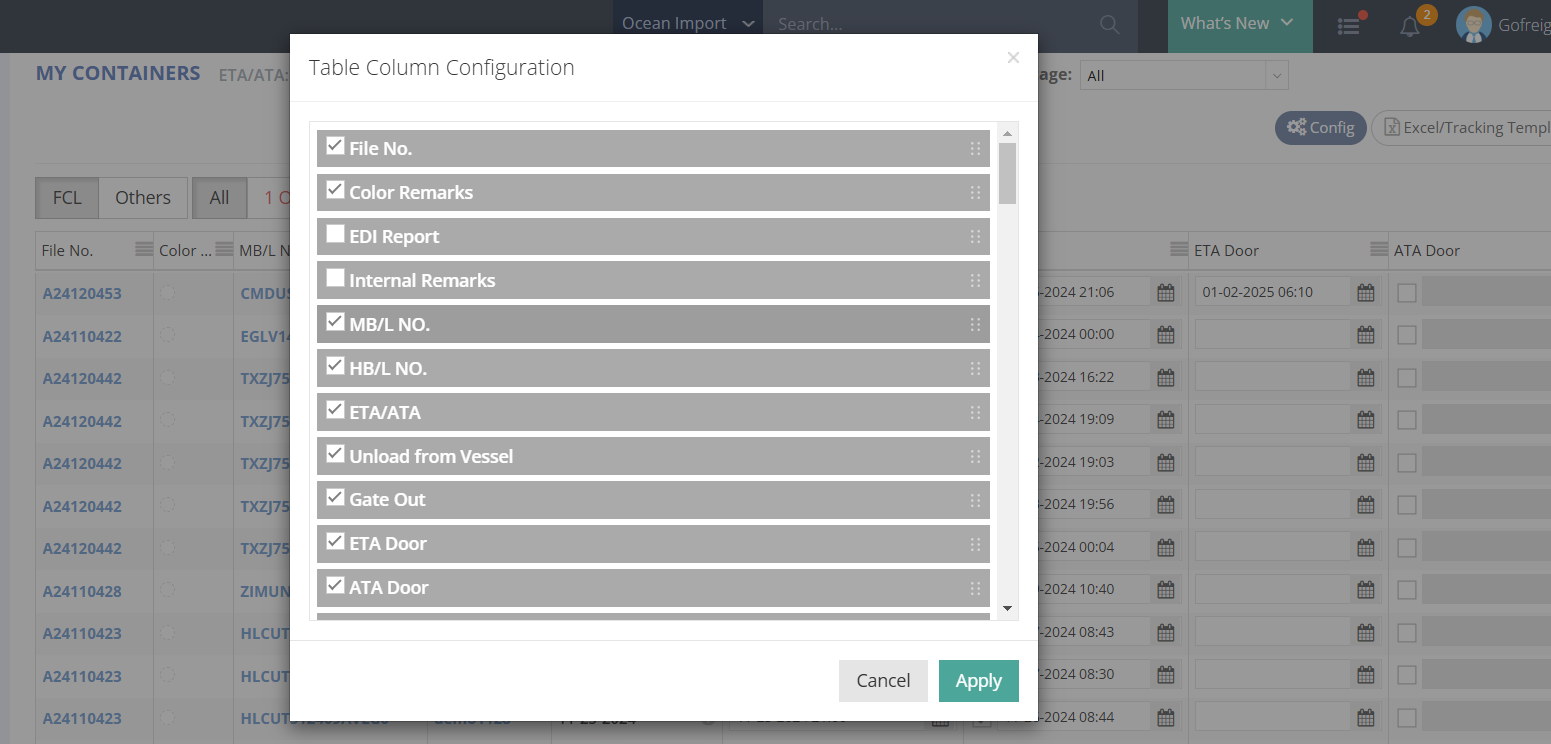
- Click Config in the top-right corner.
- Select relevant data fields.
- Use drag-and-drop to prioritize important fields.
- Click Apply to save changes.
4. Key Functions in My Containers
Demurrage Fee Reminder
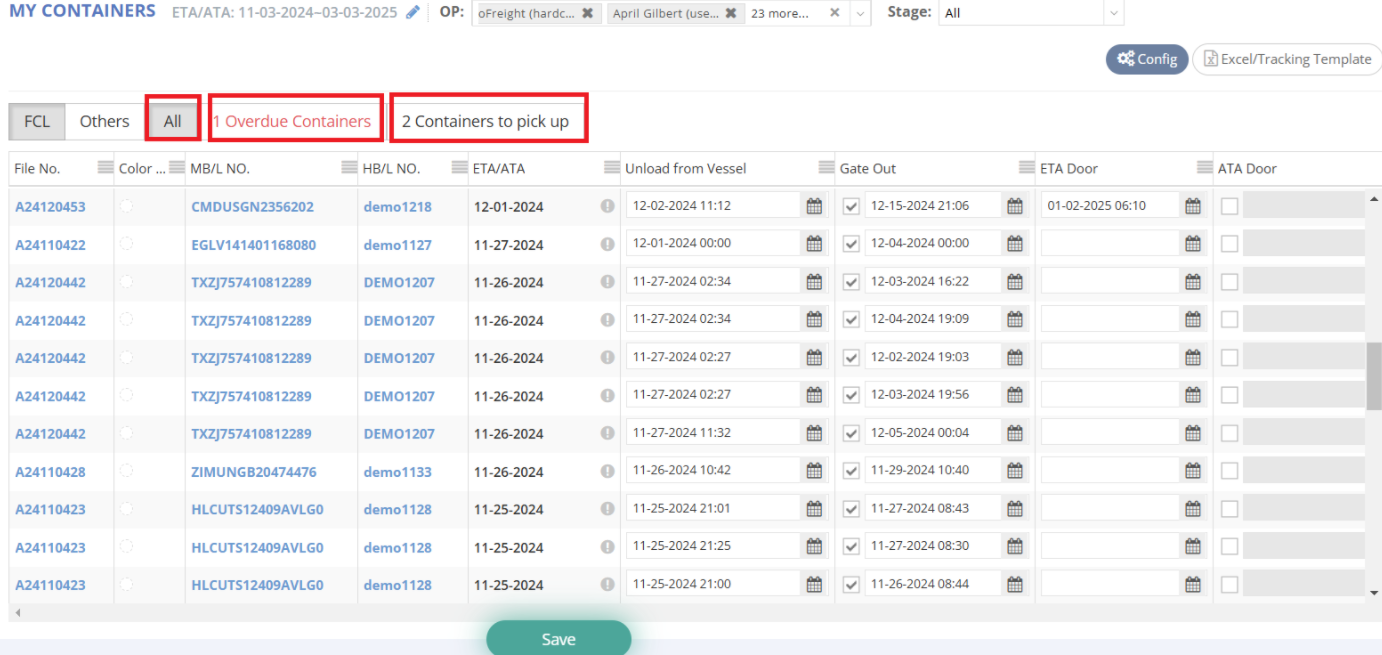
- Top-left Buttons:
- All: View all containers.
- Overdue Containers: Containers with LFD passed but have not yet been outgated.
- Containers to Pick Up:
- Containers have either been unloaded from the vessel for more than 4 days or have been at the port for 4 days or more, but have not yet been outgated.
- Containers (with rail transport) have been at the DEL for 2 days or more but have not yet been outgated.
Color Remarks
- Five default colors are available for marking containers.
- You can define color meanings (e.g., Yellow: "Arrival Notice Sent", Blue: "Custom Release", Red: "Urgent Check") by contacting Support to set up color definitions.

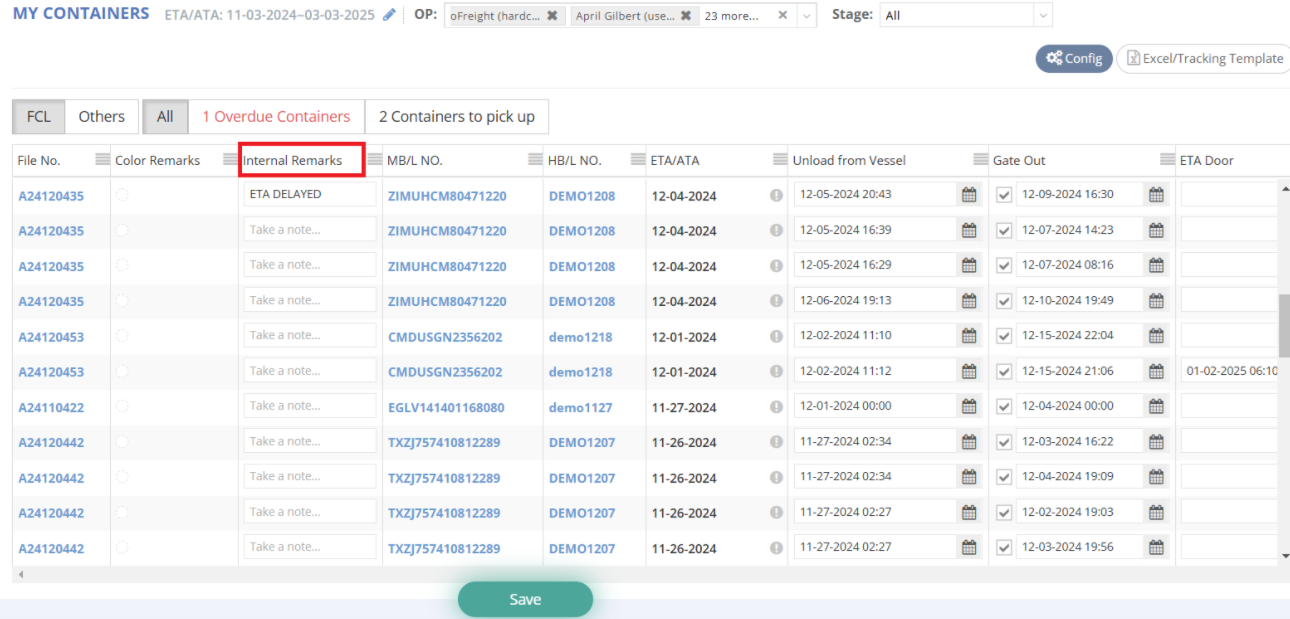
Internal Remarks
- Add notes for each container (e.g., "ETA Delayed", "Pending Appointment", "Delivered on [Date]").
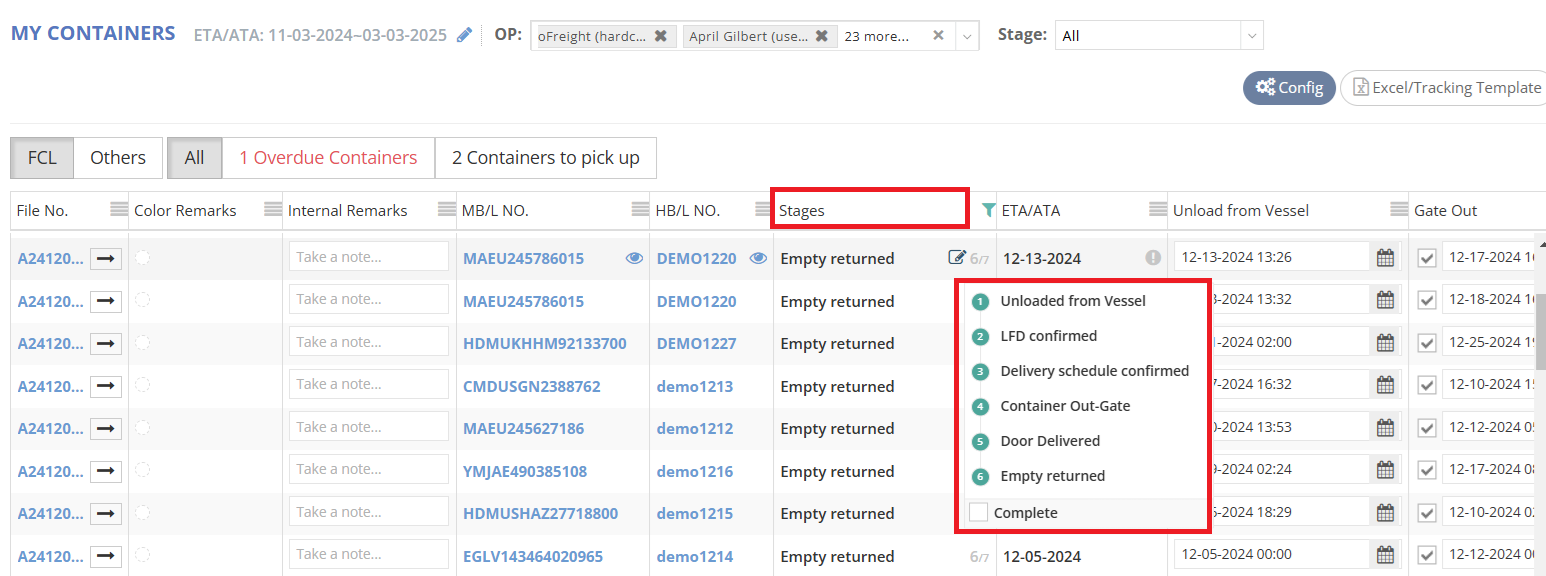
Stages
- Track container progress through seven stages:
- Unloaded from Vessel
- LFD Confirmed
- Delivery Schedule Confirmed
- Container Out-Gate
- Door Delivered
- Empty Returned
- Complete
- Marking a container as Complete hides it from My Containers, Tracking Shipment Report , and the Customer Portal.
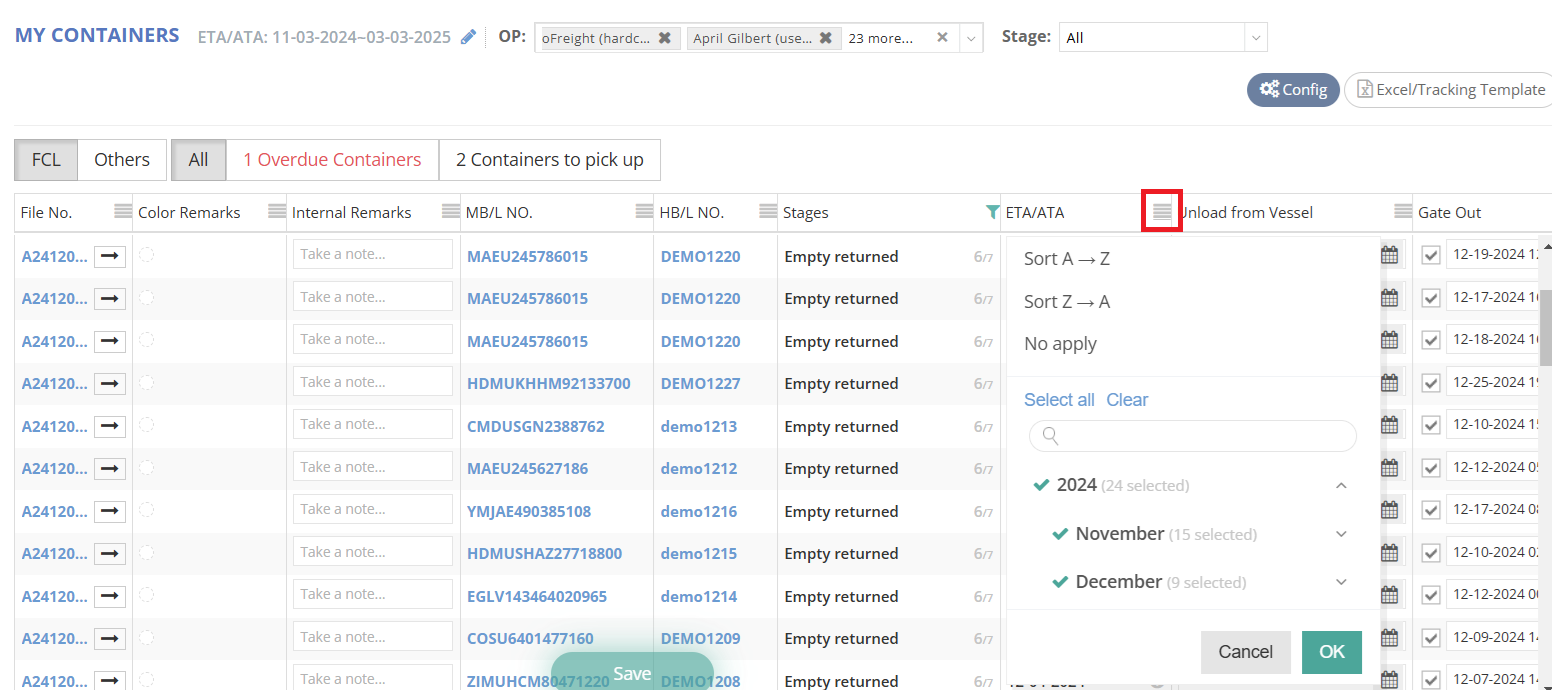
Sorting and Filtering
- Use the filter icon (stripes) on each column to sort or search values, similar to Excel.
5. Reasons You Can't Find One on the My Containers Page
If you cannot find specific container in My Containers, please follow below steps to troubleshoot:
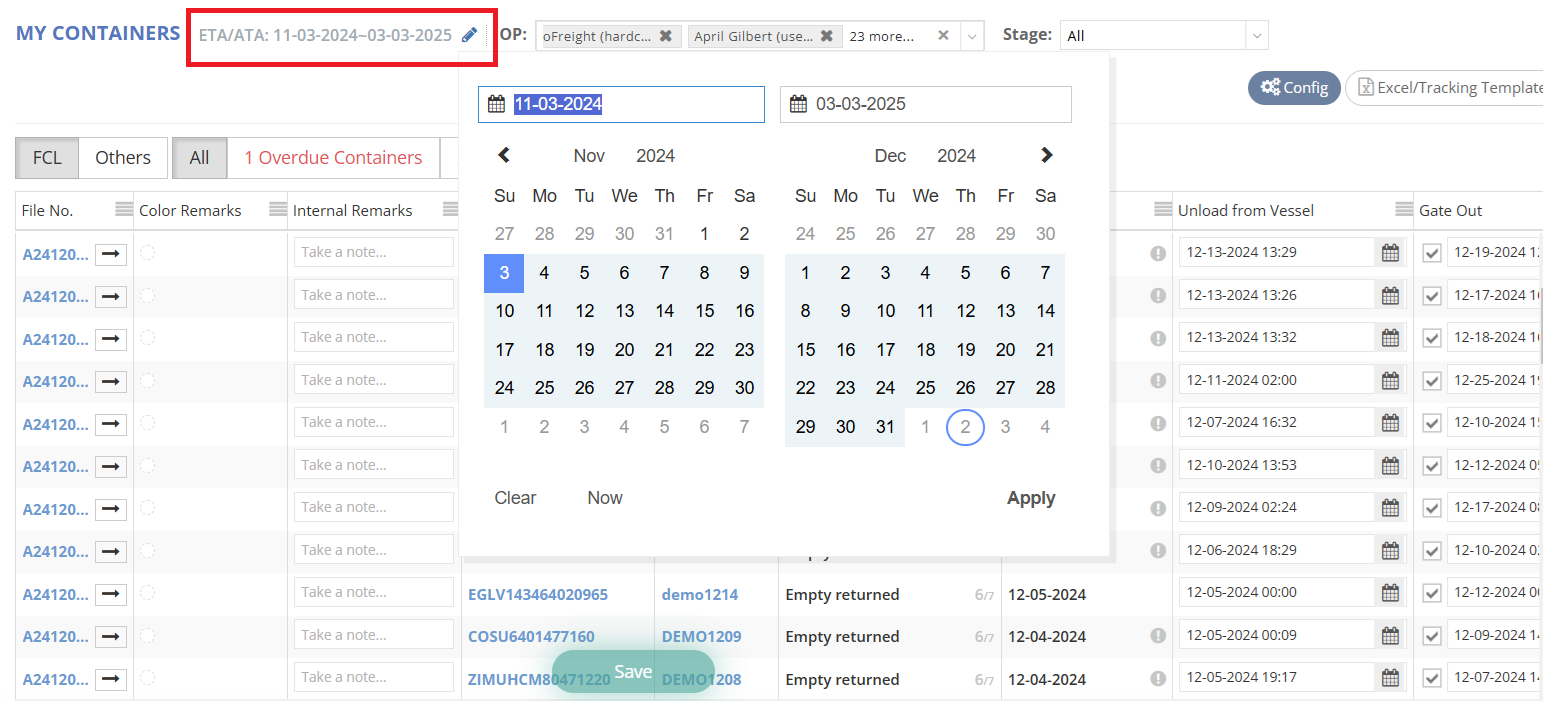
ETA and ATA Range
- Check the ETA and ATA range defined at the top-left. Only containers within this range are shown.
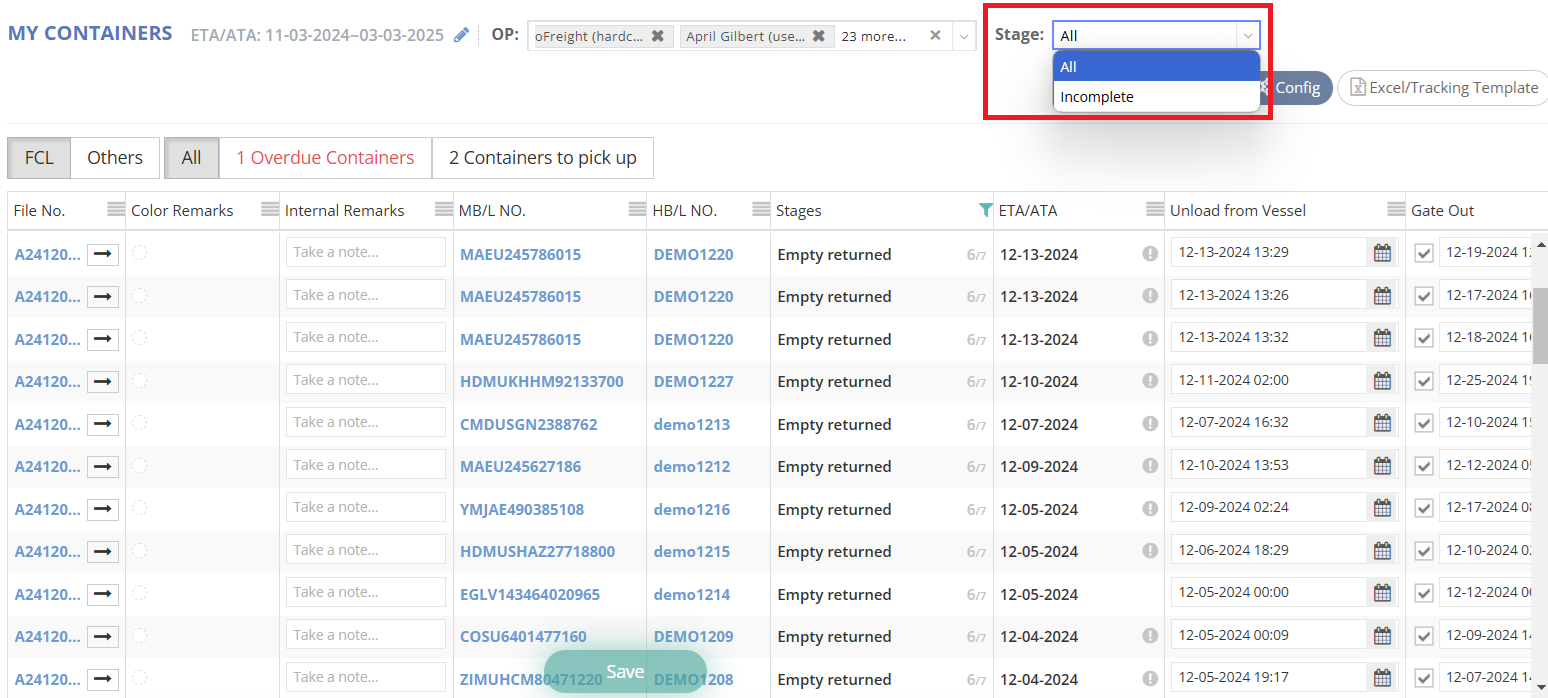
Completed Containers
- Containers marked Complete are hidden by default.
- Use the dropdown menu to view All Shipments or Incomplete Shipments.
Ship Mode
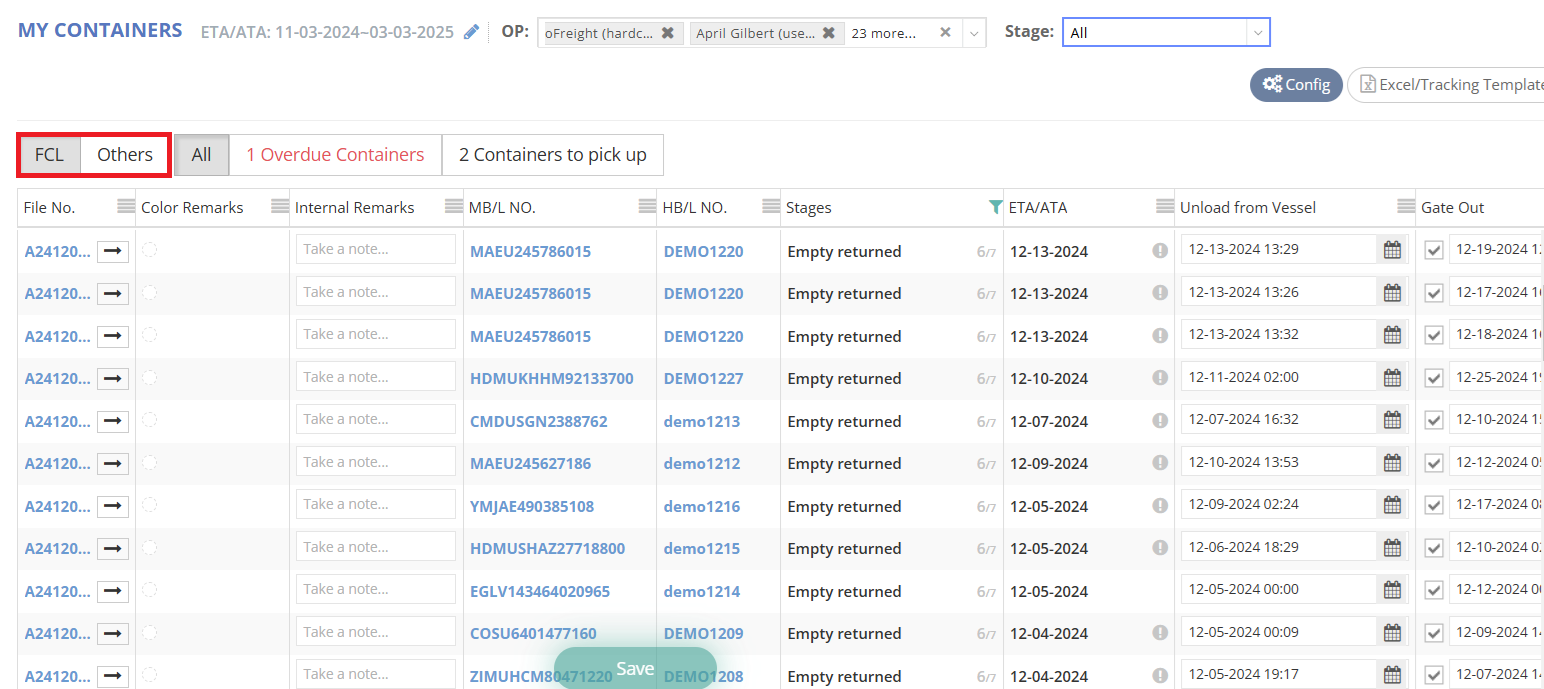
- Verify the ship mode (FCL or LCL).
- Ensure you are checking the correct tab.
Container Visibility Based on Assignment
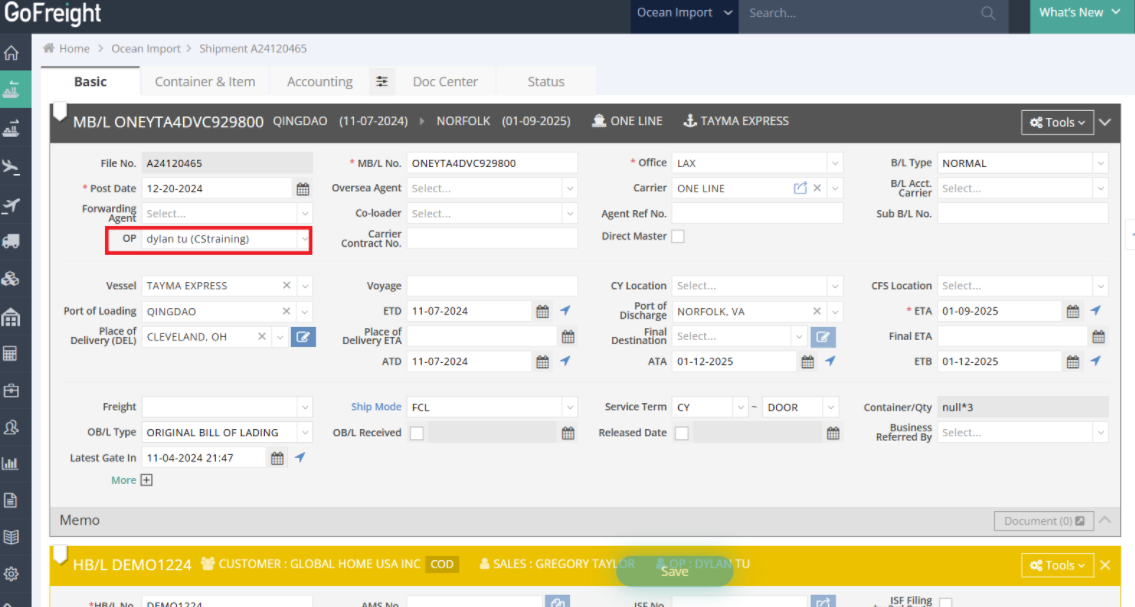
In GoFreight, containers must be assigned to specific OP for them to appear in their container list. If a container is not assigned to an OP, it will not be visible in their container view.
6. Additional Notes
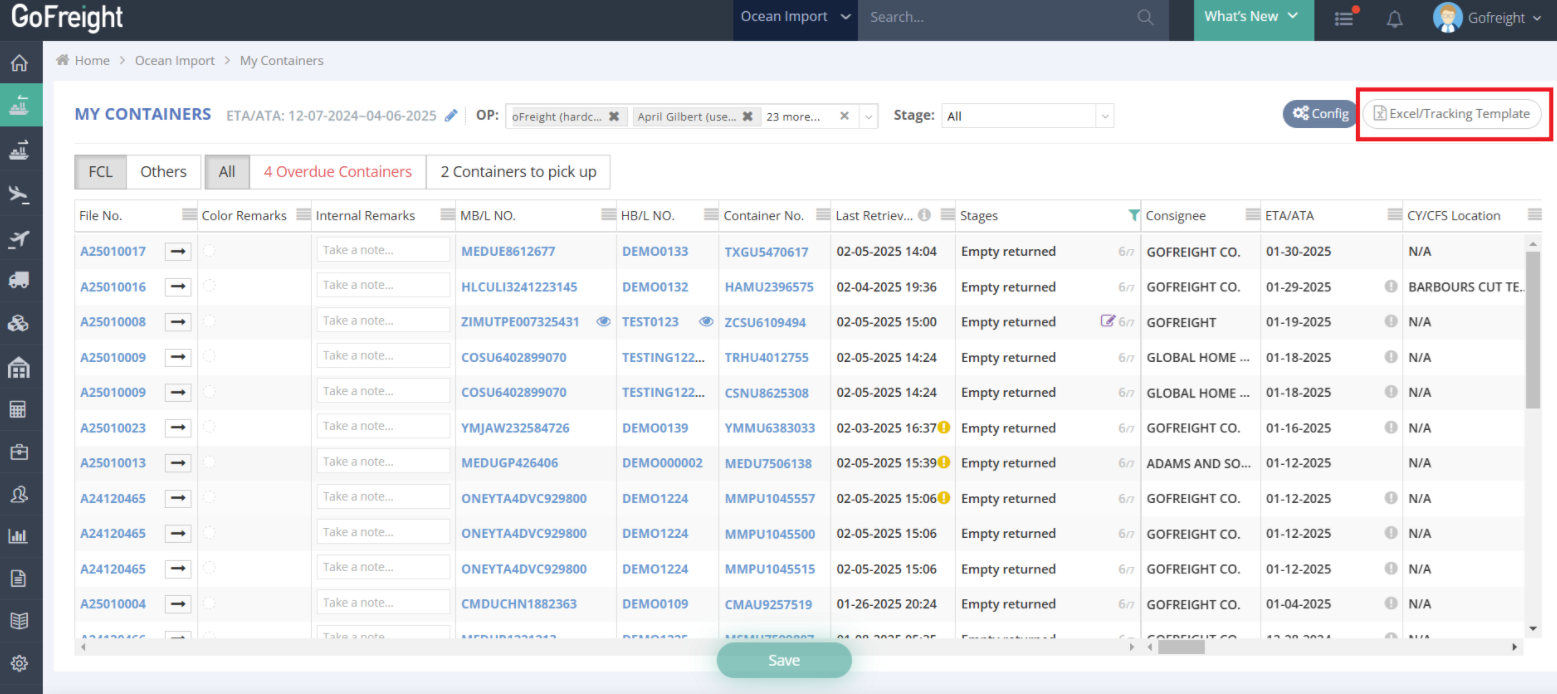
- For details about the "Excel/Tracking Template" button, refer to the "Setting Shipment Report Template " training video.
For a visual guide on this feature, please refer to the following videos: