
Introduction
GoFreight provides Rate Management as an add-on service. Once this feature is enabled, you will be able to import your contracts directly into the system. Please contact support@gofreight.com or your Customer Success Manager for more details or to request a quotation for enabling this feature.
Steps to Import Contracts
Kindly follow the steps below for importing contracts into GoFreight.
1. Select Sales > Contract List in the navigation bar.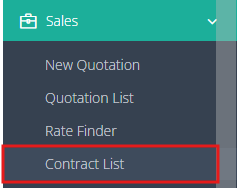
2. Click on the Import Contract button  located on the right-hand side above the table.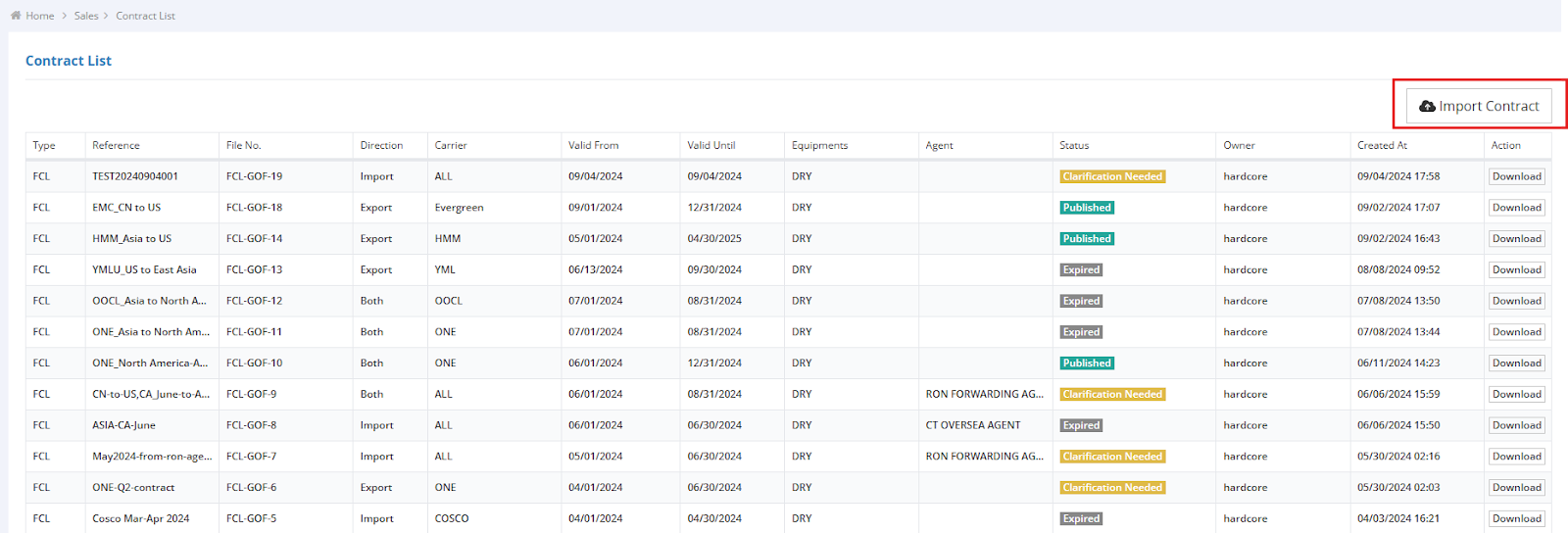
3. Complete the mandatory fields: “Contract Type”, “Reference”, “Validity”, and “Direction”. 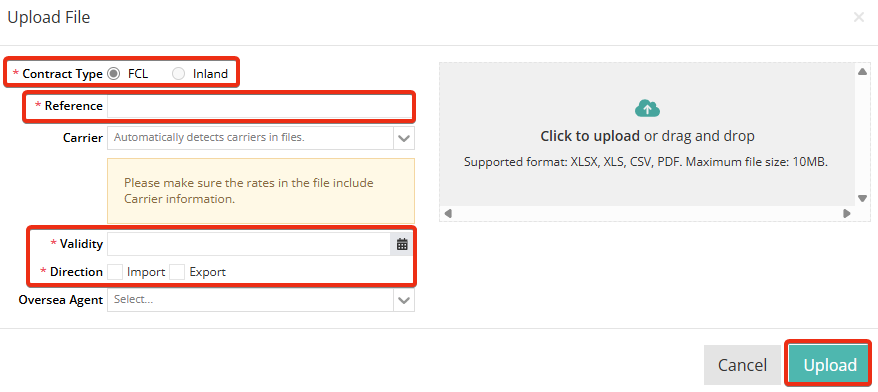
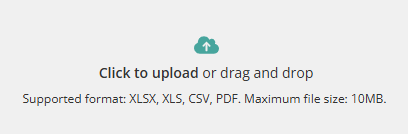
4. Click on the upload section to select the contract from your device or drag and drop your contract into the designated area. Note: Please ensure your contract format meets the required upload specifications before proceeding. Supported formats: XLSX, XLS, CSV, PDF. Maximum file size: 10 MB.
5. After validating the input data, click on “Upload”.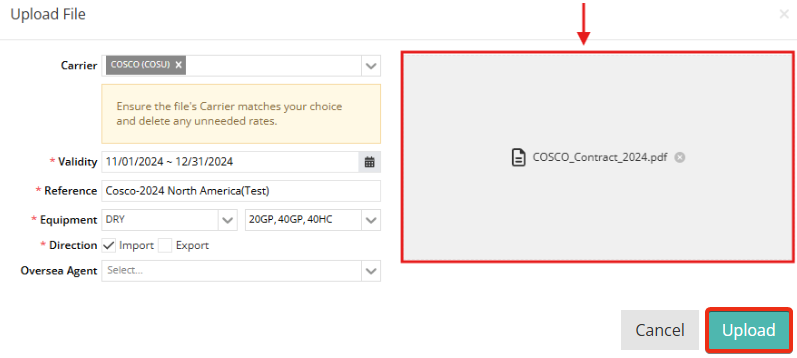
6. You will receive a notification confirming your submission.

7. You can view the status of all uploaded contracts in the Contract List.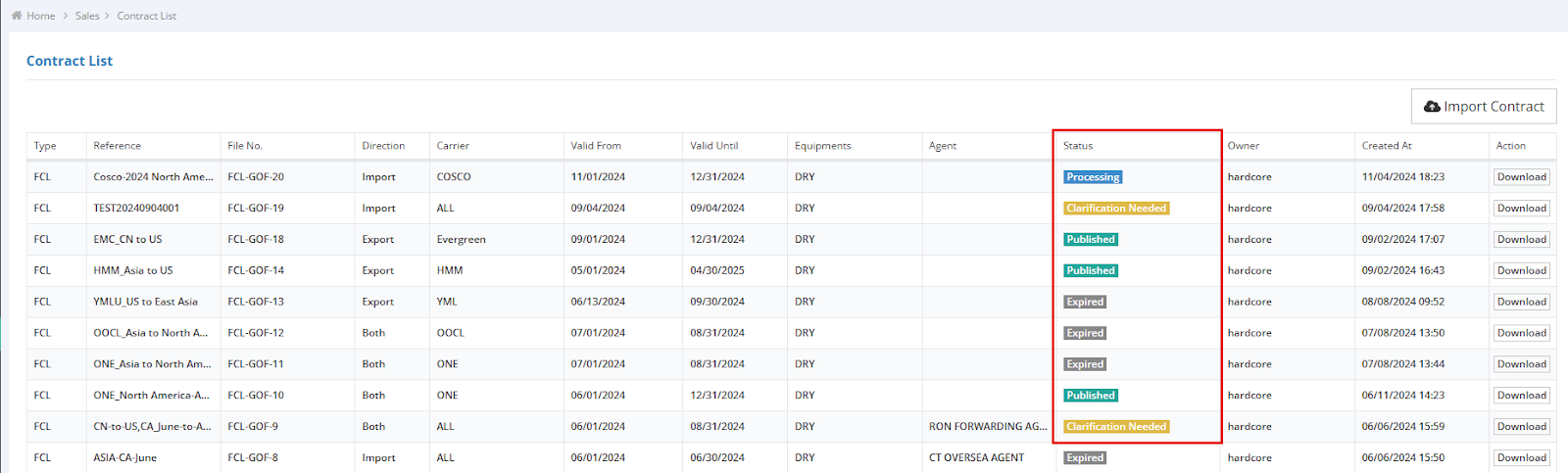
8. After uploading a contract, the system will display one of the following four statuses in the Contract List. Each status indicates the current stage of your contract in the processing workflow. Please find the explanations as follows:
- Published (in Green): The contract has been successfully published to the database. Users can find the rate using “Rate Finder”. (Refer to the article: How do I create quotations using Rate Finder? )
- Processing (in Blue): The file was uploaded successfully, but the vendor (CargoFive) is currently processing the contract. (The processing duration is under 24 hours.)
- Clarification Needed (in Yellow): The vendor (CargoFive) has processed the contract file but requires additional clarification before publishing it to the database. Please check your email and provide more details to CargoFive.
- Expired (in Gray): The contract's validity date has ended.