
Enable the ISF Feature
Your GoFreight system does not include the ISF (Importer Security Filing) feature by default. To enable it, you must request access and receive approval from CBP (U.S. Customs and Border Protection). Once the application is completed, a GoFreight support agent will enable ISF for you. For detailed information on the application process and quotation, please refer to the following article, or feel free to contact support@gofreight.com
How to Apply ISF and AMS in GoFreight?
How to Add an ISF
To add an ISF, navigate to Security > New ISF in the menu bar.

Fields marked with a red asterisk (*) are mandatory.
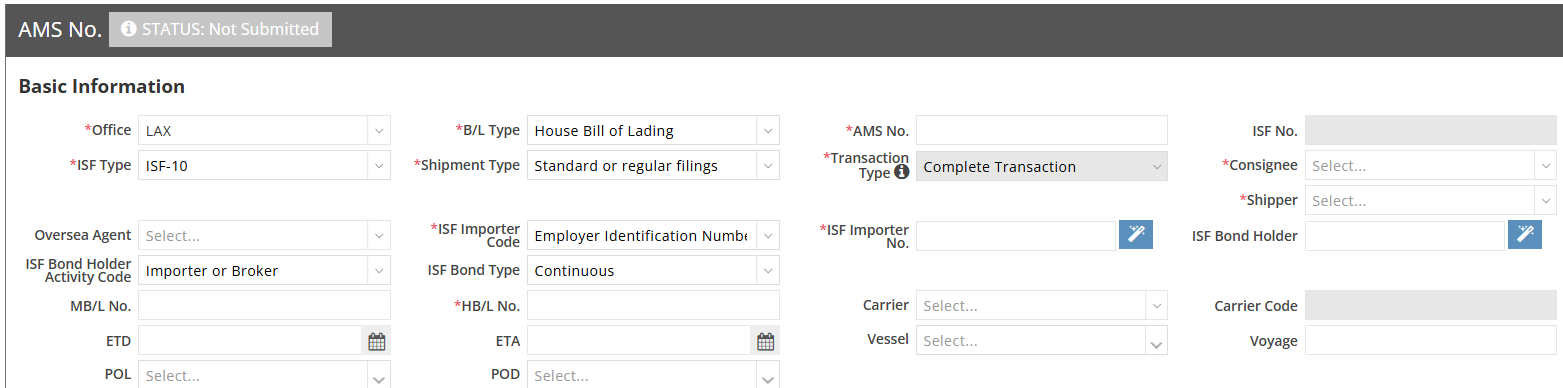
ZONE1:Basic Information:
- Office: The system will default to the office linked to your SCAC as set in the backend.
- ISF Type: The required fields will vary depending on the ISF type selected as follows.
- ISF-10 (Importer Security Filing 10+2): Requires full data including seller, buyer, manufacturer, ship-to party, container stuffing location, HTS code, etc.

- ISF-5 (Importer Security Filing 5): Requires minimal data, such as booking party, foreign port of unlading, place of delivery, ship-to party, and HTS code.

- B/L Type (Bill of Lading Type): Must match the level used in the AMS (Automated Manifest System):
- Ocean Bill of Lading - used for Regular Bills
- House Bill of Lading
- AMS No.: Provided by the AMS sender.
Note: The AMS No. field supports a maximum of 16 digits, and symbols are not allowed. If any symbols are detected, the system will display an orange exclamation mark (!) with a reminder message. You will still be able to save the file, but ISF submission will be blocked until the issue is corrected.

- Shipment Type: Please select the suitable Type of your shipment for this ISF.

- Consignee: If the selected Trade Partner has an Importer No. If saved in the ISF Setting section of the Trade Partner list, the system will automatically populate the Importer No., ISF Bond Holder, and related Trade Party details when selected in the Consignee field.
Trade Partner ISF Setting

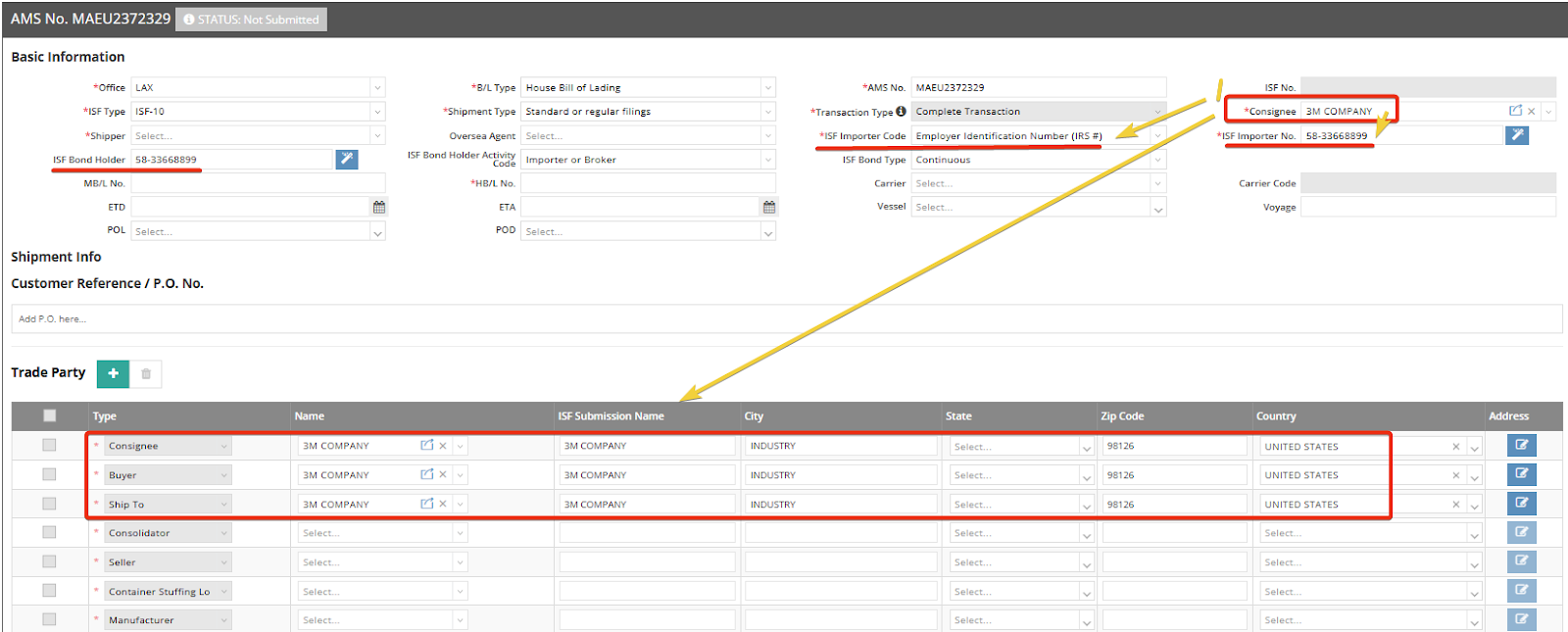
- Shipper: Select the Shipper from your Trade Partner List
- ISF Bond Holder Activity Code: Select the appropriate code from the drop-down list for your ISF.

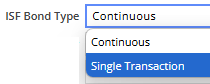
- ISF Bond Type: Select the bond type of this ISF bond holder.
- Single Bond: Choose Single Transaction
- Annual Bond: Choose “Continuous”
- MB/L No. (Master Bill of Lading Number): Fill in based on AMS data received.
- HBL No. (House Bill of Lading Number): Input the HBL No. based on AMS data.
- The rest of the fields are optional, such as ETD, ETA, and voyage information.
ZONE2 Shipment Info
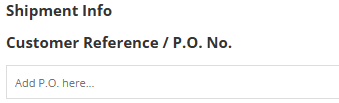
Customer Reference / P.O. No.
This field allows you to input the customer reference or purchase order number, which is optional.
ZONE3 Trade Party
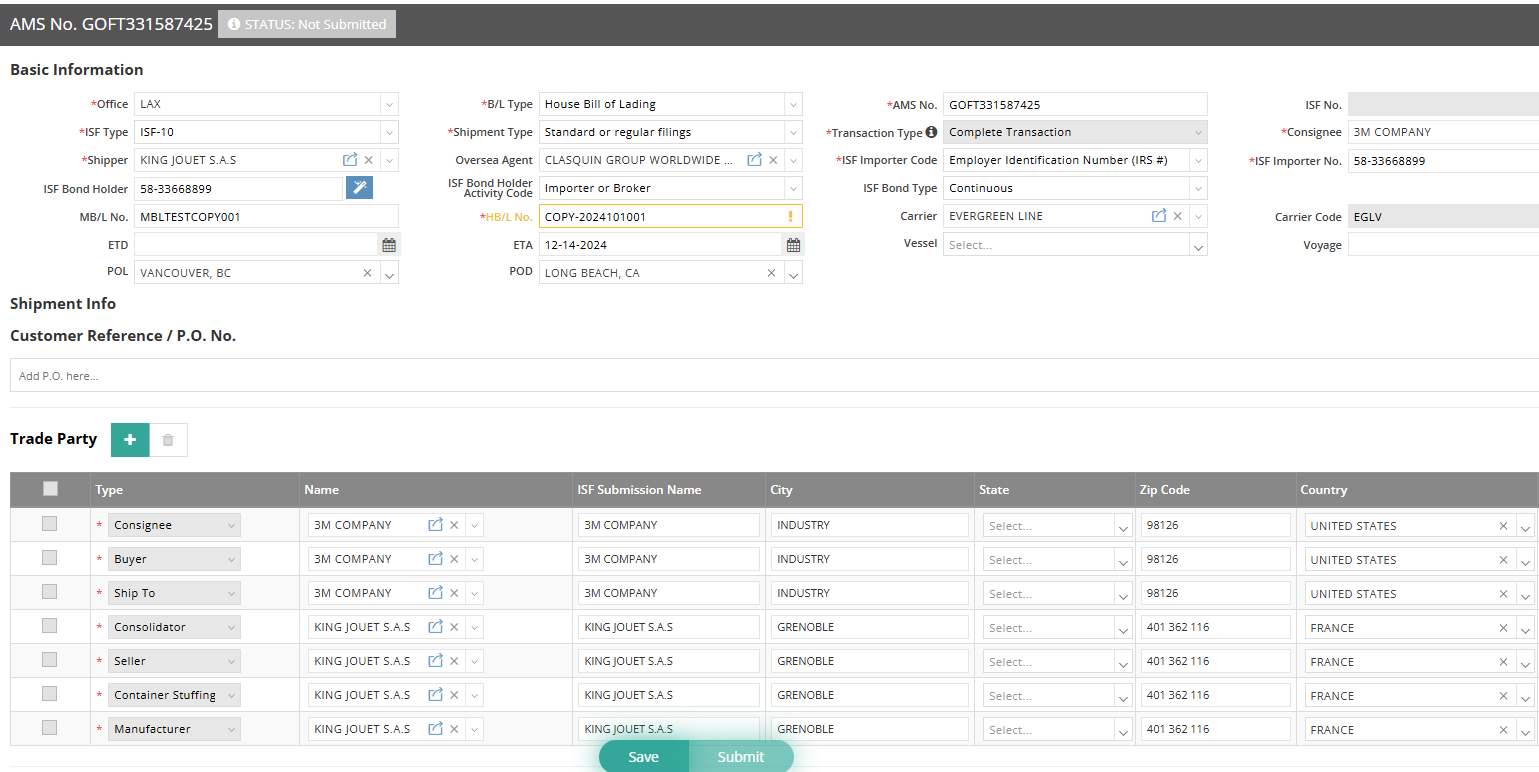
- The fields Consignee, Buyer, and Ship To will be automatically filled out once you select the Consignee in the Basic Information section.
- The fields Consolidator, Seller, Container Stuffing, and Manufacturer are synchronized with the Shipper information selected in the previous section.
Note: The Zip Code and State fields are required if the Trade Partners are located in the United States, Canada, China, or India.
- If the Zip Code is already saved in the Trade Partner data, it will be automatically synchronized.
- For State, please input it manually when dealing with Trade Partners from or to these four countries.

After filling in all the required fields, click the "Save" button to store the entered data. Once you have confirmed all entries are correct, click "Submit" to send the ISF to CBP.

Field Restrictions for Compliance with CBP Regulations:
- Does not accept symbols:
- AMS No.
- HBL No.
- ISF Submission Name
- Address Info
- AMS No.
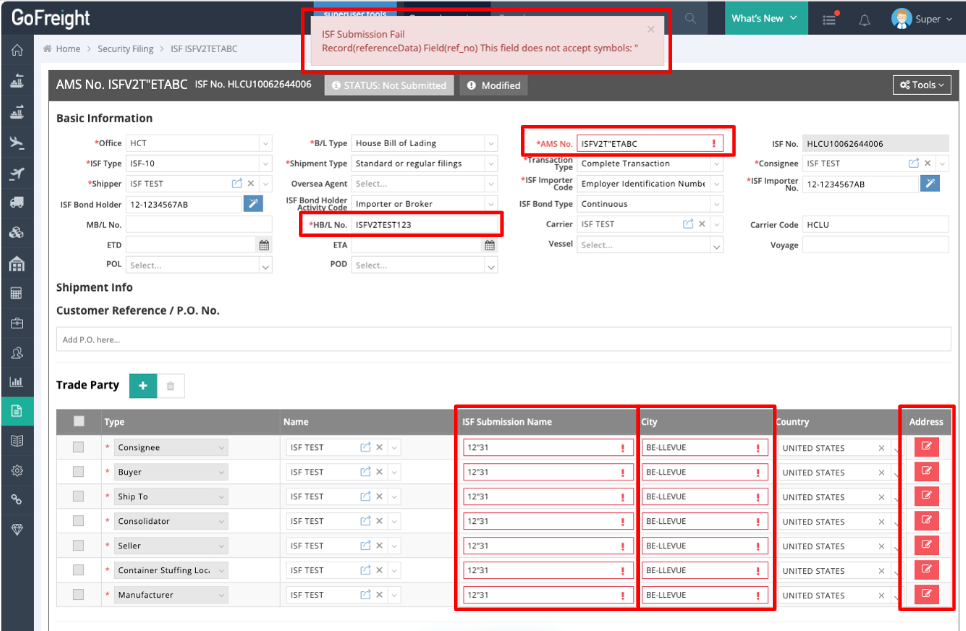
Only allows alphabetic characters (A-Z, a-z) and numbers (0-9):
- If you encounter a failure when submitting, please ensure that there are no special characters, such as slashes (/), dashes (-), or European characters (e.g., ä, à, â).
City: Only alphabetic characters and numbers are allowed.
User Operation Log:
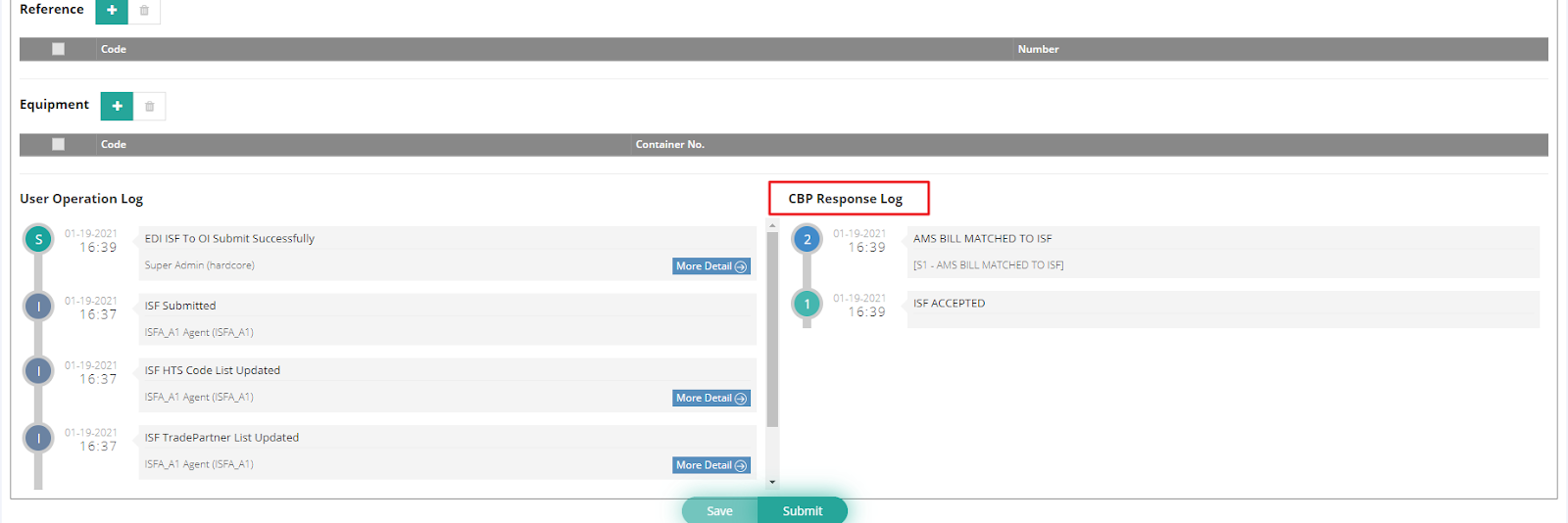
At the bottom left-hand side of this ISF page, the User Operation Log records all history related to this ISF data. You can click "More Detail" to view detailed information on the edits.

How to Read the Status on the ISF Page
Method 1:
Click "Submit" and generally wait 5~10 minutes; the status will be displayed at the top of the ISF entry.

You can also view the CBP Response Log at the bottom right corner; all responses will be displayed here.
Method 2:
You can also verify your ISF files in the “ISF List” for an overview, with each ISF's status shown in the “Status” field. Click on the navigation bar and select Security Filing > ISF List.
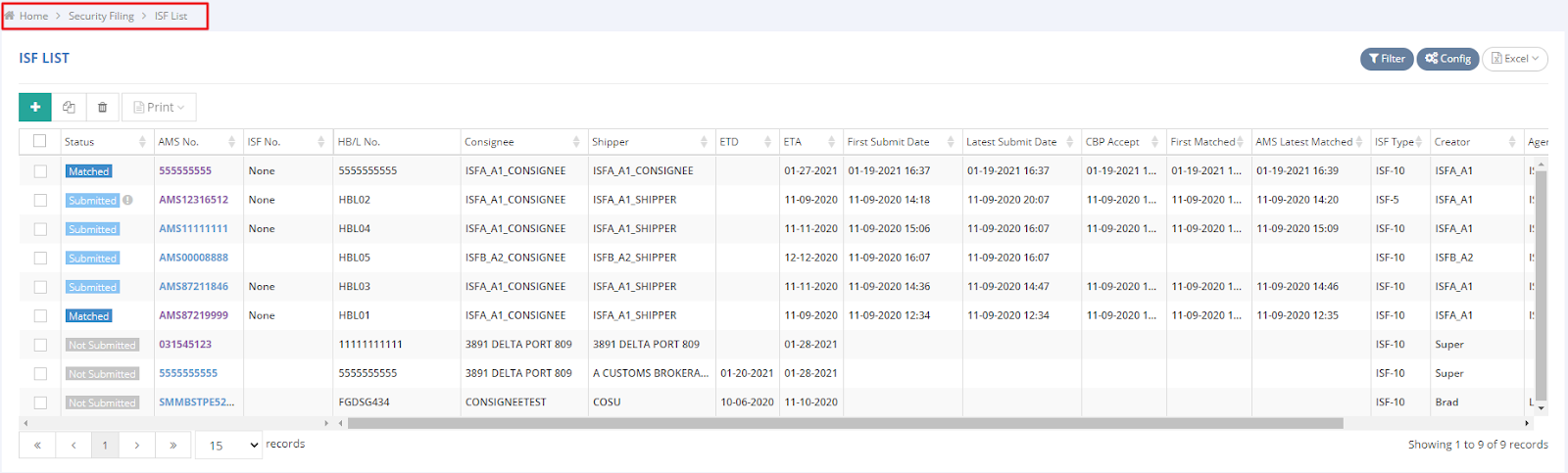
The following are different receipt statuses:
 STATUS: Matched = This ISF has been matched with the AMS.
 STATUS: Not Matched= ISF submission information is inconsistent with AMS; please confirm with the AMS submitter.
 STATUS: Rejected: The information submitted is incorrect and cannot be accepted. Please refer to the CBP error code manual to modify it and resubmit.
 STATUS: Submitted: The ISF has been sent. If there is no update after 10 minutes, please email support@gofreight.com . Note: This does not apply if the CBP ACE system is undergoing maintenance, including regularly scheduled maintenance on Sundays.
 STATUS: Accepted: This ISF has been received by CBP. If the status does not update to "Accepted" after 5-10 minutes, please email support@gofreight.com. Note: This does not apply if the CBP ACE system is undergoing maintenance, including regularly scheduled maintenance on Sundays.
 STATUS: Not Submitted: This ISF has not been submitted to CBP.
 STATUS: Deactivating= You have clicked "Deactivate," and it is pending CBP approval.
 STATUS: Deactivated: This ISF has been canceled by CBP. Please note that deactivated ISFs cannot be resubmitted. If you need to file the same ISF data again, you must create a new ISF entry.
Tools Drop-Down Menu
At the upper right-hand side of the ISF page, you'll find the Tools drop-down menu. This menu provides further actions you can take on the ISF.
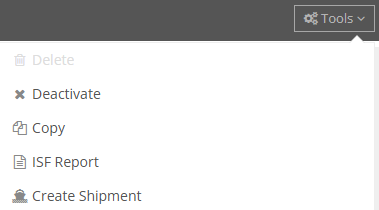
- Delete
Before submission, you can click "Delete" to remove ISFs.
Note: The submitted ISFs cannot be deleted, but only deactivated.
- Deactivate
After submission, if the ISF is confirmed as canceled and will no longer be used, you can click "Deactivate."
Note: Canceled ISFs cannot be resubmitted, and you must create a new ISF to submit.
- Copy
By clicking "Copy," the system will duplicate the ISF, allowing you to only enter the AMS No., HBL No., and MB/L No. This feature saves time by eliminating the need to re-enter repeated information. - ISF Report
After clicking, the system will display the ISF Report preview page, where you can download and print the PDF.

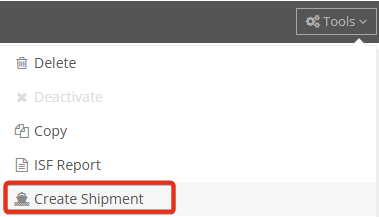
- Create Shipment
You can select “Create Shipment” to generate an HBL without retyping information such as MBL, HBL, AMS, Consignee, etc.
Create a Shipment from ISF:
Once the ISF is “Accepted” and shows "Matched" from CBP, go to Tools > Create Shipment to generate a shipment directly. This helps avoid double data entry and brings over all ISF information into the shipment.
- Select “Create Shipment” from the drop-down menu under “Tools.”
- A pop-up window will show the MBL and HBL no. for the new shipment. Click OK to proceed.

The page will then redirect to the Ocean Import shipment with the newly created MBL and HBL.
If the original ISF did not include an ETA, please select the ETA date and click "Save" at the bottom of the page.
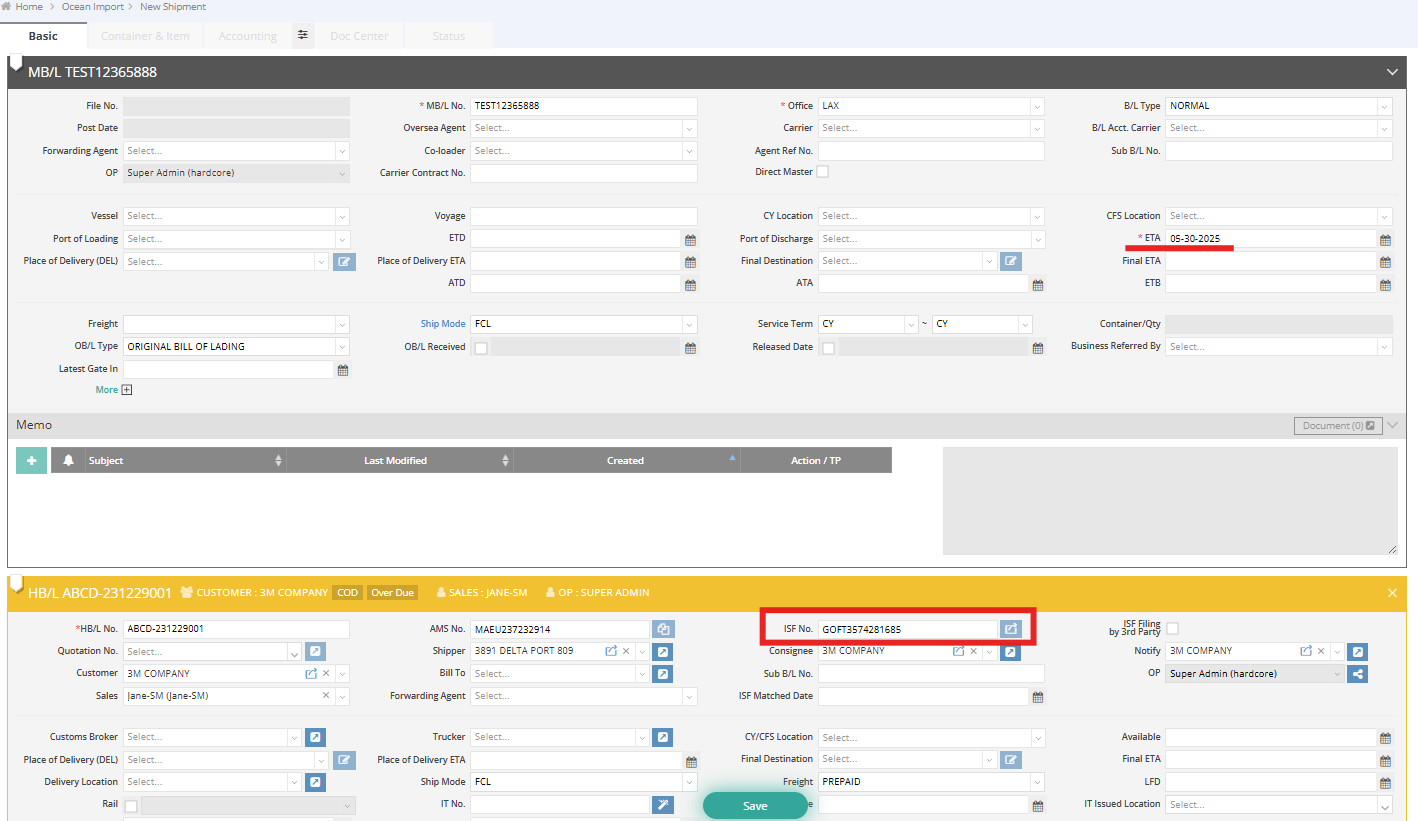
The ISF No. will also be displayed in the HBL. You can click the icon at the end of the ISF No. field to view the ISF.

Create an ISF from the Shipment
Alternatively, GoFreight allows you to create a shipment first in the Ocean Import module and then submit the ISF directly from the shipment entry page.
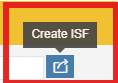
To do this, click the 'Create ISF' icon next to the ISF No. field, and you will be directed to a new ISF page with the basic shipment data pre-filled."

Once all data has been confirmed, click “Save” and “Submit” this ISF to CBP.
For a visual guide on this feature, please refer to the following video: